





General Introduction
In scripting, there are some predefined terms that can be used. Each action contains at least one action, which in turn can have multiple commands.
Note: Scripting can achieve a lot, but it's worth saving working intermediate states, as something can quickly stop working as intended. If this happens, simply reload the config (cfg.xml) that you had saved back onto the module.
Attributes and their meanings
- value mostly serves as an operator
- pinID: ID of a pin
- ms: millisecond time specification
- intValue
- msInterval
- group: grouping in the interface (control panel)
- type determines whether it's a number, character, or color
- actionID: ID (name) of a function, trigger, or timer
- varID: use of the value of a parameter or other action
Valid operators for Value
For setIO:
- greater >
- less <
- equal =
- not equal - random #
- multiply - set red green blue R,G,B - random R,G,B r,g,b For set: - random # - multiply
- greater >
- less <
- equal =
- not equal - subtract (can be used when creating a kind of for loop) -
- add (can be used when creating a kind of for loop) +
Each script window has 4 buttons on the side for operation:
Commands
The commands apply to all actions and are always set up the same way. To enter a new command, press the + button in the script window.
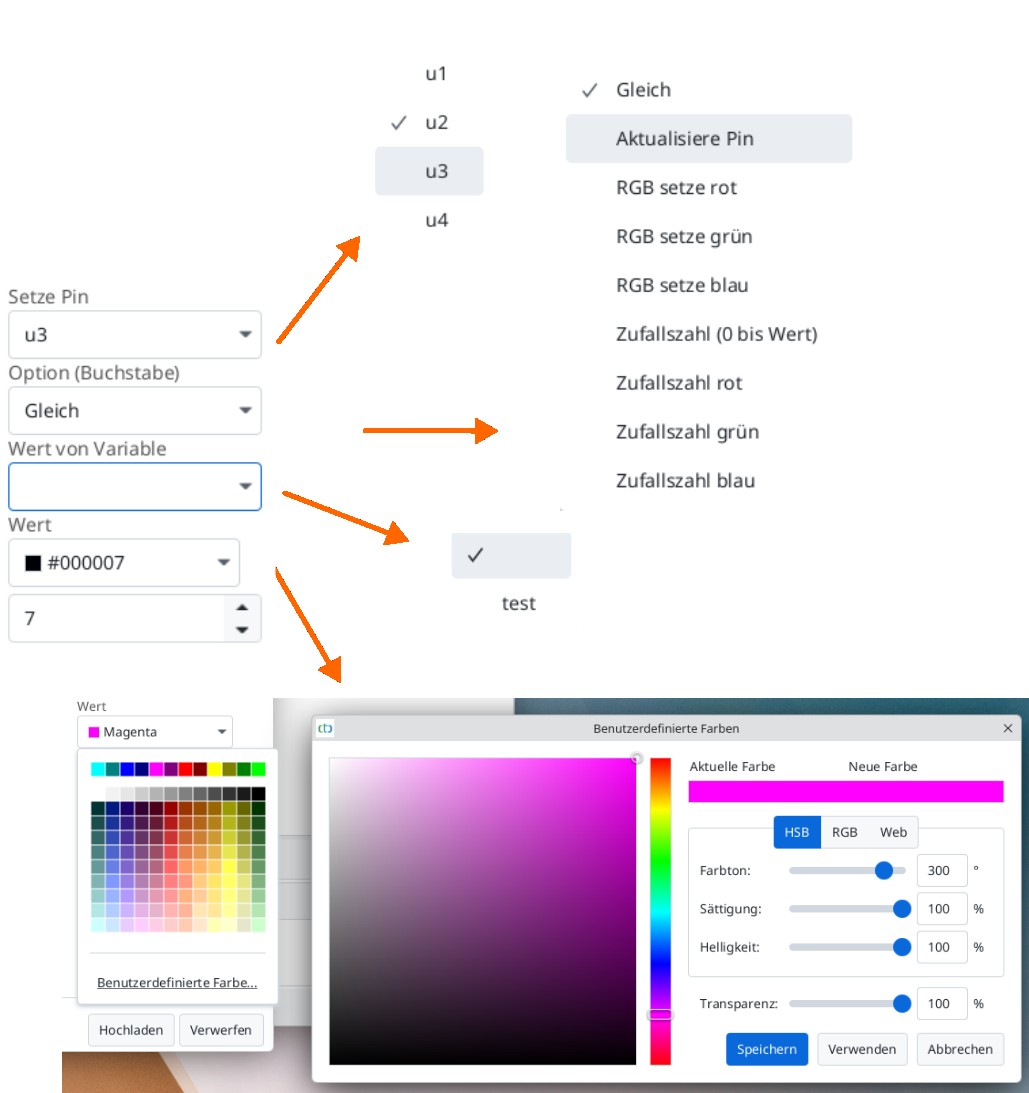
If a pin has been set, the settings on the right change again. Via a dropdown menu, one of the pins can be selected. In the next field, an extended option can be chosen. After that, the value can be taken from a variable (parameter), a color picker, or entered manually as an intValue to specify the color.
Caution: Only parameters with the correct data type are displayed.
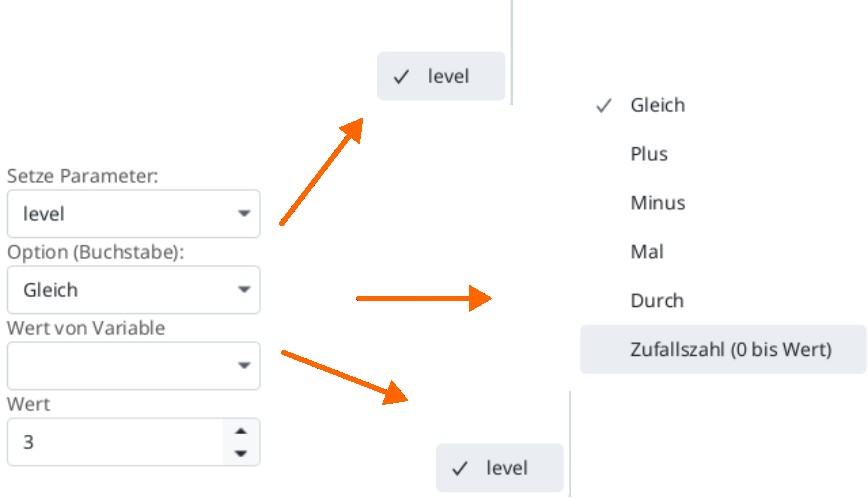
If a set command has been used, the dropdown menu offers the selection of all available parameters. If none exist, a new one must be created (see Create New Parameter ). After that, the options for the parameter can be specified. Here too, as with the pin, a value can be read from a variable (parameter) or entered manually. Parameters are only displayed if they have the correct data type.
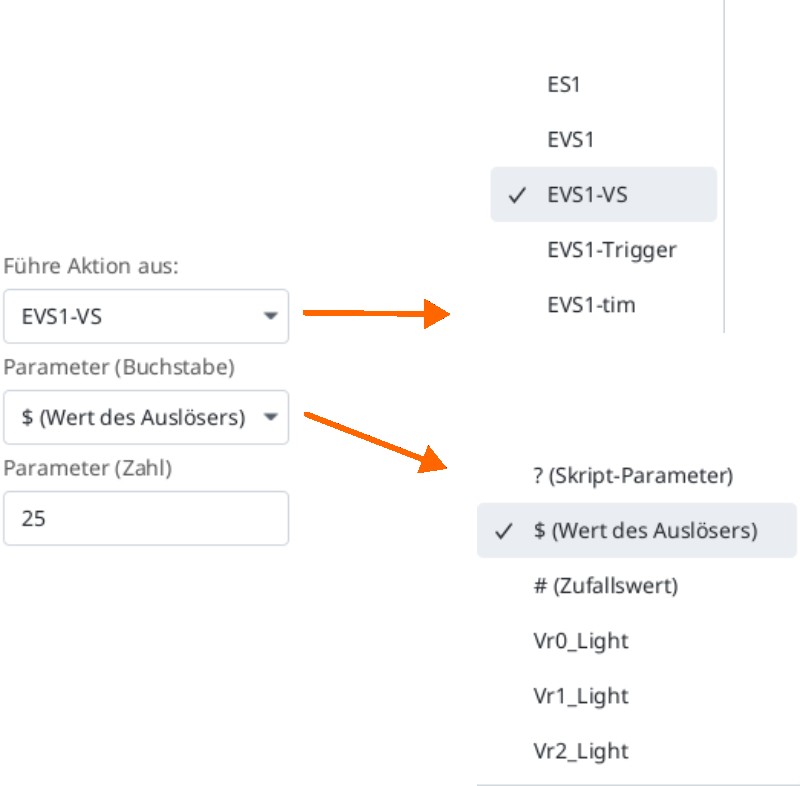
With a call, an action is selected via the dropdown menu. The next menu decides which state of the selected action to access. Finally, a value can be passed to the desired state. Both influence the states in a specific way.
TODO: Table of different states
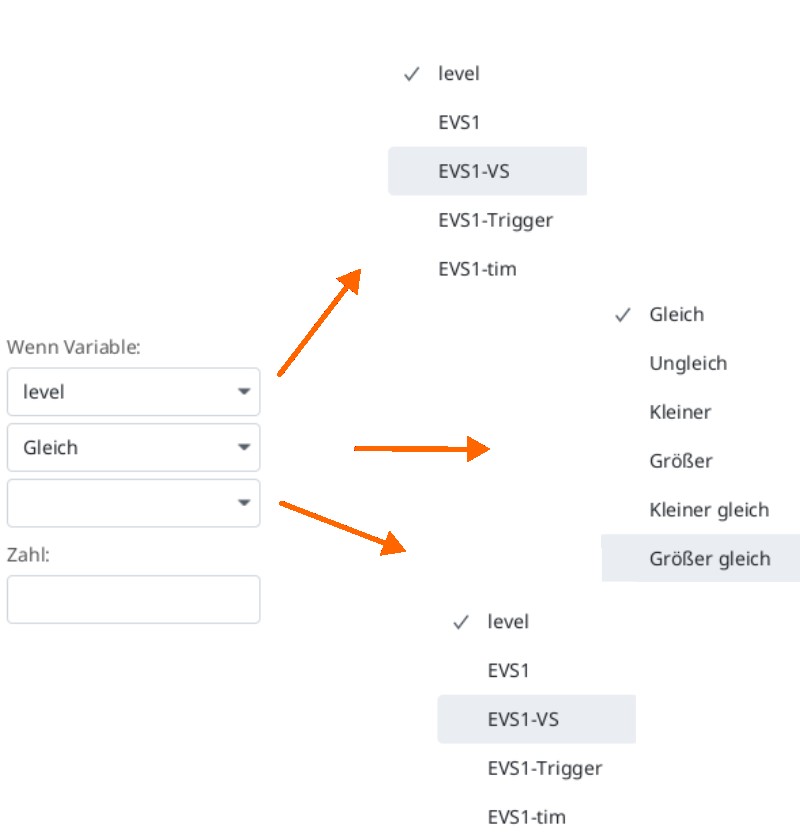
With if, a triggering condition is selected here, a variable. Next, the operation is selected. As the third step, the value to be compared is entered via a parameter or a number. The trigger is an exception, as the third step expects a character or letter instead of a number.
With else if, a triggering condition is selected here, a variable. Next, the operation is selected. As the third step, the value to be compared is entered via a parameter or a number. The trigger is an exception, as the third step expects a character or letter instead of a number.
Note:
- The commands "call" and "if" represent nesting. If the nesting of a script exceeds 10 levels , it will be aborted with an error from CTC-App 4.40 and firmware 20250627.
- The processing of scripts and state changes is documented in the file "4242Action-Log.csv4242" starting from CTC-App 4.40. This file is located in the data folder of the CTC-App and is recreated (overwriting old content) every time the CTC-App starts. It can be conveniently viewed with LibreOffice Calc (Excel may work, but not necessarily).
Note:
- delay is deprecated, although still visible when connecting to an old module.
Create New Parameter
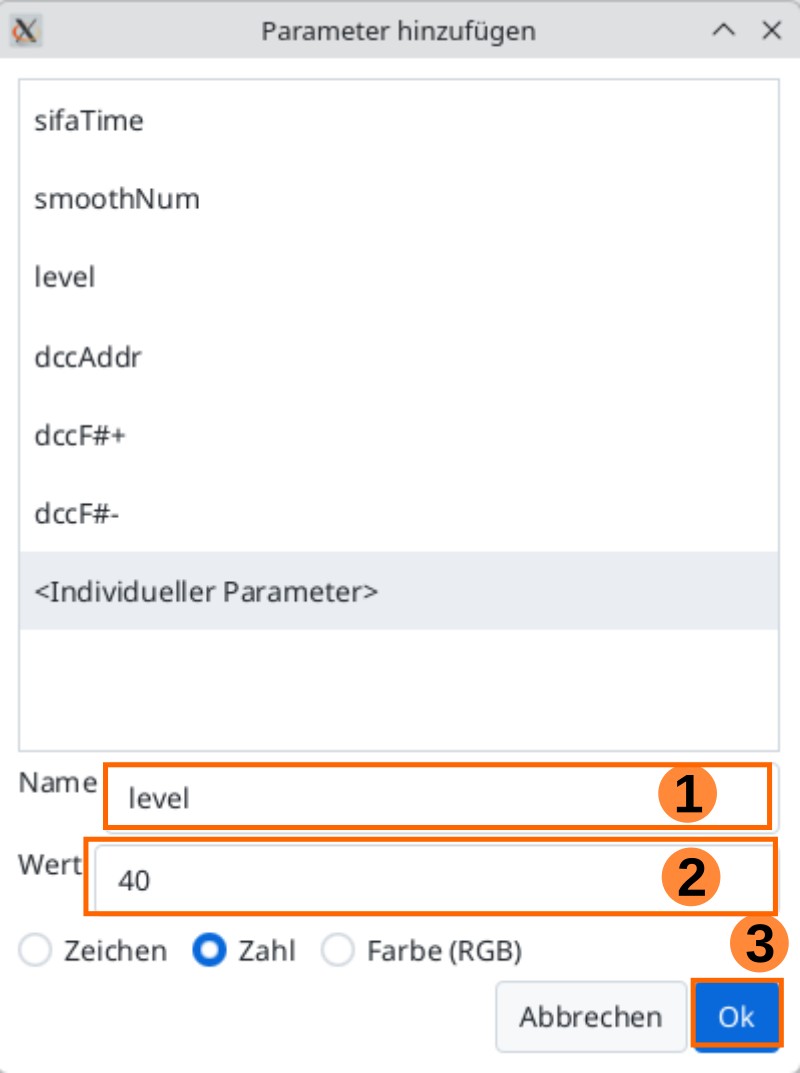
To create a new parameter, press the plus button in the upper table
Enter the name of the new parameter. Then, a value can be specified along with its type. Finally, confirm with OK and the new parameter can be used.
Functions
In principle, each product has at least one preset function; otherwise, it wouldn't do anything. However, you can change or extend these using scripts. To do this, you must first go to the script window.
In the upper part of the window, basic details are recorded, such as the name of the function, the group it belongs to (default SignalTower), the type it belongs to, and its default state.
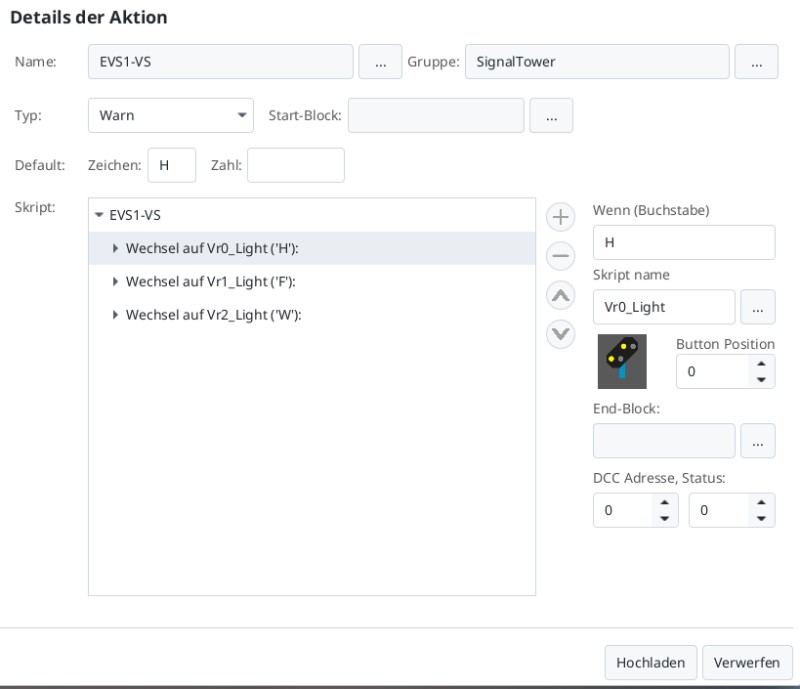
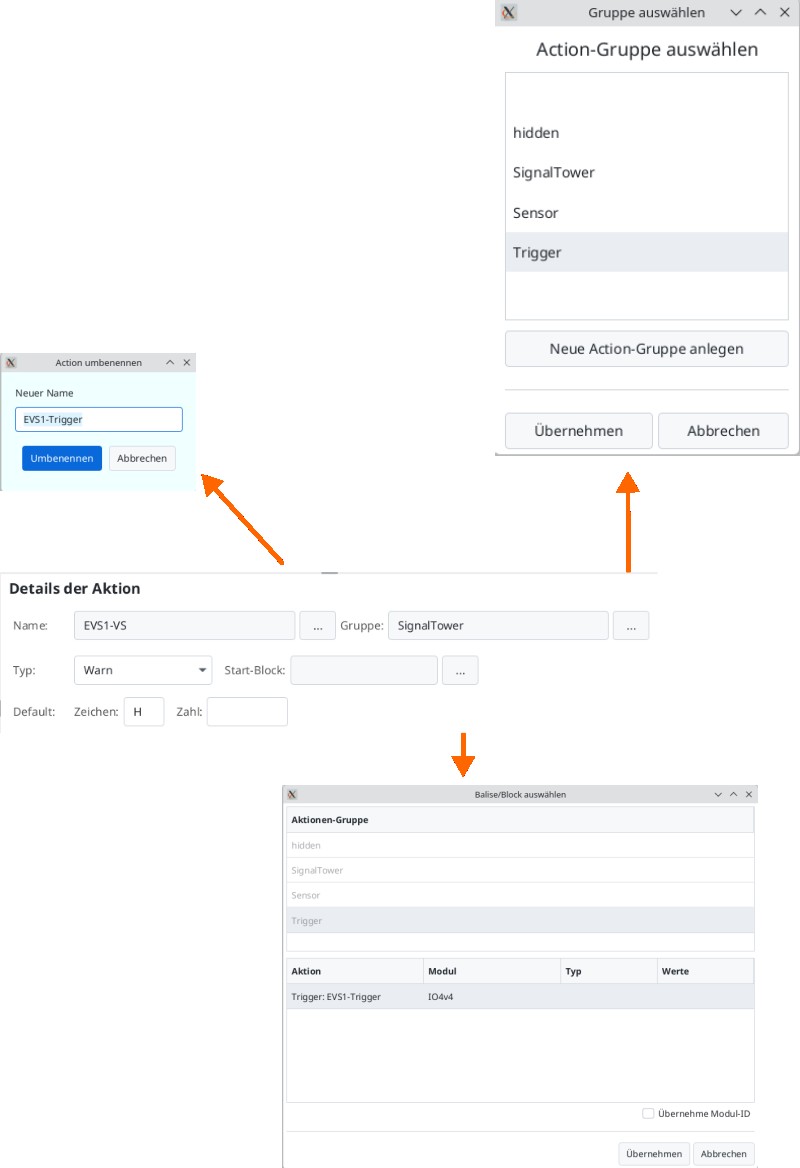
Below that comes the actual script window where programming takes place. By pressing the Add button, if the function is marked, a state can be added. If an existing state is marked, the same button can be used to add a command. Now, there are also settings for the state on the right side.
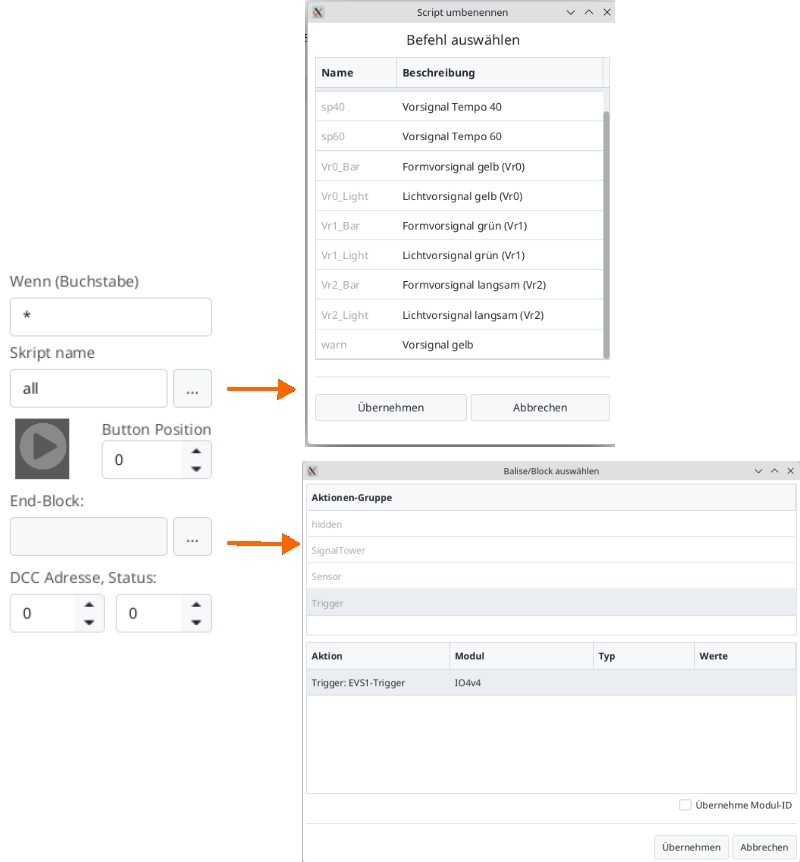
First, you can determine under which character (letter) or number the state is addressed. Next, a name can be given to the state. Below that, a symbol can be assigned, which must have the same name as the state. Next to it, the position is specified. These two entries are visible as control elements in the app in the correct group. At the very bottom, DCC can be specified if it is to be controlled via a digital control center (tested with mc² central station).
Timer
The timer comes into play whenever something is supposed to happen repeatedly.
Note: A timer always runs in the specified cycle. However, it can also be called as a single-shot, in which case it runs through exactly once.
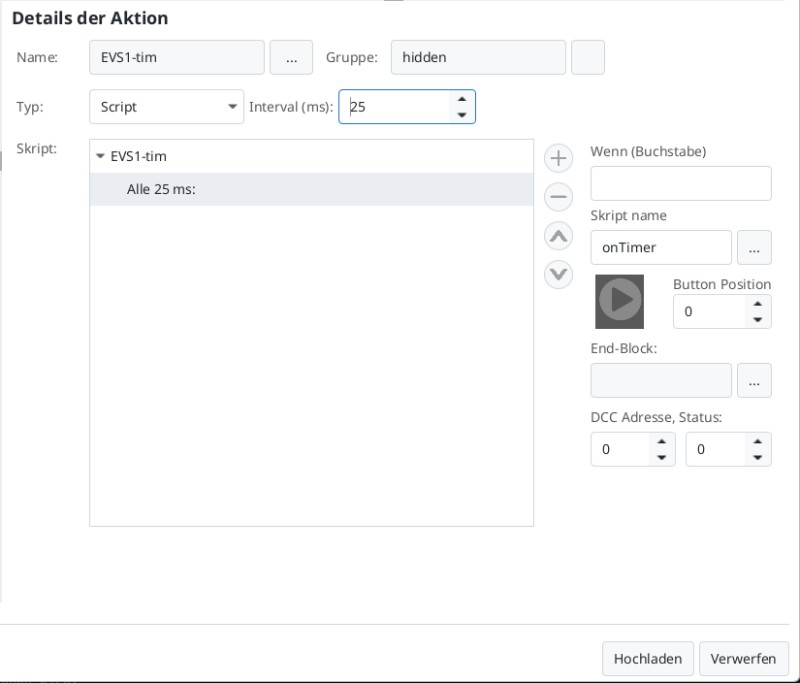
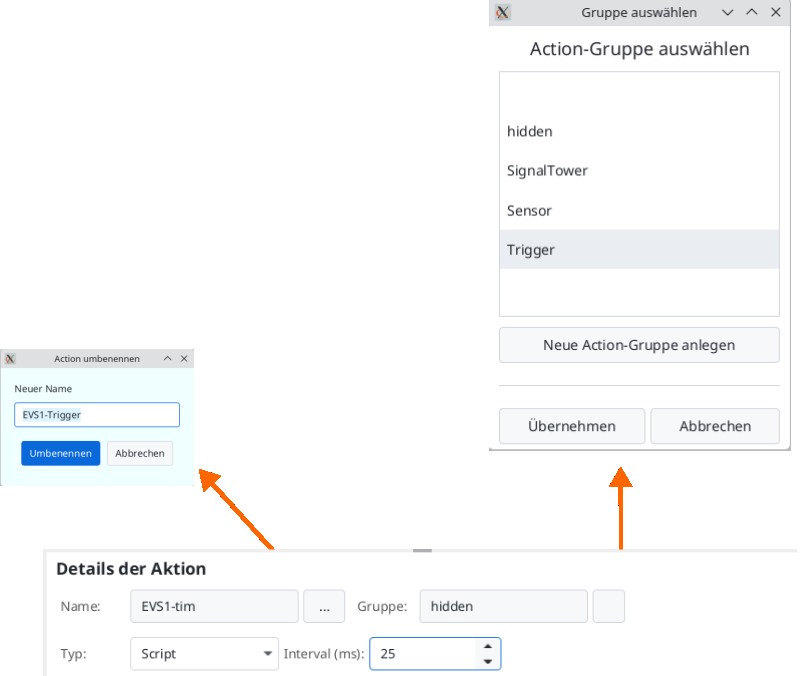
In the upper part of the window, the name of the product is displayed with the "-tim" suffix. The default group is "hidden". Next, the type is specified, here as default Script. Then, the duration of the timer cycle is specified in milliseconds. For a single shot, this value must be 0.
Below that comes the actual script window where programming takes place. By pressing the Add button, if the timer is marked, nothing can be added. If the time is marked, the same button can be used to add a command. Now, there are also settings for the state on the right side.
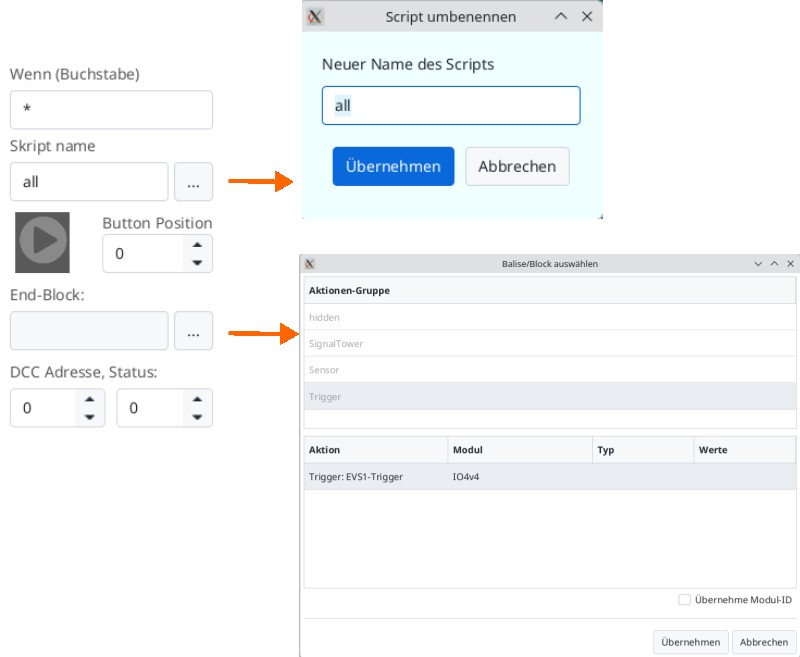
First, you can determine under which character, letter, or number the state is addressed. Next, a name can be given to the state. Below that, a symbol can be assigned, which must have the same name as the state. Next to it, the position is specified. These two entries are visible as control elements in the app in the correct group. At the very bottom, DCC can be specified if it is to be controlled via a digital control center (tested with mc² central station).
Trigger
The trigger is used when one product is supposed to influence or trigger another, such as a beacon, signal, or distant signal.
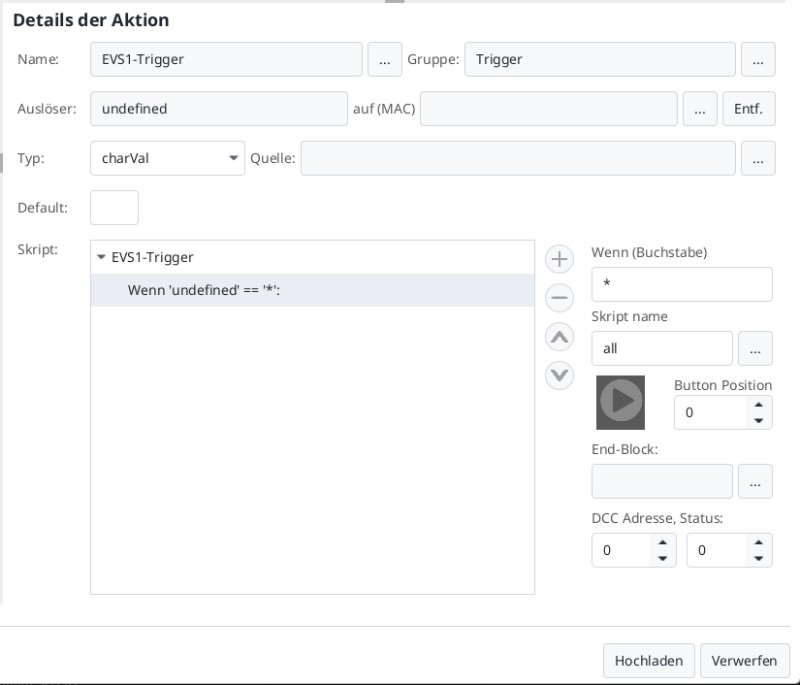
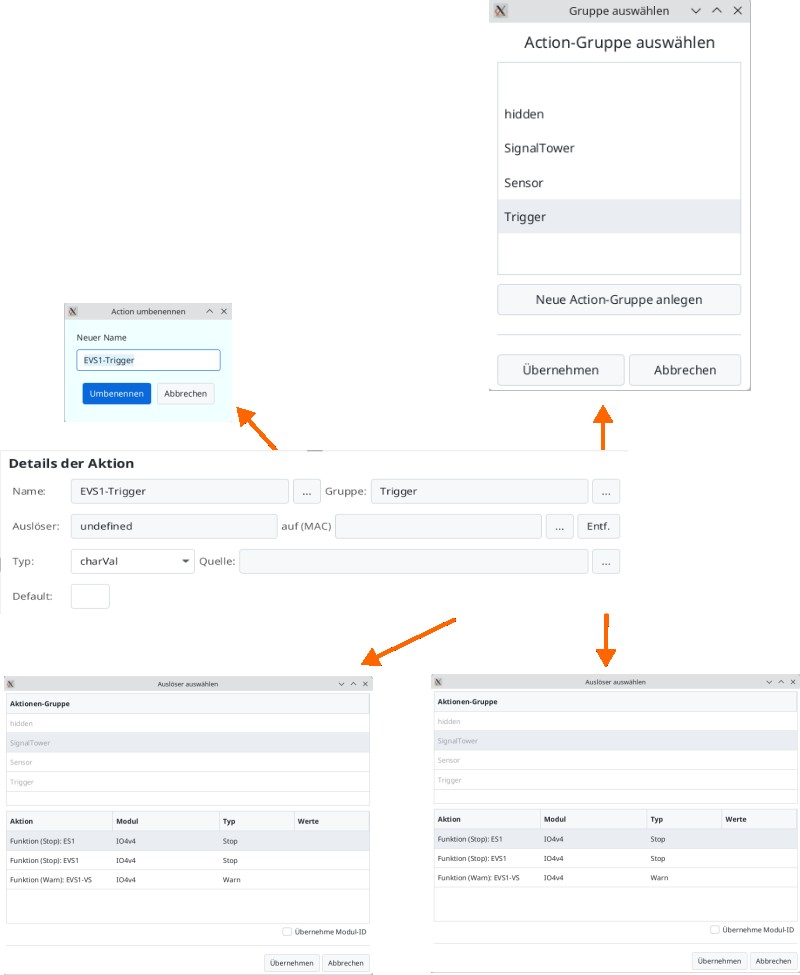
In the upper part of the window, the name of the product is displayed with the "-trg" suffix. The default group is "Trigger". Next, the trigger source is selected. This can be a beacon or another signal. In the window on the (MAC) tab, a locomotive can be directly assigned that triggers a beacon. Otherwise, with a beacon, it is always triggered when something passes over it. Next, the type is specified, with the default being charVal. Finally, a source and a default value can be specified, but both are empty by default.
Note: Triggers do not fire immediately but in an unknown order, so ensure this does not cause problems.