




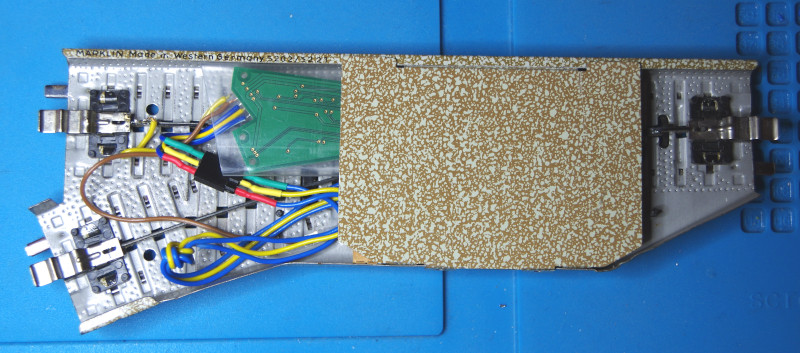
In this article, I will show you how to install a CTC-Turnout-Module with the part number WI-M-4L-U into a Märklin M-track.
First, we solder suitable connectors to the CTC-Turnout-Module: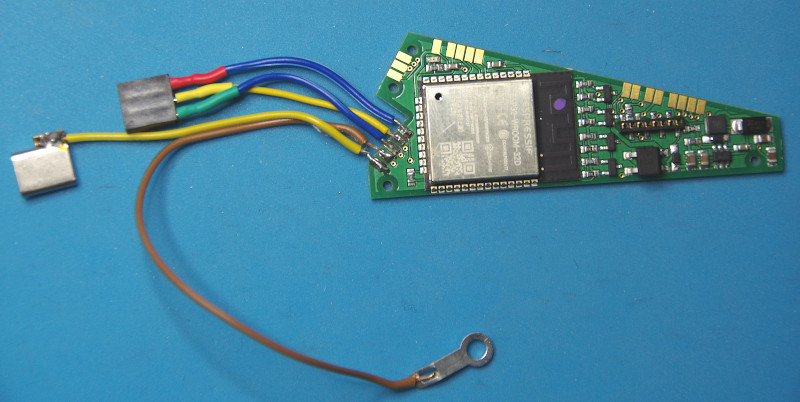
Note: The version shown in this photo is an older version of the CTC-Turnout-Module that was not yet suitable for alternating current (AC) because the support capacitor was missing (see also the note at the end of the article).
As with the conversion of old locomotives, care must be taken to ensure that all connections to the track are protected by a diode. Otherwise, you risk irreparable damage to the CTC-module.
In the case of our M-track turnout, the lamp on one side is connected to the electromagnet drive and on the other side directly to the track. To protect the electronics, we install a diode in this connection: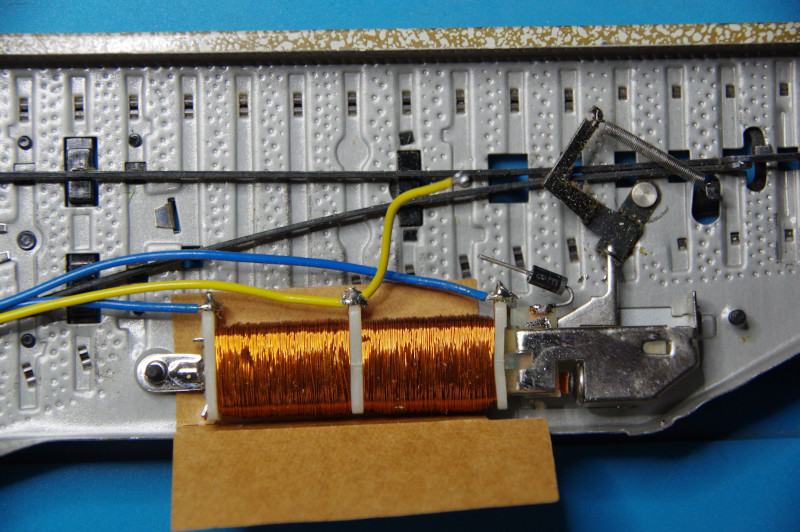
We obtain one track contact (ground) via a solder lug under the fastening of the turnout drive (brown wire). The other track contact is either via the known clips or, as we did, by soldering to the center conductor (yellow wire). The turnout drive itself is connected as usual via the yellow and the two blue wires: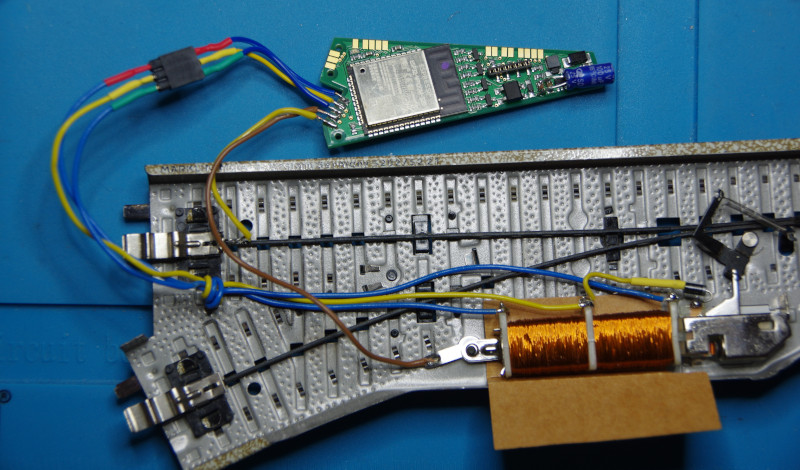
CAUTION: For operation with alternating current (AC) as supplied by classic Märklin transformers, the CTC-module must absolutely be supplemented with a support capacitor , as shown in the image above (blue component).
Now the CTC-module is pushed into a heat-shrink tube and can then be clamped under the cover of the turnout drive, as shown in the introductory image.
CTC-module to connect to WiFi
If the CTC-Turnout-Module is not yet connected to the model railway WiFi, you must do this first. You can find the instructions in the user manual in Chapter 3.1 "Connecting modules to WiFi" .
Open configuration
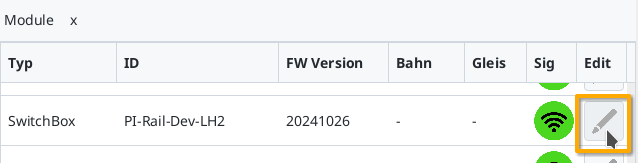
A connected CTC-Turnout-Module can be found under its name in the module list in the CTC app. There, click on the pencil icon to open the "switch cabinet configuration".
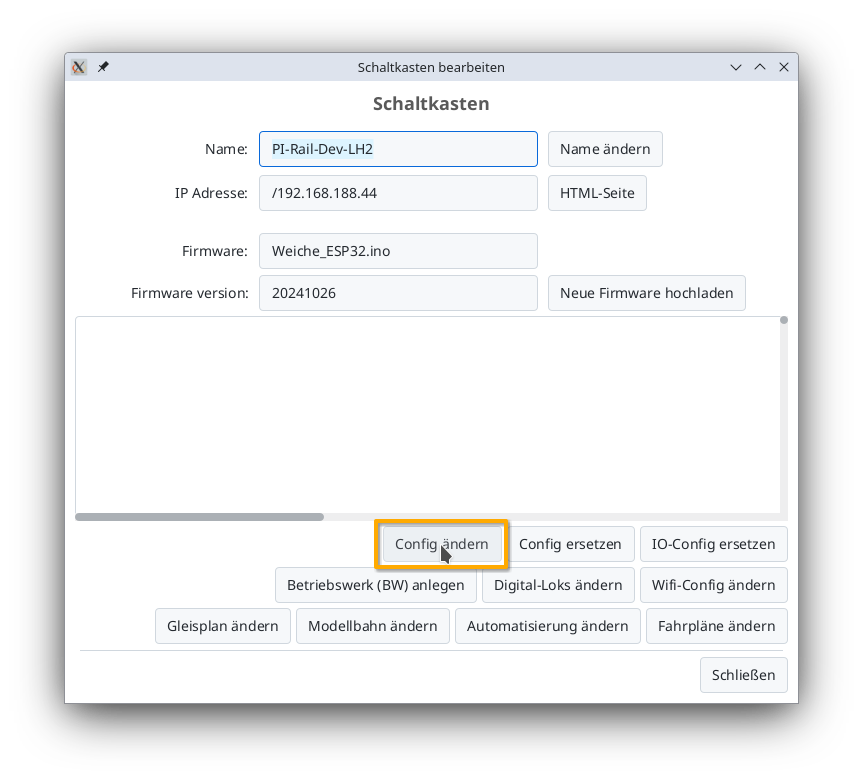
There, click on the "Change config" button:
Add product
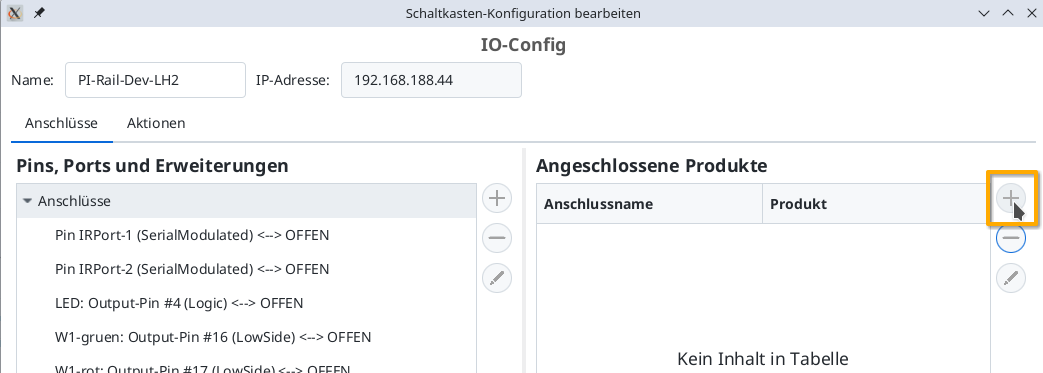
In the config dialog, click on the plus button to the right of "Connected products" to select what product you have connected:
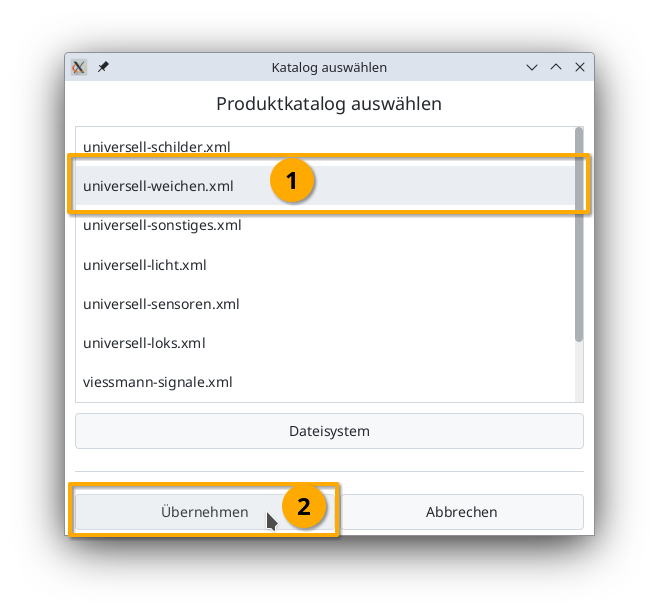
Select the product catalog "universal-turnouts" and then click "Apply":
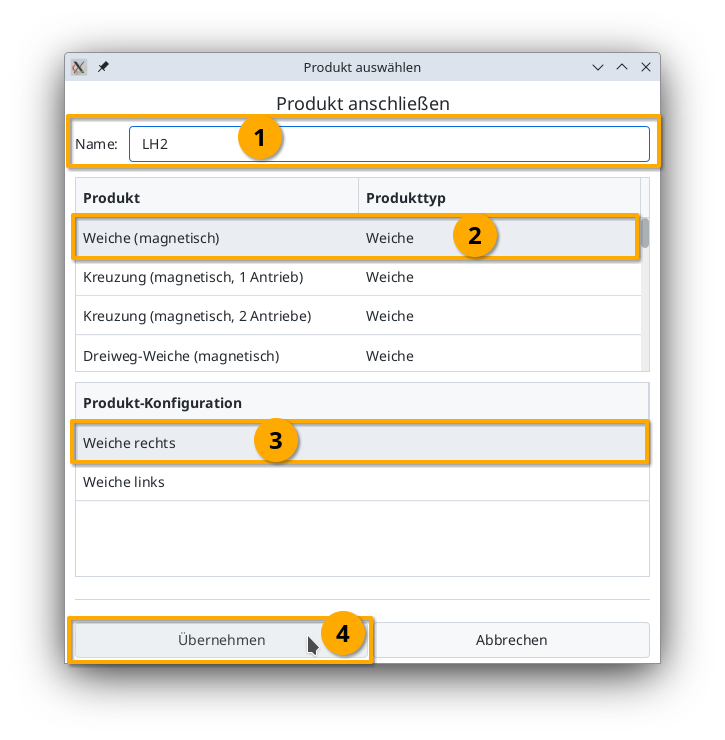
Give your turnout a meaningful name and select the appropriate product and product configuration. Then click "Apply":
Connect product
Now you need to specify which connections of the CTC-module the turnout is connected to. The connector used above is soldered to "W1-green" and "W1-red". Select "W1-green":
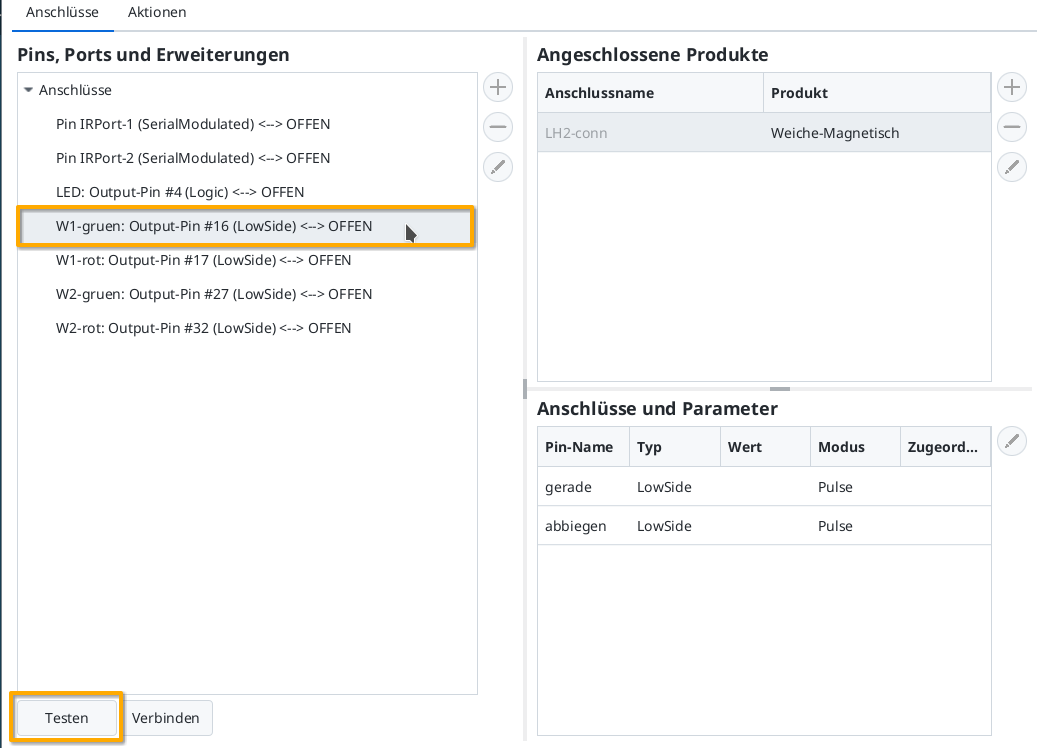
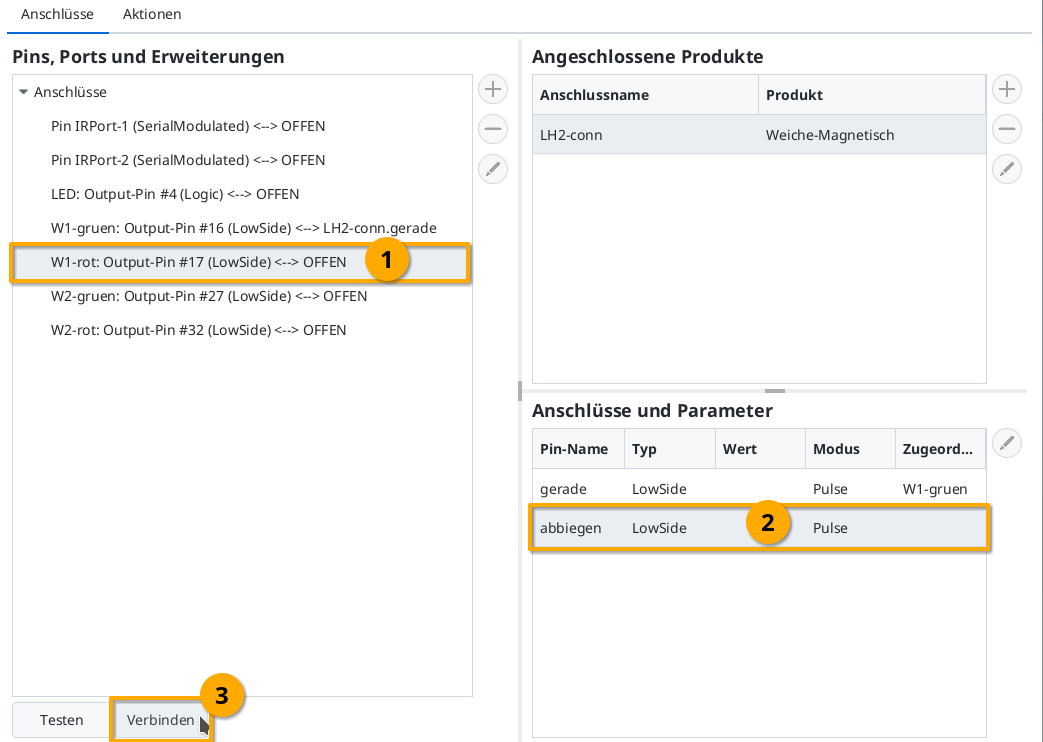
Then you can click the "Test" button to check whether the turnout switches and in which direction. In my example, W1-green switches to straight. That's why I now select the "straight" line under "Connections and parameters". By clicking "Connect", you assign the left-marked "W1-green: Output-Pin #16" to the connection "straight":
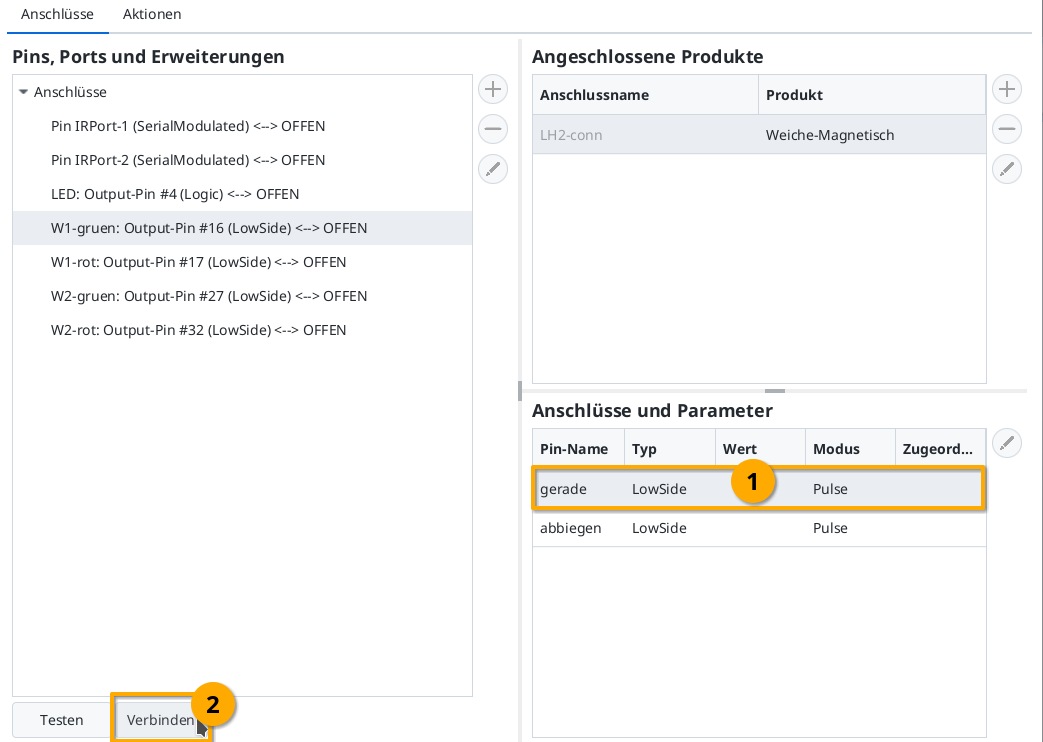
Then connect "W1-red" (Output-Pin #17) to the connection "turnout" in the same way:
Upload configuration
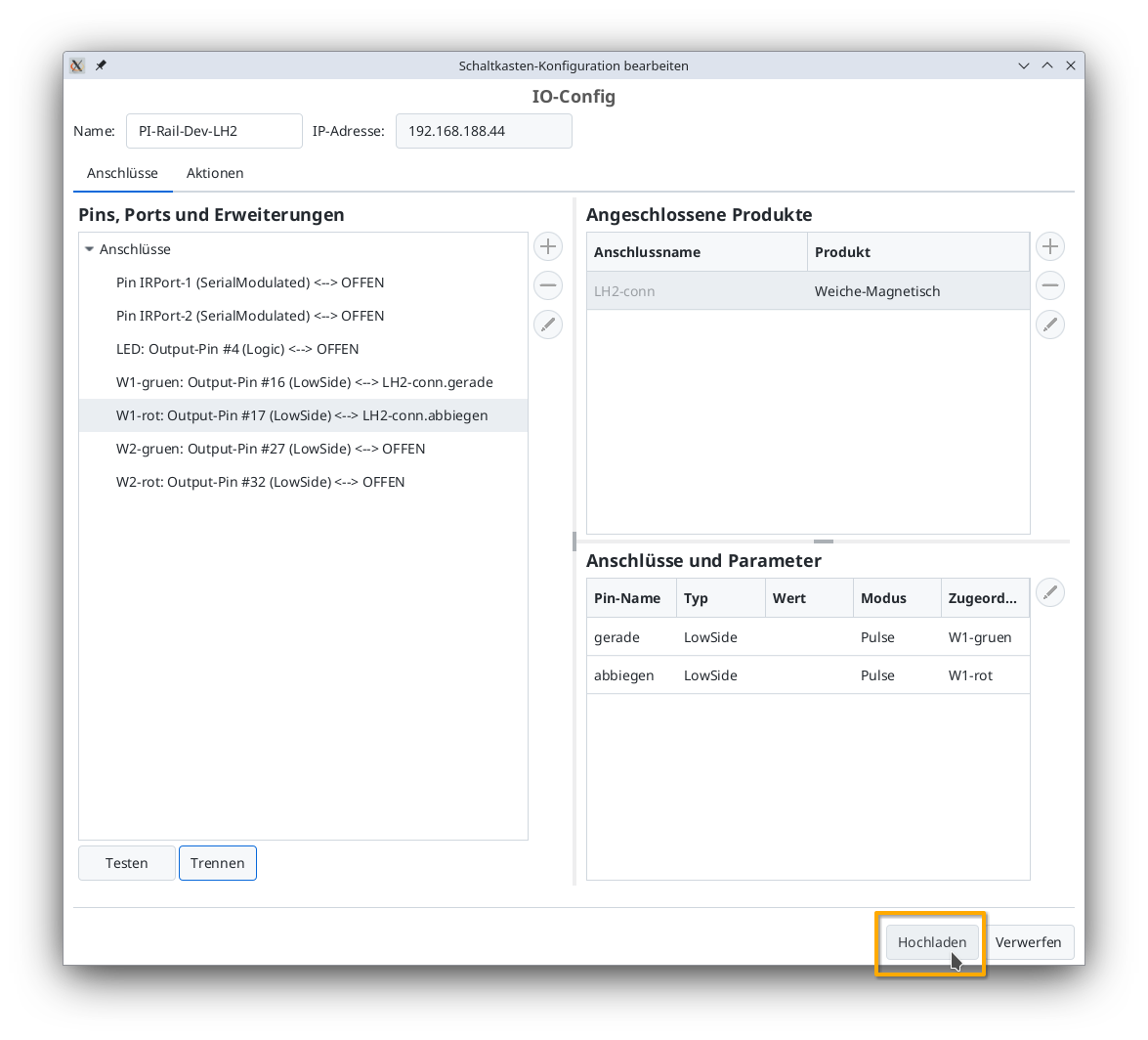
Once all pins are connected, you can click the "Upload" button to save the changes to the config on the CTC-Turnout-Module:
The CTC-Turnout-Module will restart.
Turnout in the signal tower
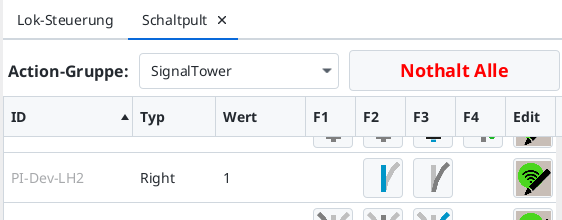
After a few seconds, the newly configured turnout appears in the signal tower: