





Note: If you have purchased our WiFi enrollment service , we already know your WiFi name (SSID) and network identifier (WiFi password), and you will generally receive your new CTC modules preconfigured. You do not need to enroll them again and can proceed directly to "Chapter 4 - Configuring Modules" . The WiFi enrollment service is included with all CTC starter sets and CTC-Routers .
There are three ways to enroll modules:
- The first method may be familiar from many other WiFi-enabled products: You connect to the CTC module’s configuration WiFi and enter your WiFi details in a browser form.
- The second method is more convenient via the CTC app, but often fails under Windows due to the operating system’s stubbornness.
- From firmware 20260105 (CTC-App 4.46), CTC loco modules can be temporarily enrolled (as a guest) in a WiFi network using a balise, see Chapter 3.6 "Temporary WiFi" .
Notes:
- Up to firmware 20230329, the length of password and SSID was limited to 20 characters. Newer firmware adheres to the WiFi standard: SSID (32 characters), WiFi password (63 characters).
- CTC modules indicate their status via blink codes on the status LED or front light, see Chapter 3.3 "Module Status Indicators" .
Prerequisites
To ensure enrollment works, regardless of the method described in the following sections, please observe the following:
- For CTC loco modules, the supplied buffer capacitor must be connected , especially if the power supply comes from a digital command station or an old transformer.
- At the location of the CTC module, there must be good WiFi reception from the model railway WiFi network – ideally place the router (or a repeater) in the same room or within a few meters.
- For CTC loco modules, connect the front light if possible to view the blink codes (see Chapter 3.3 "Status Indicators" ).
Note:
- If problems occur, please also read the general introduction to WiFi (Chapter 3.3 "WiFi" ).
Enrolling with the CTC App (PC)
The CTC app can detect modules in configuration mode at the touch of a button and write the WiFi configuration to the CTC module. After writing the WiFi configuration, the CTC module automatically resets and then enrolls in the model railway WiFi.
A CTC module enters configuration mode if:
- it is a new CTC module (without WiFi configuration).
- it is already configured but cannot find its WiFi. In this case, it switches to configuration mode after one minute, waits two minutes for a connection, and then resets automatically.
You can tell if a CTC module is in configuration mode by its status indicator (LED or front light) being lit continuously.
Use the menu Settings/Search for New Modules to search for available WiFi networks:
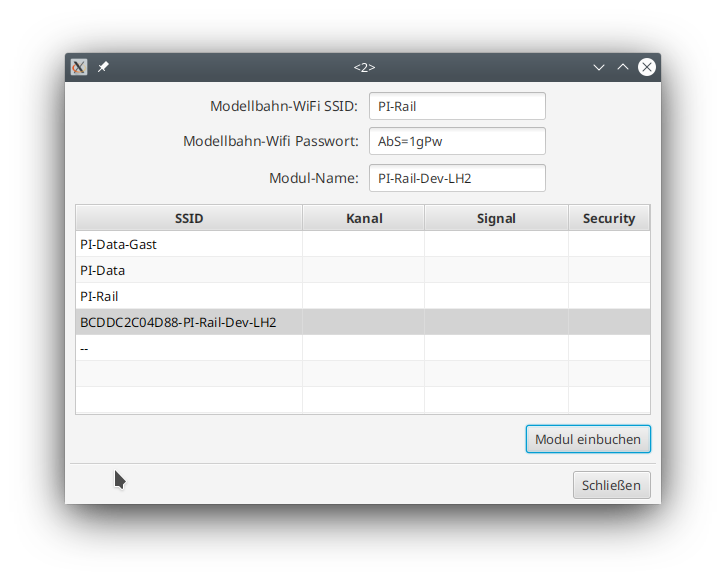
To enroll, enter the SSID and password of your model railway WiFi and, if possible, a name for the module. Then select the module and click Enroll Module .
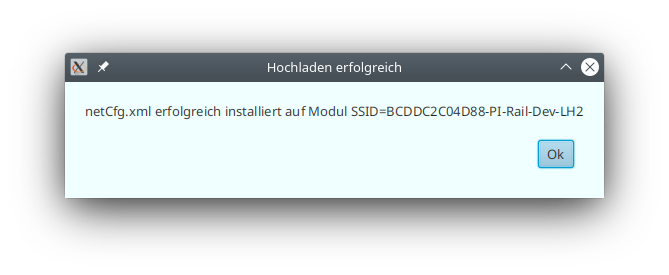
During this process, your PC/tablet/smartphone connects to the CTC module’s configuration WiFi and writes the configuration file netCfg.xml to the CTC module. As with all configuration changes, the CTC module resets itself and is then visible in your model railway WiFi.
Notes:
- Under Windows 10, problems may occur when activating the correct WiFi. If the CTC app displays the message "I/O error during upload," clicking the "Enroll Module" button a second time usually helps. If this does not work, you can perform the enrollment manually via the Windows WiFi management before clicking "Enroll Module."
- If the PC has no wired connection to the model railway network during enrollment, it loses its connection to the model railway network. Sometimes you will need to manually reconnect it to the model railway WiFi afterward.
Enrolling with the CTC App (Android)
This function is unfortunately only available up to Android 9 , as Google has decided to block access to the required operating system function (API) from Android 10 onward.
Notes:
- The global "Location" function must be enabled, as is also required for navigation apps.
- Depending on the manufacturer and Android version, the update of found WiFis can be very slow – Google claims this is to save power.
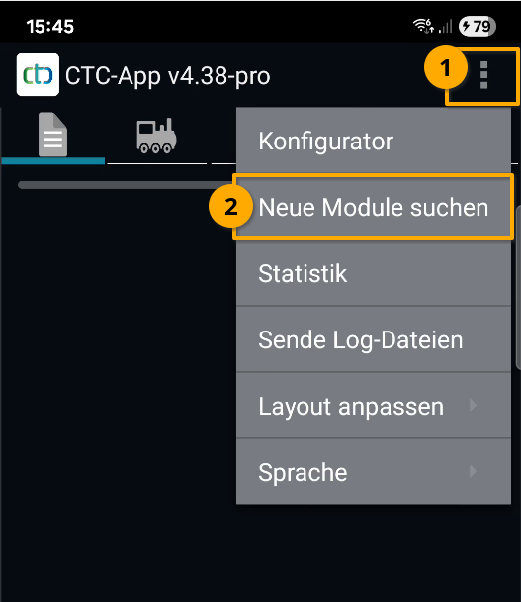
Use the menu Search for New Modules to search for available WiFi networks:
To enroll, enter the SSID and password of your model railway WiFi and, if possible, a name for the module. Then select the module and click Enroll Module .
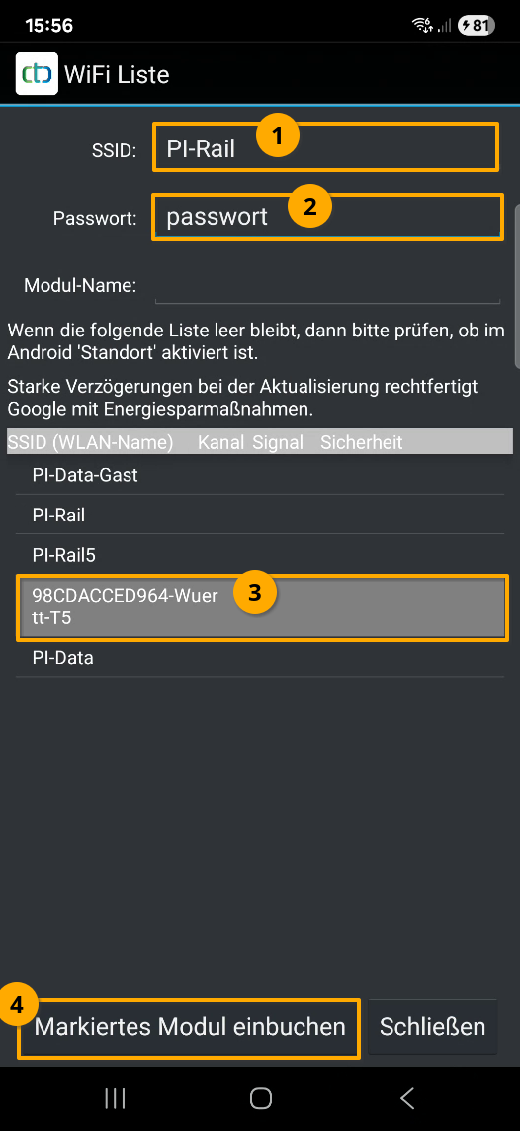
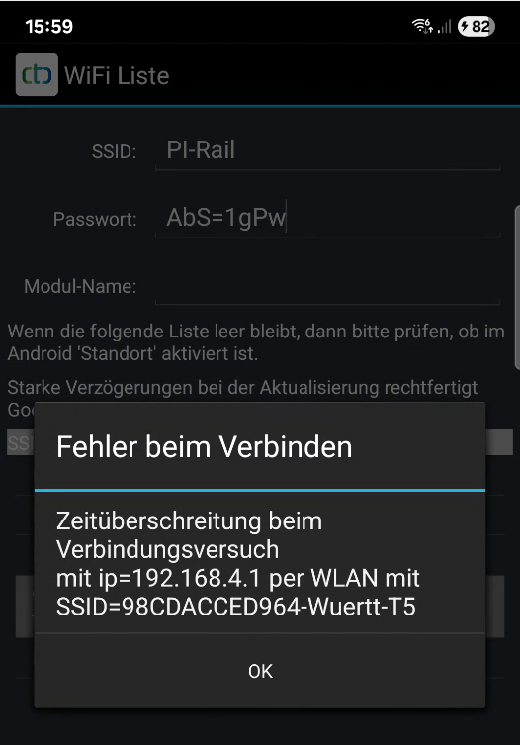
If an error appears after pressing "Enroll Module" after about one minute, you can manually switch to the module’s WiFi and press the "Enroll Module" button again.
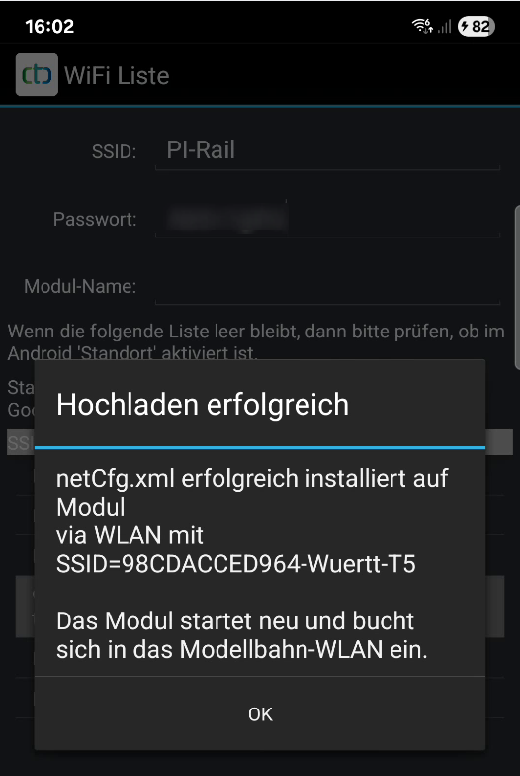
If enrollment is successful, the following message appears:
Enrolling with the CTC App (iOS)
On iOS (iPhone/iPad), this function is unfortunately not available, as Apple does not provide a suitable operating system function (API) for this purpose.
For iOS, the only option is to use the CTC module’s website (see below).
Enrolling via the CTC Module’s Website
Note: This option is only available from firmware 20210220, which is supplied with CTC app v3.05 and preinstalled on all modules delivered by CTC after February 21, 2021.
A CTC module in configuration mode will appear in the list of available WiFis on your PC, tablet, or smartphone. The configuration WiFis of your CTC modules are identified by the alphanumeric combination (MAC address in hex code) at the beginning. Here is an example from Kubuntu Linux: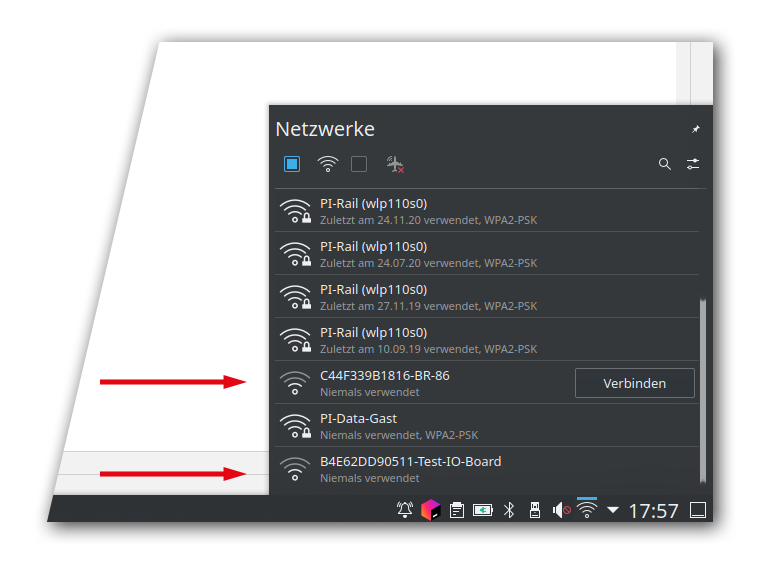
- Connect your PC, tablet, or smartphone to this configuration WiFi.
- Open your internet browser and enter the address http://192.168.4.1
.
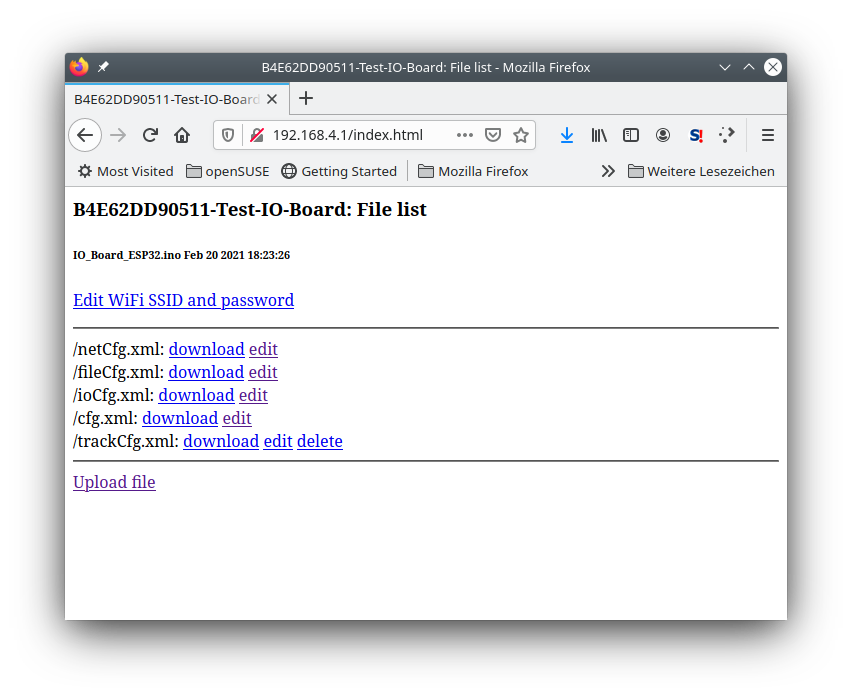
- Click the link "Edit WiFi SSID and password." Enter the SSID (WiFi name, network identifier) and the password (network key) of your model railway WiFi.
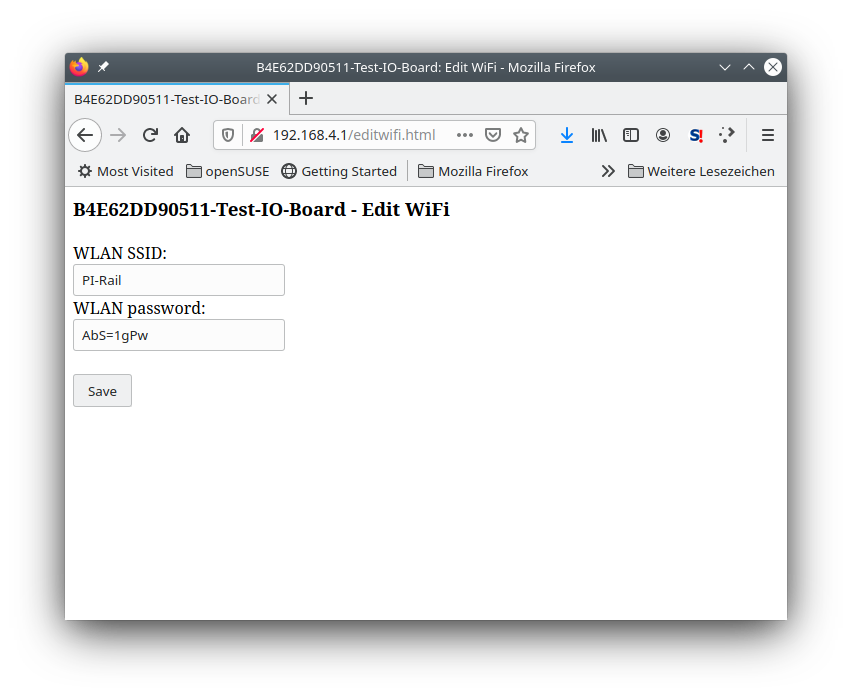
- Click "Save."
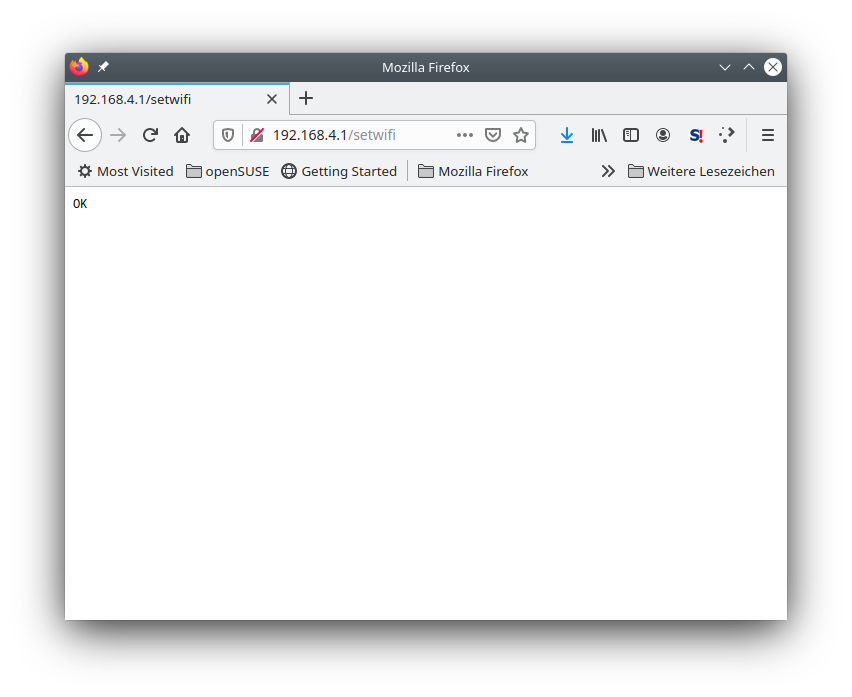
- The CTC module will automatically restart and should now be visible in your model railway WiFi.
Note: The module remains in configuration mode for only about 2 minutes and then restarts. If the module has WiFi configuration but cannot enroll in the WiFi network, it switches to configuration mode after about 1 minute. Therefore, if you have made a typo in the SSID or password, you must wait one minute before you can access the module again via its configuration WiFi.
Note: You can tell if a CTC module is in configuration mode by checking the status indicator of the CTC module .