



Note: The configuration of CTC modules is currently only partially available on Android and iOS.
You can access the configuration dialogs via the pencil icon
: 
- in the configurator (list of all modules) on the right side of the row
- in the locomotive list to the right of the locomotive
- on the control page at the bottom right
- in the turnout list to the right of the turnout
List of all modules (Configurator)
In this list (menu Settings/Configurator ) you will find all CTC modules, including those that could not start properly due to a configuration error:
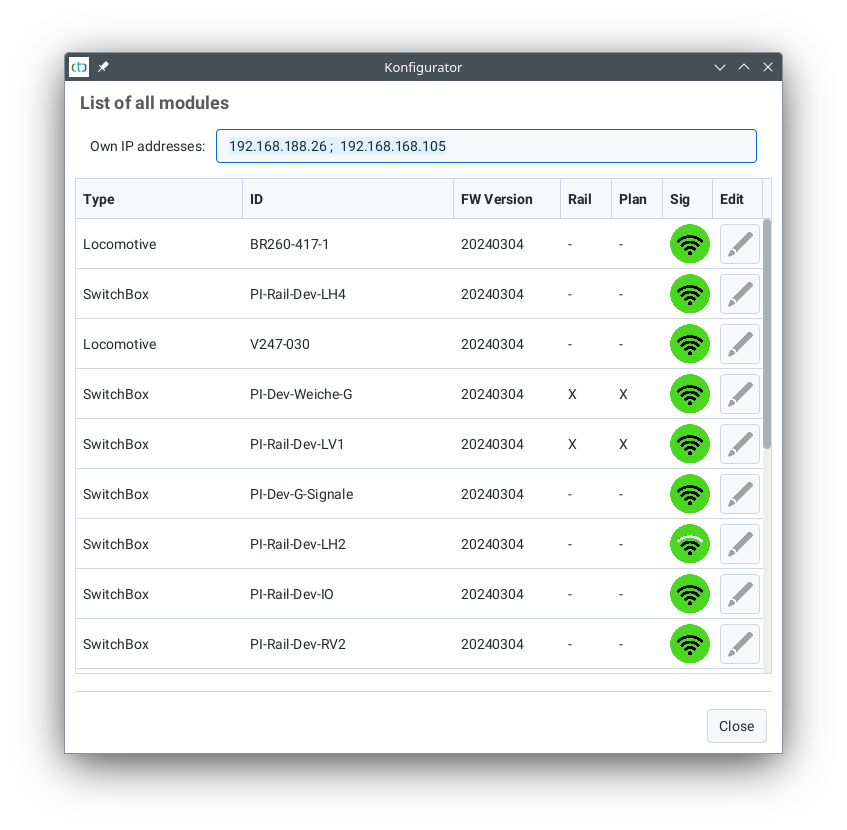
You can also see here which modules have a track plan and/or a model railway (overall plan) stored for the signal tower (see crosses in the corresponding columns).
Config Backup
Via the menu item "Settings / Config Backup" of the CTC app (Desktop), you can back up the config files of all CTC modules currently visible in the CTC app. To do this, select a folder on your hard drive as the backup folder. Afterwards, a folder with the name of the CTC module will be created in this backup folder for each reachable CTC module, and all config files will be backed up in it.
Locomotive Configuration
Control Box Configuration
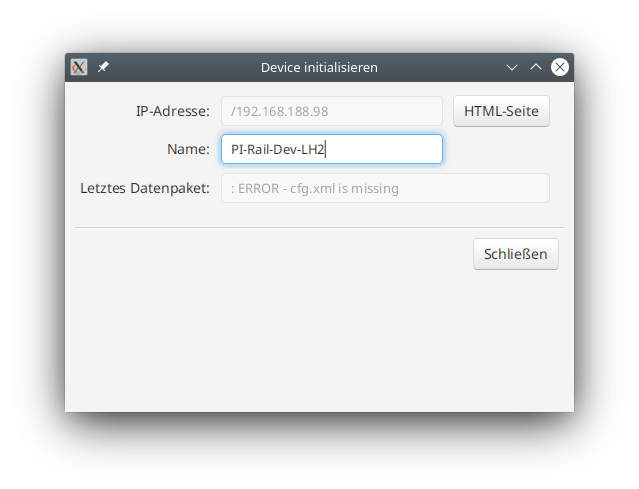
Unknown Modules (Unknown Device)
Firmware
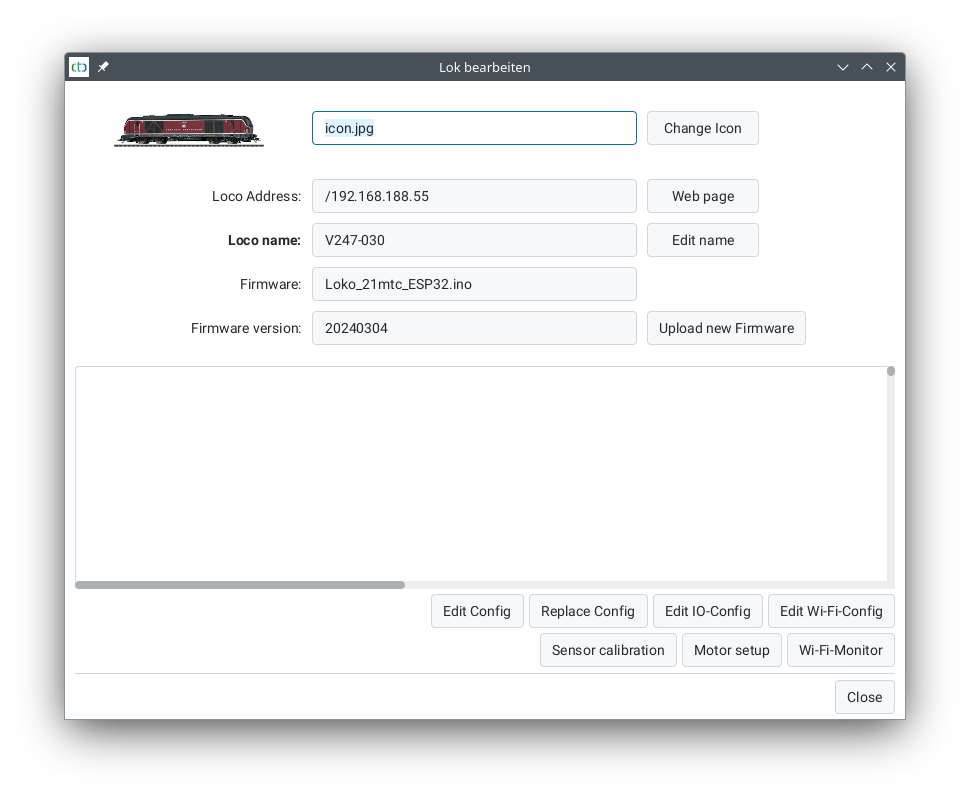
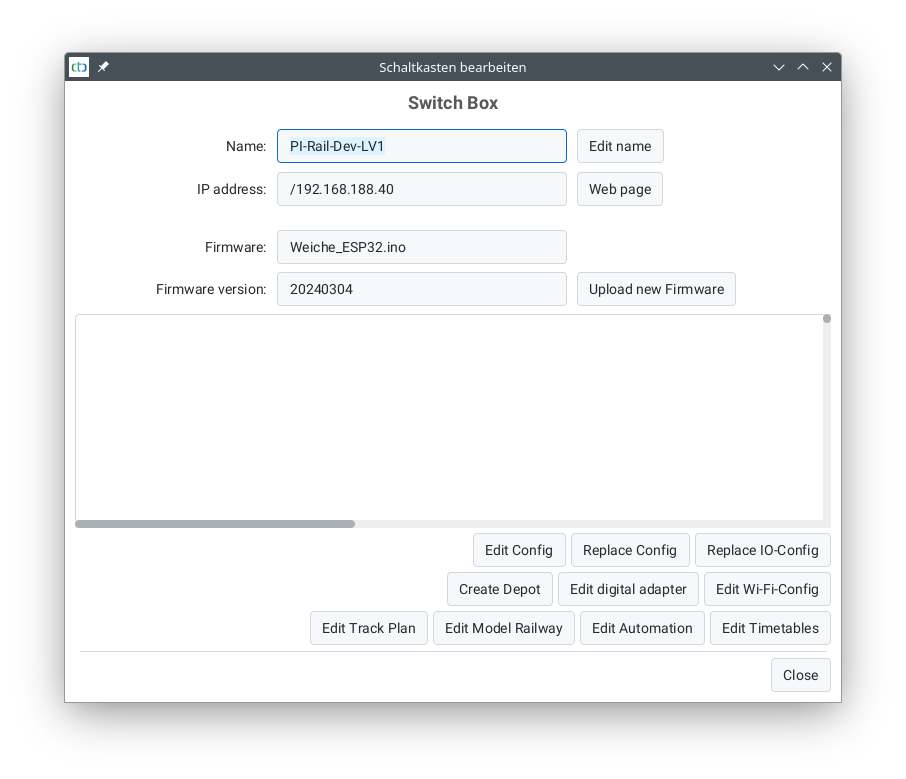
The "Firmware" field indicates which firmware (or hardware) this CTC module is using. The "Firmware Version" field shows when this firmware was released (year month day), e.g., 20230829 stands for August 29, 2023.
You can update the firmware of this CTC module using the "Upload new firmware" button. First, the firmware version supplied with the CTC app will be offered, but you can also select a file from another location. You can find out which firmware versions the CTC app versions include in the download section .
Log Output
Below the firmware fields, you will find the log output. The upload tool messages have always been displayed here when uploading the firmware. Since CTC app 4.19 and the associated firmware version, all log messages from the CTC module are also displayed here. This makes it much easier to find configuration errors.
Since CTC app 4.20, the log output is editable. This makes it possible to mark it with the keyboard shortcut "Ctrl-A" and then copy it to the clipboard with "Ctrl-C". From there, it can then be copied into support request emails.
Changing Config
The config (cfg.xml) defines which products (turnouts, signals, lights, etc.) are connected to your CTC module and how they can be controlled, i.e., where and how they are displayed and switched in the CTC app. The available connections can be found in the I/O config (ioCfg.xml), which is already present on your CTC module when delivered.
There are the following different options, which are described in detail in the following chapters:
- Product Catalog : This concept, newly introduced with CTC version 3, reduces configuration to a few easy-to-understand steps.
- Link Actions : Based on the actions automatically created via the product catalog, you can link them, for example, to automatically stop a locomotive in front of a red signal.
- Create your own Actions : If you want actions that are not available in the product catalog, you can add more custom actions.
- Connect and configure DCC decoders : Unfortunately, this involves the full complexity of DCC, which is why a dedicated chapter is dedicated to it.
- Create your own Product Catalog (Appendix) : For standard products, this is our task, but there will certainly be very special products missing from our catalog.
Replace Config
With this button, you can reset the configuration of your CTC module to the factory state or load an alternative basic configuration.
Notes:
- Please note that this is the configuration status supplied with the CTC app. Before replacing the configuration, you should therefore update the firmware of your CTC module.
- Up to CTC app version 4.18, there was a "Delete config" button at this point.
Replace IO-Config
Since CTC app version 4.19, it has been possible to replace the ioCfg.xml of the CTC module with a newer or alternative version. Previously, this was only possible via the module's HTML page .
Notes:
- Please note that this is the configuration status supplied with the CTC app. Before replacing the configuration, you should therefore update the firmware of your CTC module.
- The method via the module's HTML page still works today, but should be avoided as no plausibility checks are performed when using the HTML page.
Change Digital Adapter
With "Change digital adapter," you can persuade CTC to control locomotives and turnouts connected to a digital control unit. You can find more information in Chapter 8.2 - "Old Digital: Integrating Z21 Control Unit" .
Change WiFi Config
This dialog allows you to change the WiFi config (netCfg.xml) of a CTC module currently connected. For example, you can change the WiFi data of your CTC modules before renaming your WiFi network or changing the password.
If you only want to use a different WiFi temporarily, e.g., the one at your model railway club, read Chapter 3.6 "Temporary WiFi" .
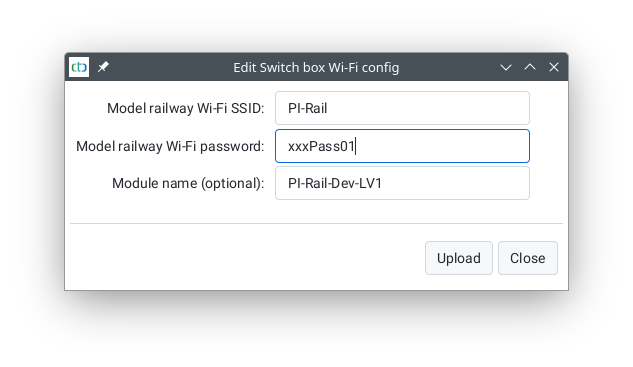
Since CTC app 4.46, the password is only displayed in hidden form here. If you click the button next to the password, the SSID and password will be displayed in plain text.
Notes:
- After uploading, the CTC module will automatically reset and will only be visible in the newly configured model railway WiFi.
- Even if you are connected to a temporary WiFi, your normal WiFi will be displayed and changed here.
- The "Remove temp WiFi" button is only visible if your module is connected to a temporary WiFi.
If you have mistyped the SSID or password, you can return the CTC module to your model railway WiFi as described in Chapter 3.1 - "Connecting modules to WiFi" .
Basics on WiFi and the "Signal min. db" parameter (Mesh) can be found in Chapter 3 - WiFi .
Change Track Plan and Model Railway
With these two buttons, you can access the configuration of the signal tower in the CTC app. They are described in Chapter 6 - Signal Tower .
Change Automation
With this button, you can access the configuration of actions related to automatic operation that cannot be assigned directly to a CTC module. These are:
- Triggers for NFC beacons
- Blocks (track sections) and actions for switching routes between blocks
- Driving orders
They are described in Chapter 7 - Automation .
Change Timetables
With this button, you can change timetables. How to do this is described in Chapter 7.4 - "Timetables" .