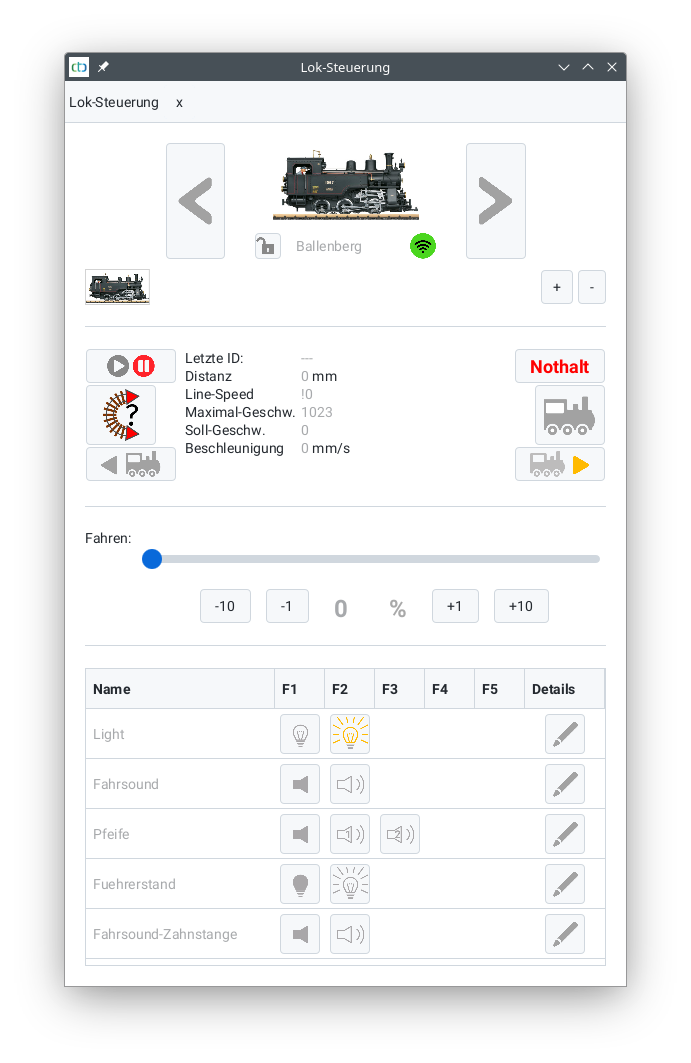





IMPORTANT: Everything described here requires at least CTC-App Version 3.10 and Firmware 20200514 ### Basic Function: Motor and Headlight
Since the CTC-Loco-Modules are preconfigured for direct connection of motor and light, these must first be deleted from the configuration. To do this, open the module configuration in the CTC-App (see User Manual Chapter 4 ).
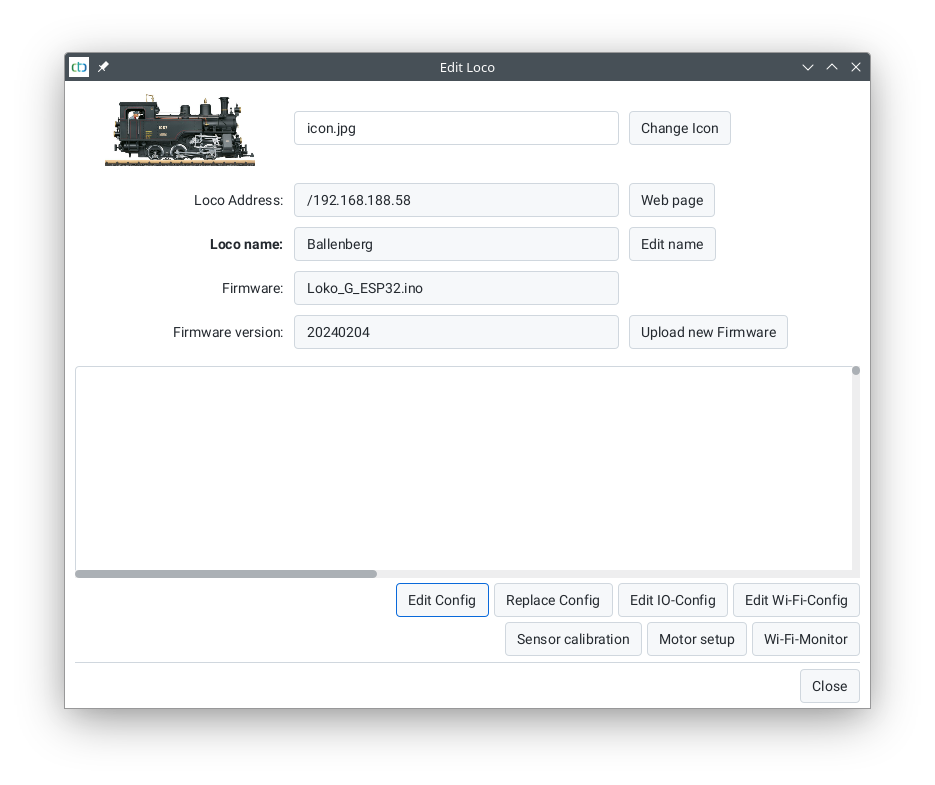
Click the "Change Config" button to make the functions of your digital decoder known to the CTC-Module.
Remove all connected products by marking each line in the "Connected Products" list and then clicking the minus button to the right. After this, the dialog should look like this:
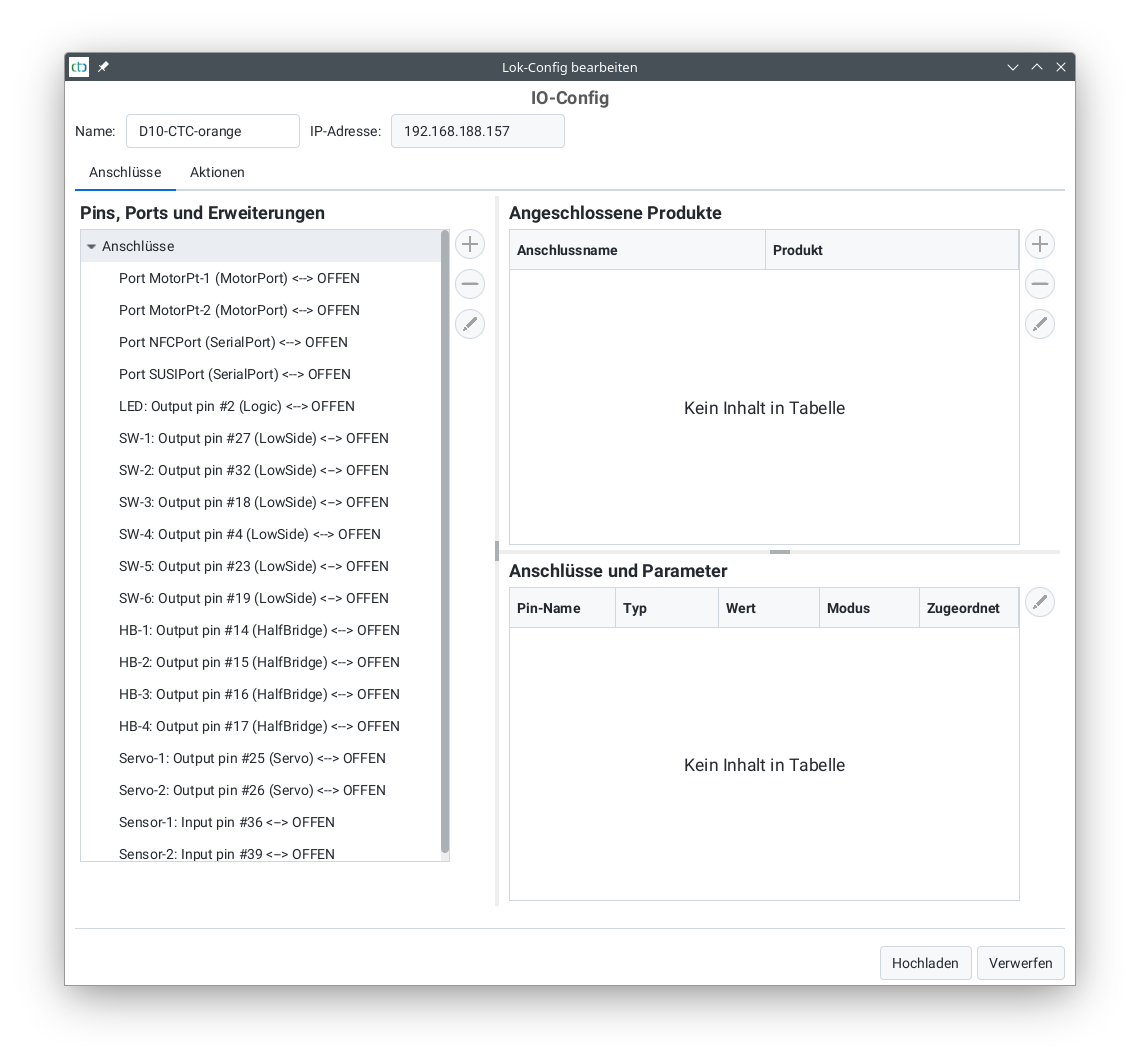
Then select the motor port to which you have connected the digital decoder:
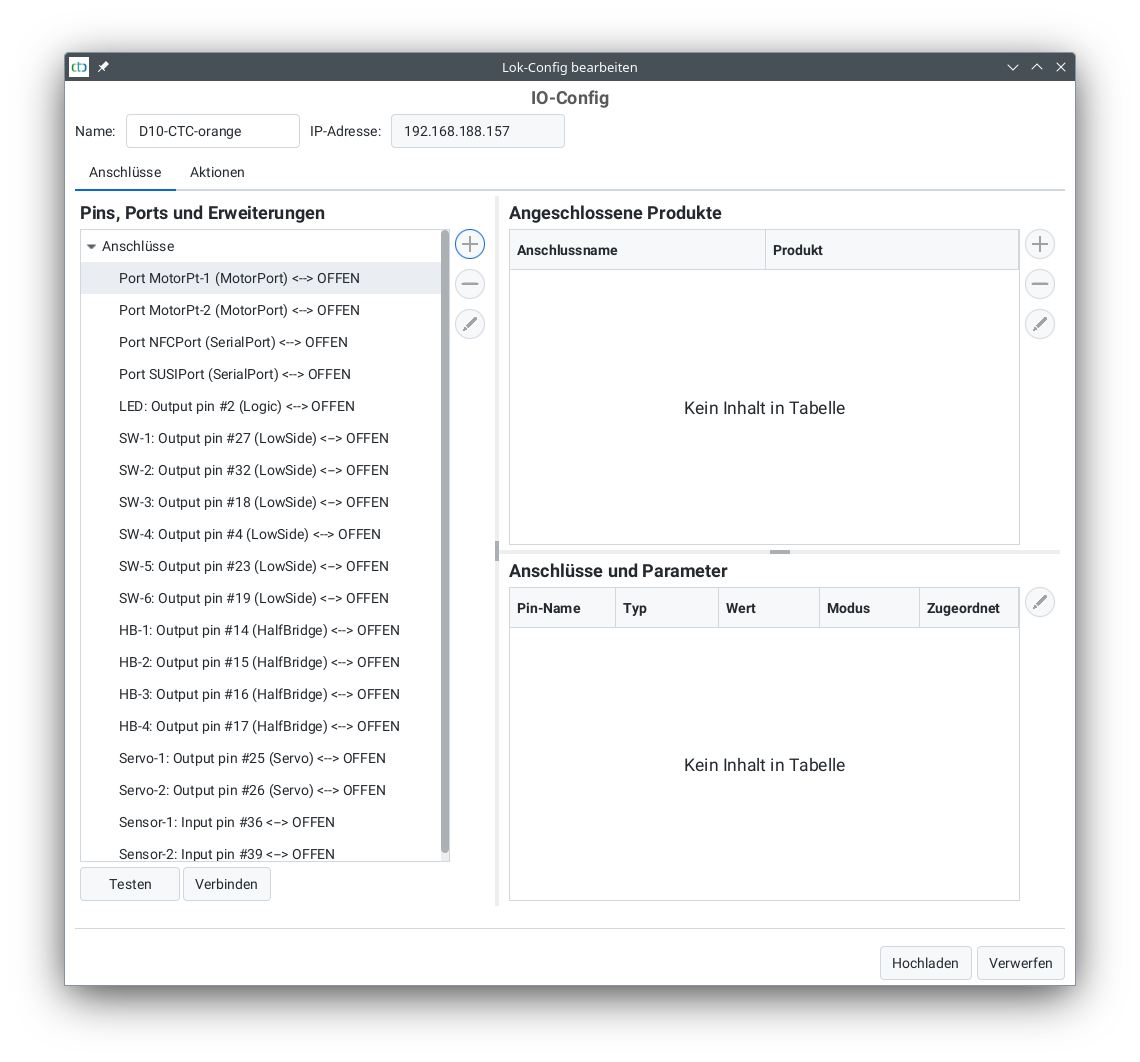
After clicking the plus button next to it, the following dialog opens:
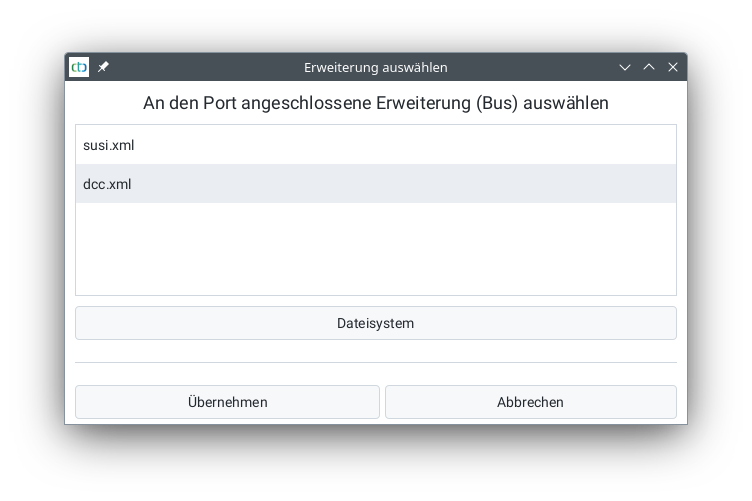
Select "DCC.xml" and click "Apply". In the following dialog, assign a name for the extension (here "DCC"), enter the DCC address (for new locos this is 3) and select from the "DCC-Locomotive" table:
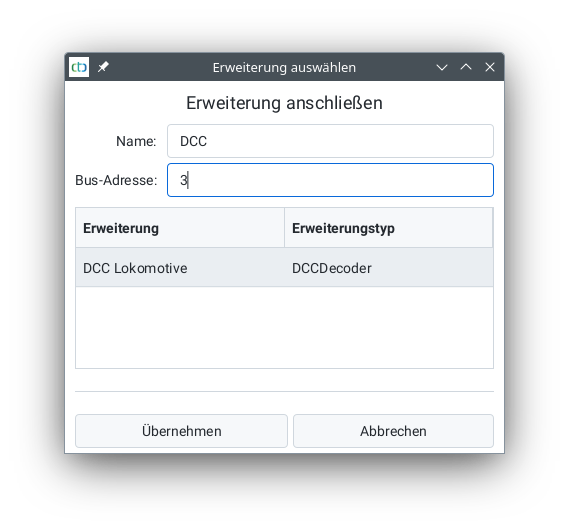
After clicking Apply, you can expand the motor port and see your added extension:
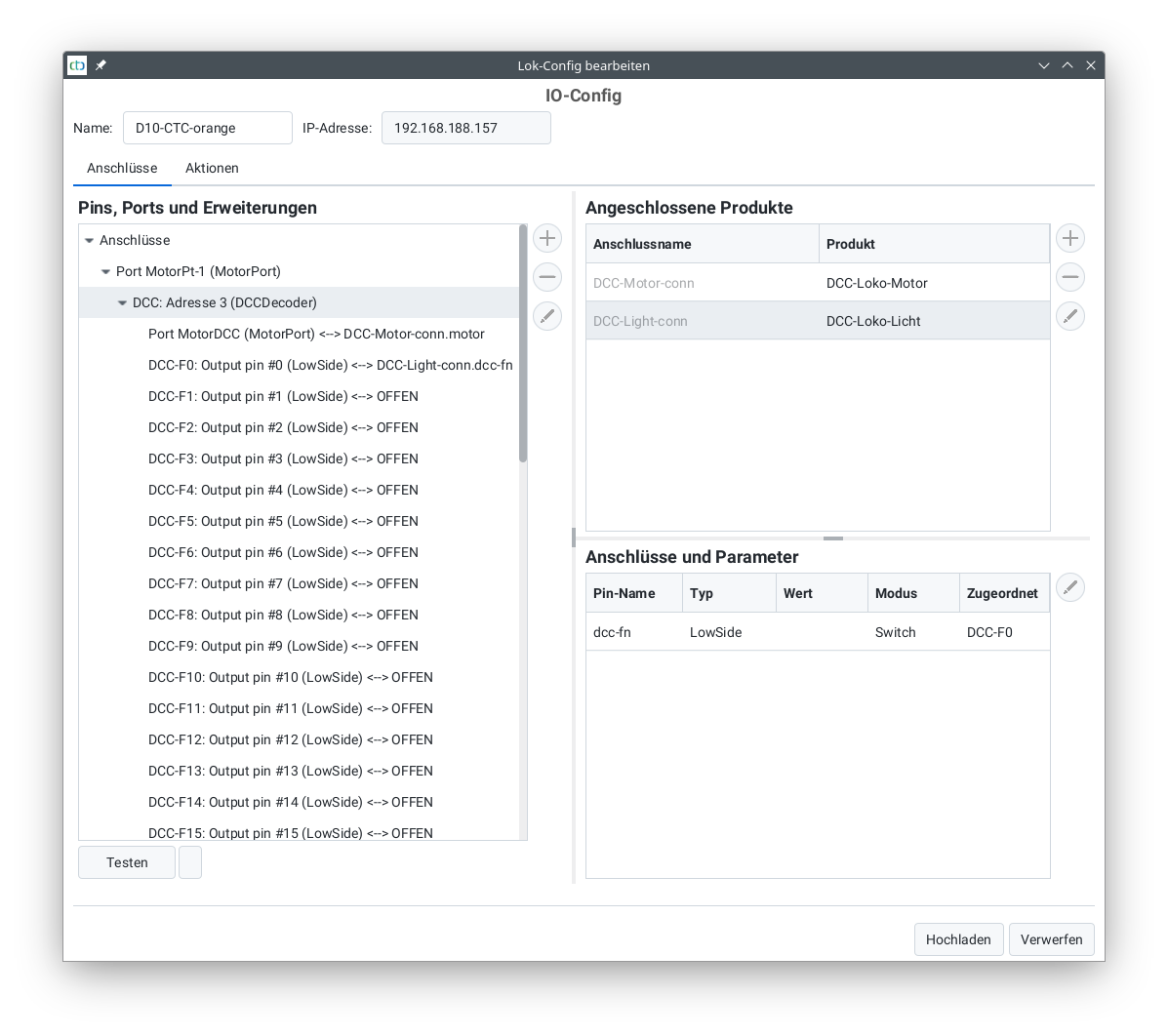
Now it's worth pressing the "Upload" button for the first time, because only then can you use the Test button to try out the functions of the digital decoder. The motor and headlight are already correctly wired, meaning you can now switch to loco control and give it a first test run.
Configuring Sound
After the basic configuration is complete, you can take care of the sound functions.
To do this, click "Change Config" again and expand the motor port to which you have connected your digital decoder:
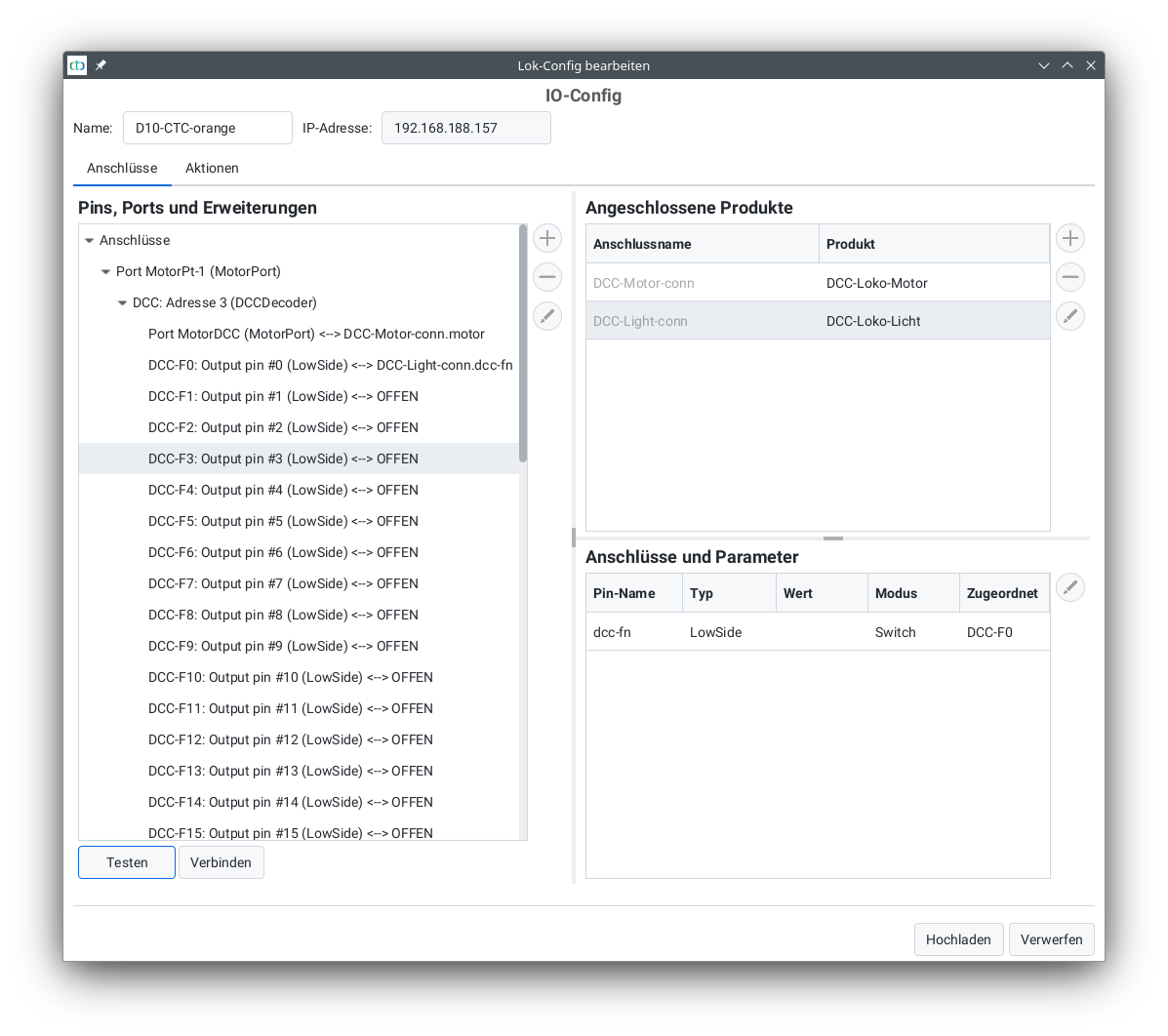
To check what is behind a function, mark the function (in the image "DCC-F3") and press "Test".
If you want to make this function available in the loco control, press the plus button next to "Connected Products". Select the catalog "universell-loks.xml" and there "Lok-Sound an LowSide" for sound or "Lok-Licht an LowSide" for light functions:
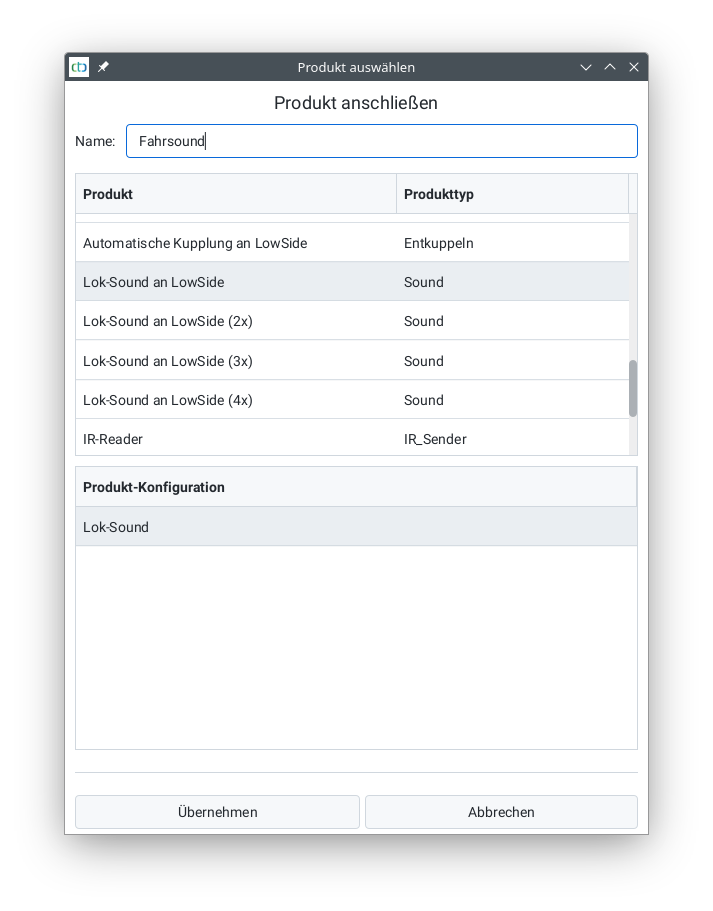
Then mark the "soundPin" at the bottom right and click the "Connect" button:
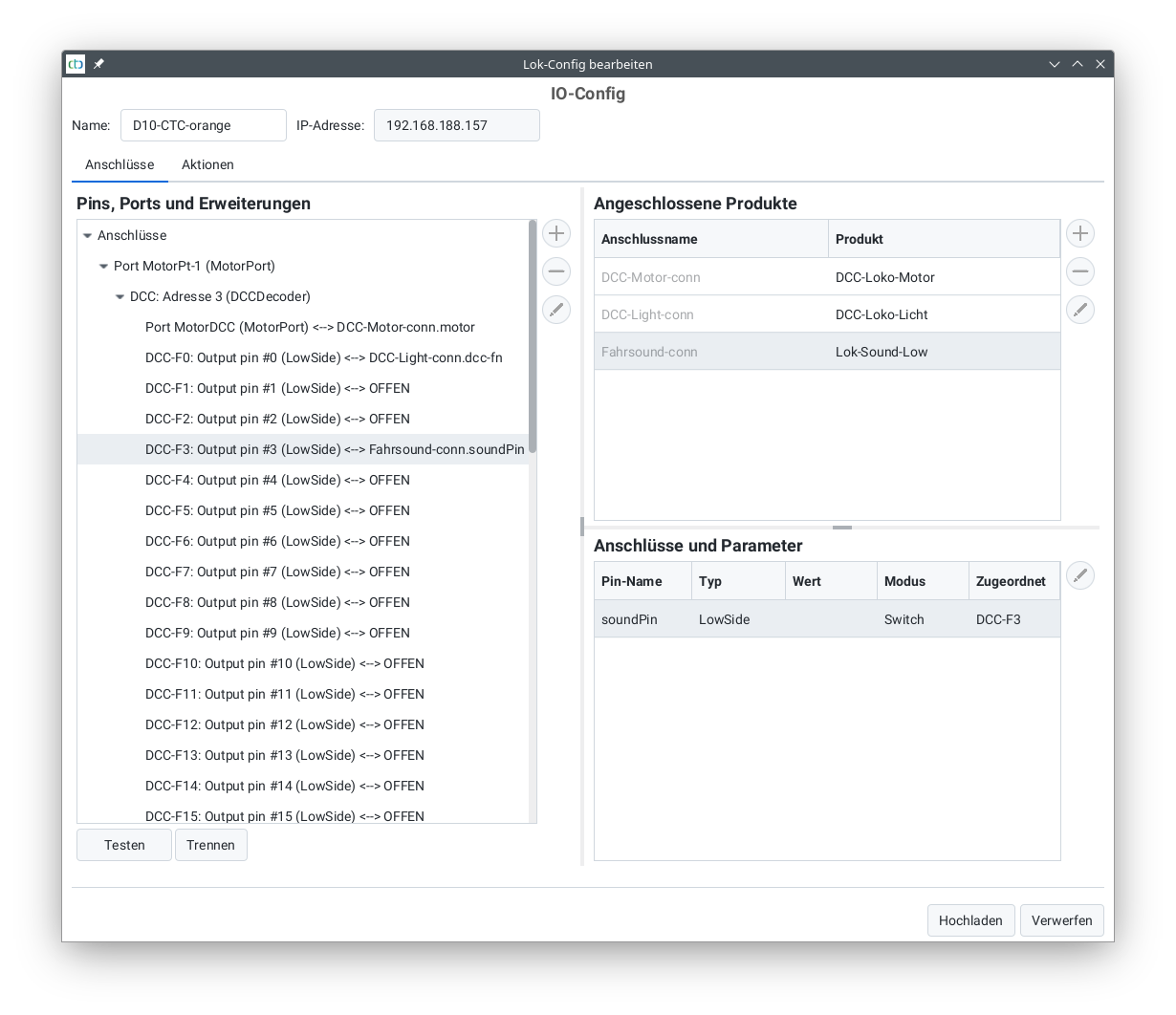
After all desired DCC functions are configured, the loco control should look like this: