




When switching from CTC version 4.x to the current version 5.x, all CTC modules must be updated to a new firmware (20261012 or newer).
This requires a one-time migration consisting of the following steps:
- Migrating the firmware according to the instructions below
- Moving the NFC beacons from the "Automation" section into the config of a CTC module. This happens automatically the next time the track plan containing the NFC beacons is saved.
Migrating firmware from CTC 4.x to 5.x
Outdated firmware on CTC modules is indicated by the FW version being highlighted in yellow in the module list.
If the FW version is highlighted in orange , it must be migrated to ensure stable CTC operation. The following instructions apply to these orange-highlighted modules:
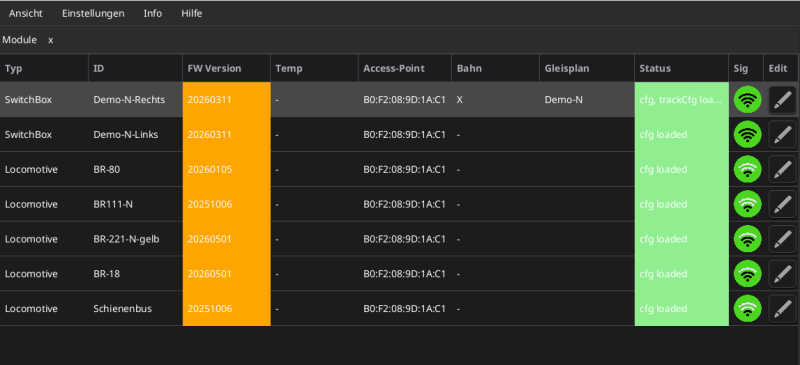
The step-by-step process for migrating these modules is explained below.
Backup
First, check that all modules you want to migrate are visible and reachable (WiFi green) in the module list.
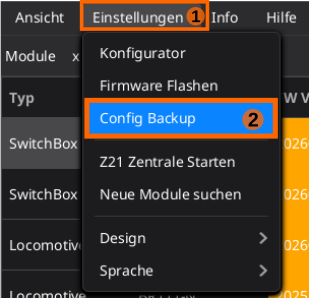
Updating the firmware will erase the module configurations, so a backup of the module config files must be created first. To do this, go to the menu, click "Settings", and select "Config Backup":
Then, in the folder structure on your PC, select a backup folder in a location you can easily find later.
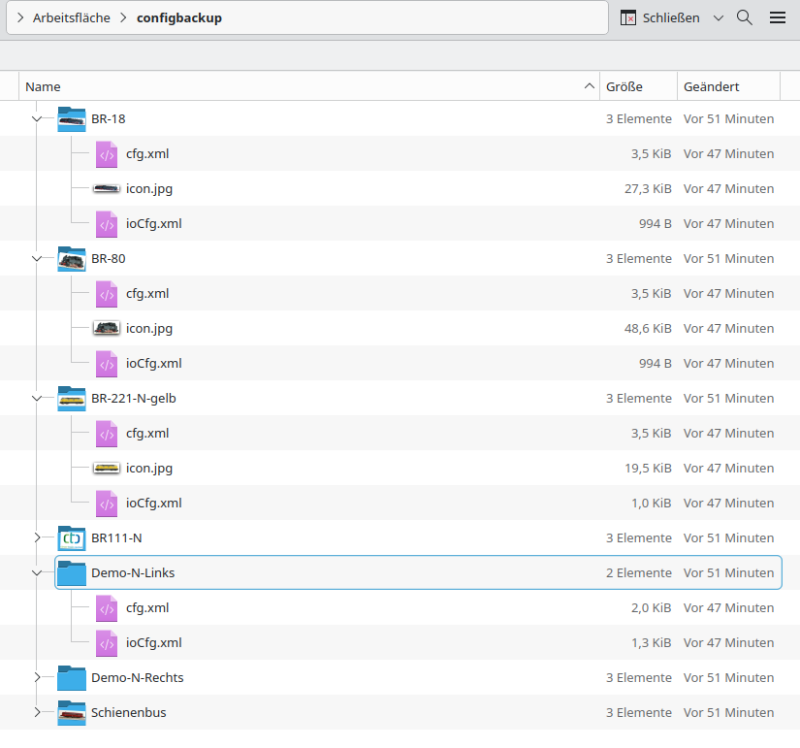
After the backup, the folder structure will look something like this:
In the CTC app, the "Status" column in the module list shows what was backed up:
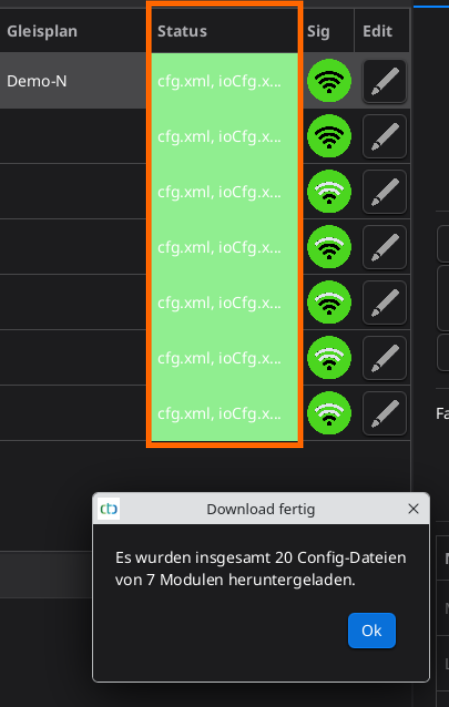
The status is highlighted in green if the backup was successful. Additionally, a popup will show a summary of how many files were backed up on how many modules.
Now it makes sense to verify that all config files have been backed up. Once you are sure everything is backed up, you can proceed with the actual migration.
Migration
The first step in the actual migration is to transfer the new firmware to the CTC module.
It is recommended to perform the following migration steps one module at a time.
Caution: With locos equipped with DCC decoders, it is possible for them to start moving unexpectedly due to a misinterpreted voltage level. It is therefore advisable to ensure that the loco cannot collide with anything.
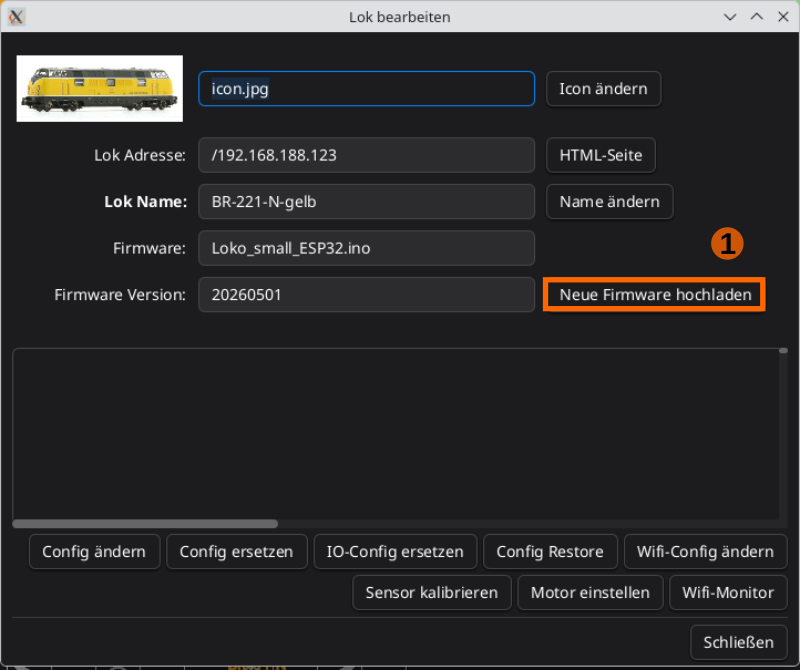
To update the firmware, click the Edit button on the desired module. A window will open where you click "Upload new firmware" :
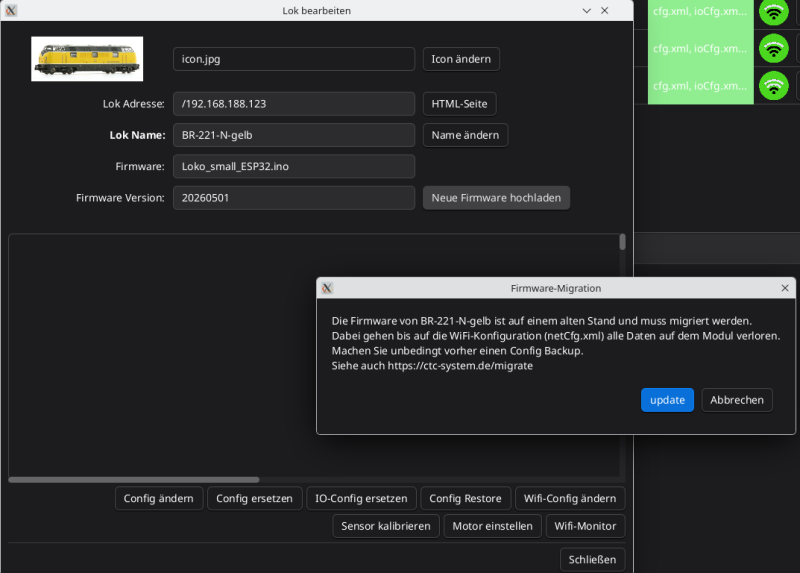
A warning window will appear stating that the update will erase the config files. This is why the backup was important. If you are sure that the module's config files are included in the backup, you can click the Update button:
A window will open where you select the new firmware to be installed.
Note: This window may open behind the app.

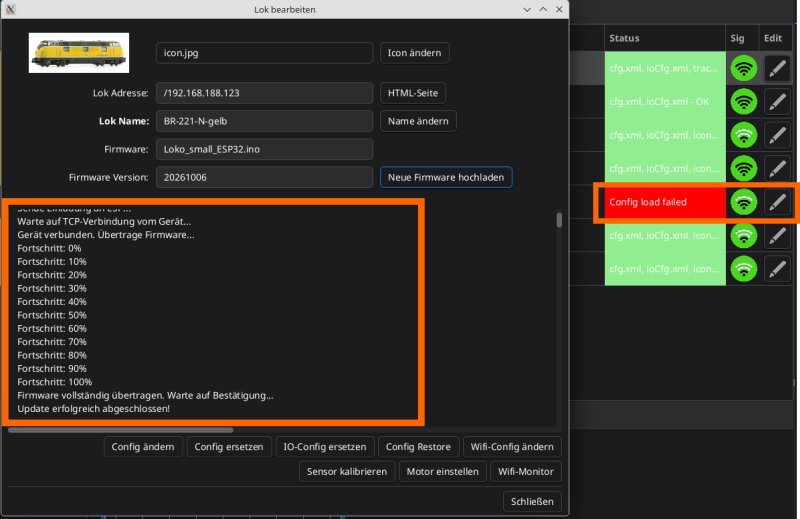
The new firmware is installed when the window shows "Update completed successfully" and the module has rebooted. After the reboot, the module list will show a red status with the text "Config load failed" . This is the expected behavior:
The next step is to click the "Config Restore" button to restore the previously backed-up config files to the now updated CTC module:
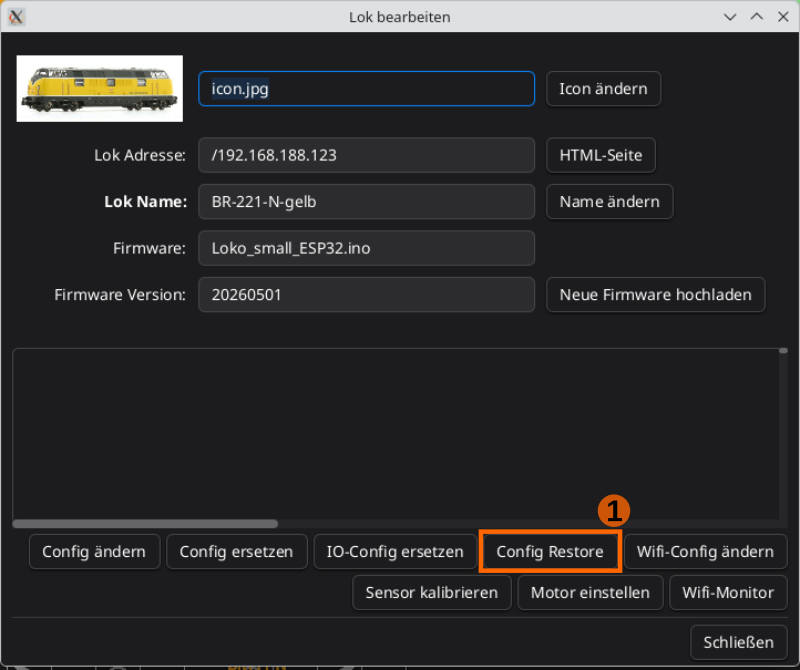
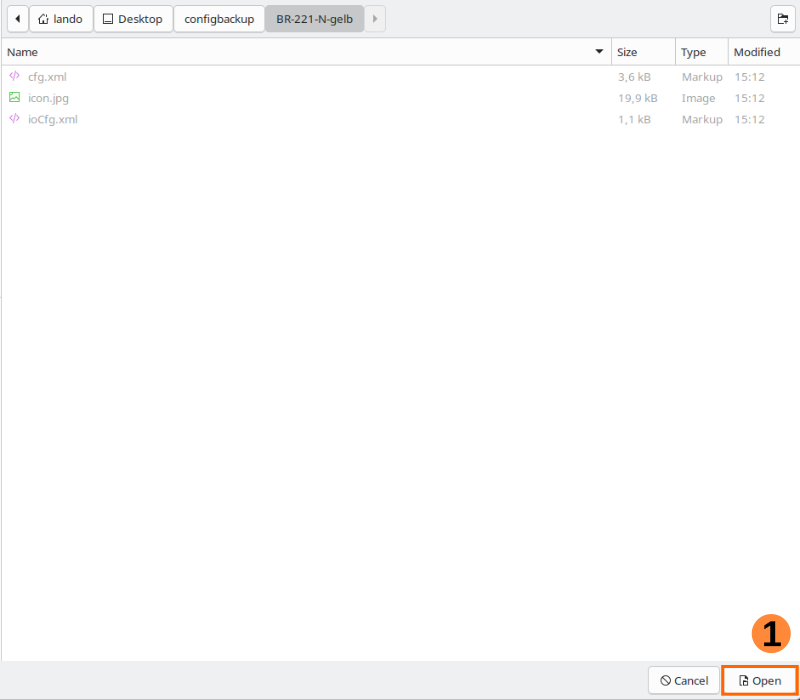
During the config backup, a folder was created for each CTC module with the same name as the module. In the backup folder, select this module folder:
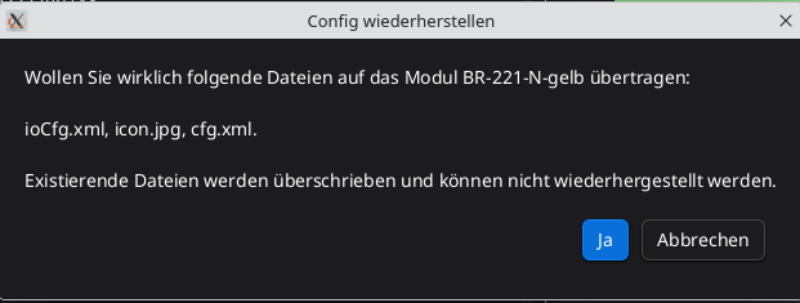
You will receive another warning that files will be overwritten and cannot be restored. If you are sure, click "Yes" :
The successful restore is confirmed when the window shows "Finished config restore" and the module has rebooted:
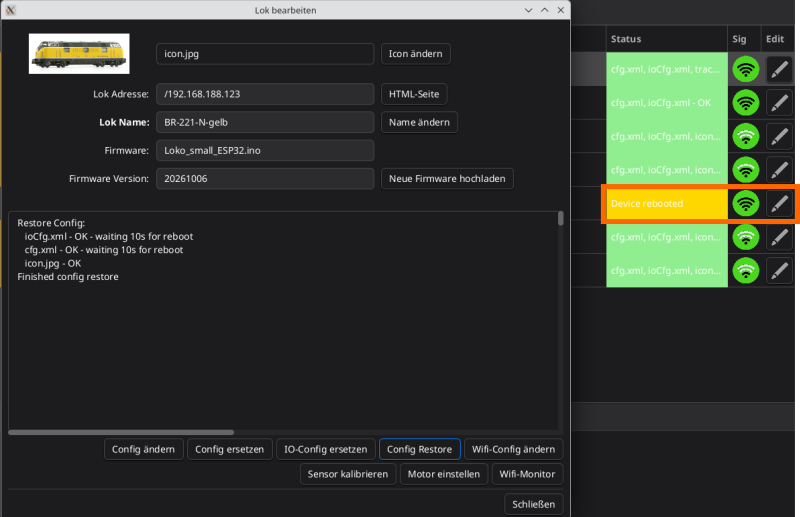
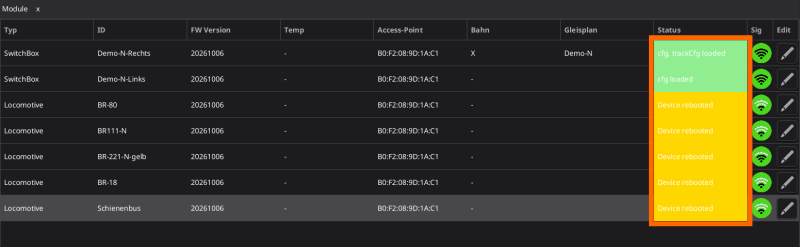
In the module list, the status will show "Device rebooted" and shortly after, the green status "... loaded":
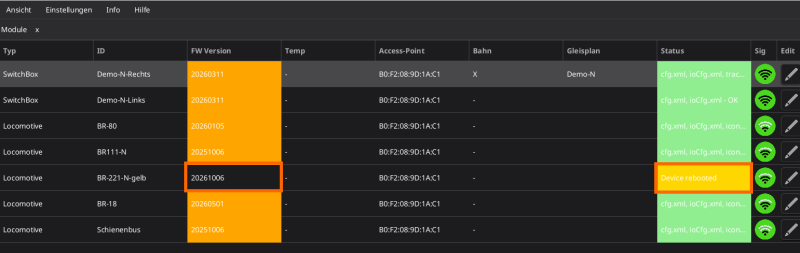
In the "FW Version" column of the module list, the colored highlighting will have disappeared, indicating that the firmware is now up to date:
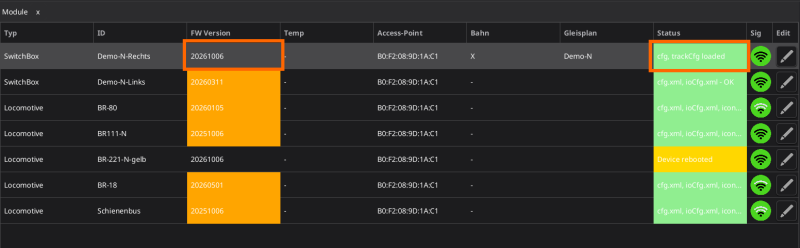
Now proceed with the next CTC module until all have been migrated.
Migration complete
When no module in the "FW Version" column is highlighted in color, the migration of the CTC modules is complete: