





This installation guide applies to the three-way turnout 42543 from Roco's "Rocoline with Bed" program:
TODO Image Three-way turnout Rocoline
It uses two of the drives 42620. In the example, a 3-pin header is soldered to the cables as a plug connection: On the CTC-Turnout-Module with the item number WI-M-4L-U , there are three cables to which a matching socket was soldered in the example.
Install and connect the CTC module
The CTC module is mounted on or under the model railway layout.
This is how the drive is connected to the CTC-Turnout-Module:
- Plug the pin headers from the turnout drives into the sockets on the CTC-Turnout-Module.
- Connect the brown cable to the negative pole of the power supply or to the track.
- Connect the red cable to the positive pole or to the other track.
TODO Connection diagram
The following image shows a right-hand turnout with installed turnout drives and CTC-Turnout-Module.
TODO Image Three-way turnout with installation
Two IR beacons can be connected to the four-pin socket of the turnout module. In the example in the photo, the four-pin socket was removed and the cables (red, blue, pink, gray) were soldered to copper contacts on the track connection.
Register the CTC module in the WiFi
If the CTC-Turnout-Module has not yet been registered in the model railway WiFi, you must do this first. You can find the instructions for this in the operating instructions in Chapter 3.1 "Register modules in the WiFi" .
Open configuration
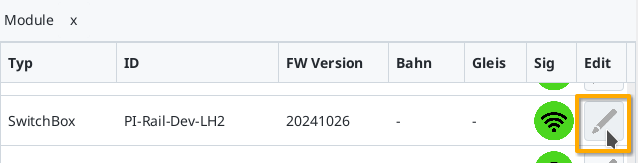
A registered CTC-Turnout-Module can be found under its name in the module list in the CTC app. There, click on the pencil icon to open the "Control box configuration".
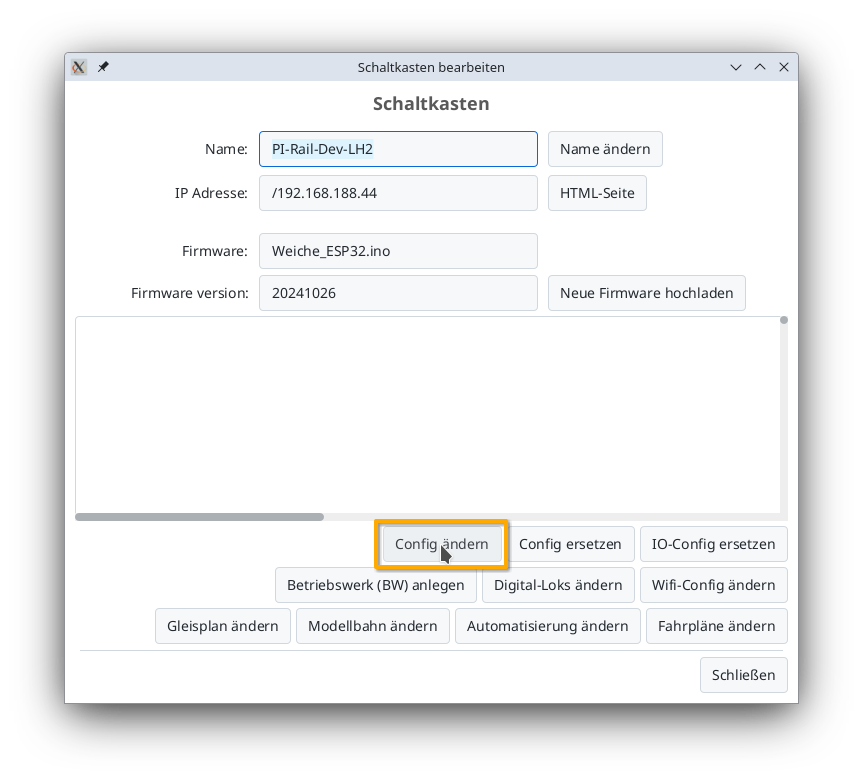
There, click on the "Change config" button:
Add product
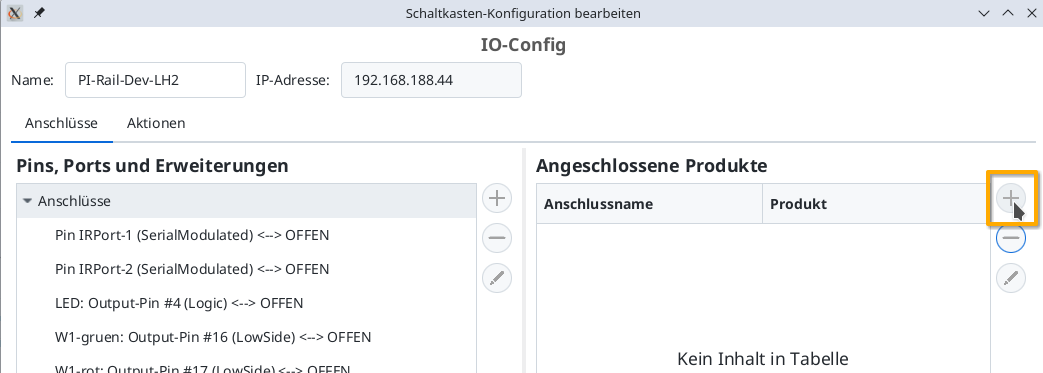
In the config dialog, click on the plus button to the right of "Connected products" to select what product you have connected:
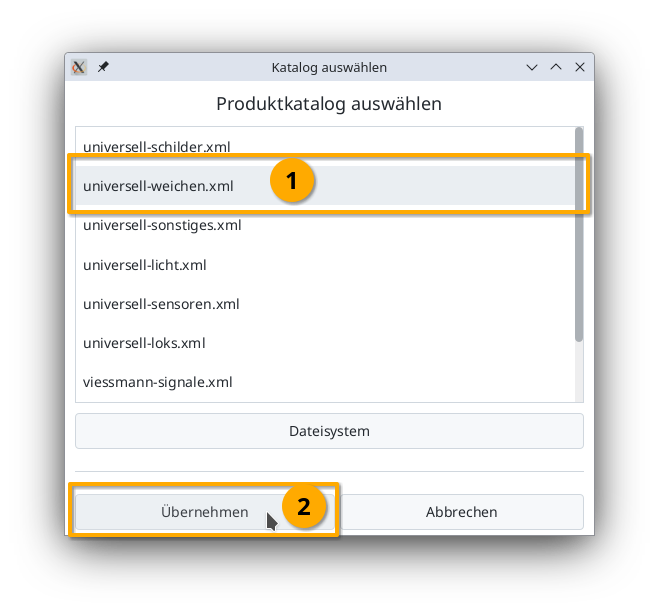
Select the product catalog "universal-turnouts" and then click "Apply":
Give your turnout a meaningful name and select the appropriate product and product configuration. Then click "Apply":
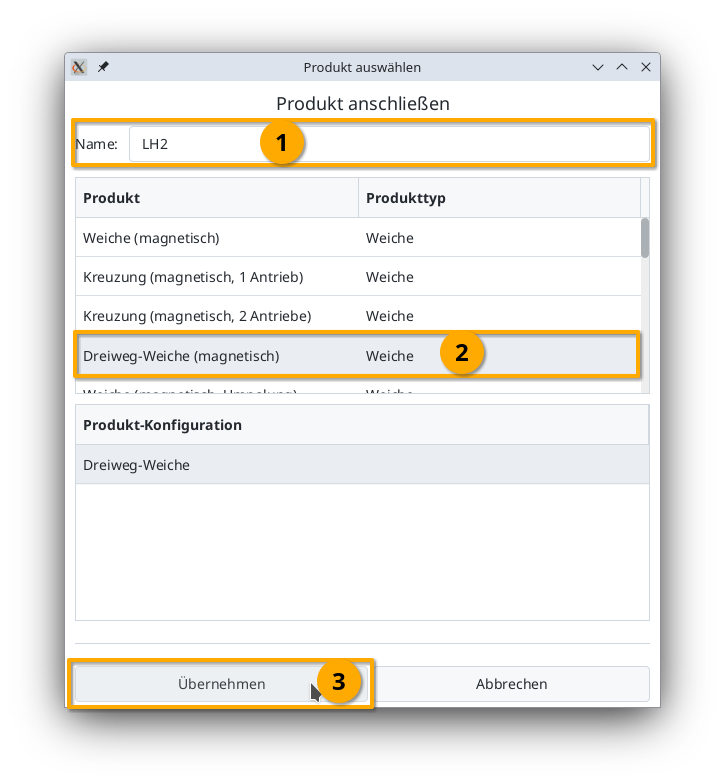
Connect product
Now you need to specify which connections of the CTC module the turnout is connected to. The plug used above is soldered to "W1-green" and "W1-red". Select "W1-green":
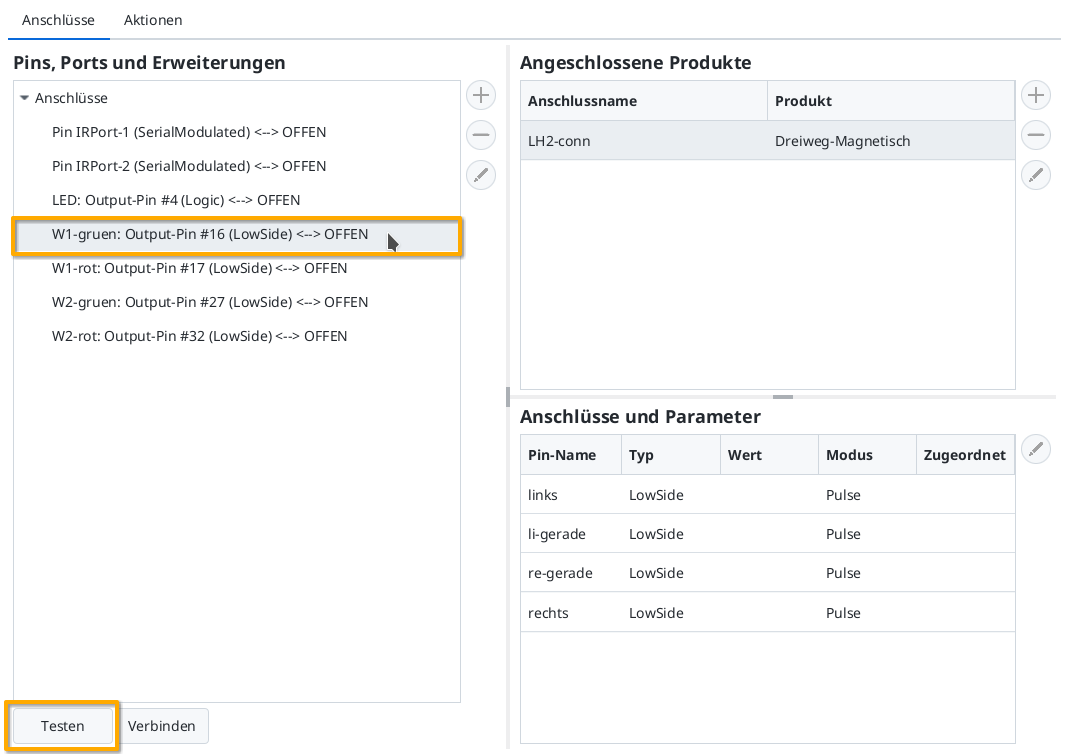
Then you can check by clicking the "Test" button whether the turnout switches and in which direction. In my example, W1-green switches to straight. That's why I now select the line "straight" under "Connections and parameters". By clicking "Connect", you assign the left-marked "W1-green: Output-Pin #16" to the connection "left":
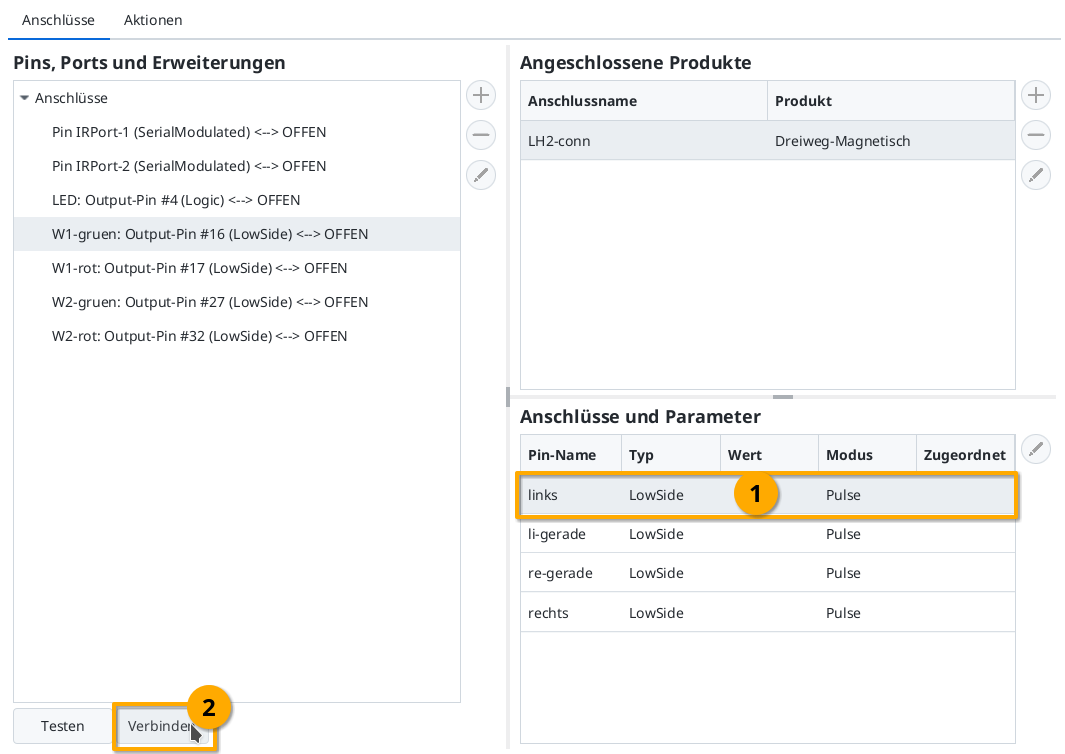
Then connect "W1-red" (Output-Pin #17) to the connection "left-straight" in the same way:
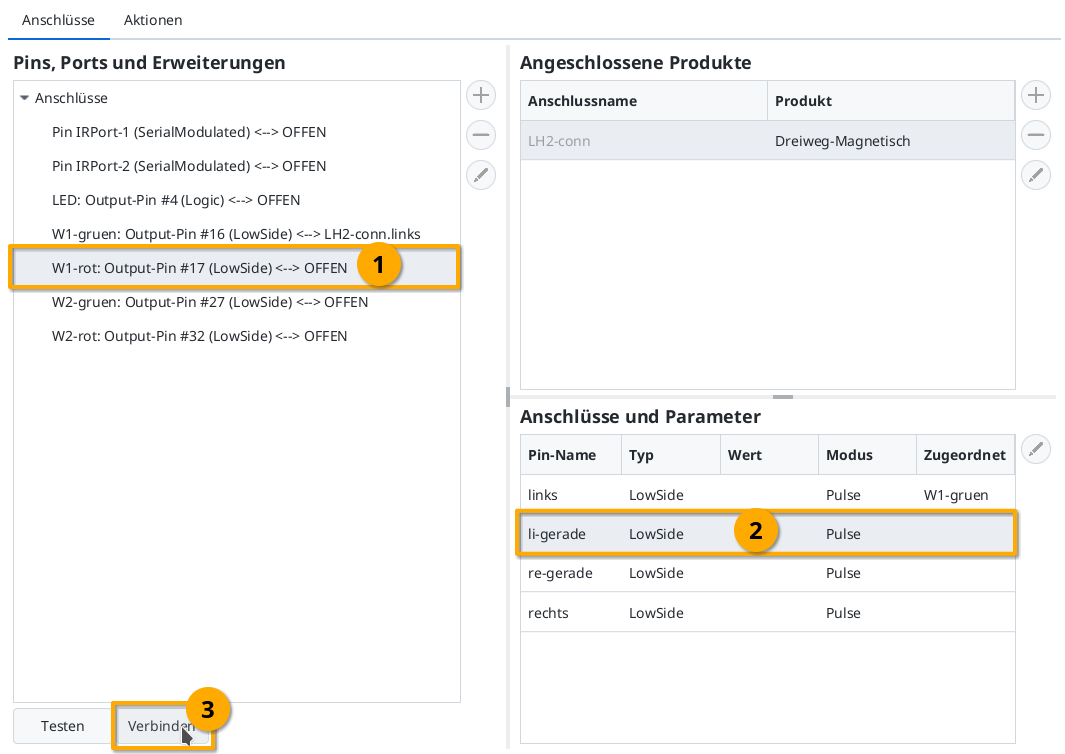
For the second drive, proceed in the same way as for the first.
Upload configuration
When all pins are connected, you can click the "Upload" button to save the changes to the config on the CTC-Turnout-Module:
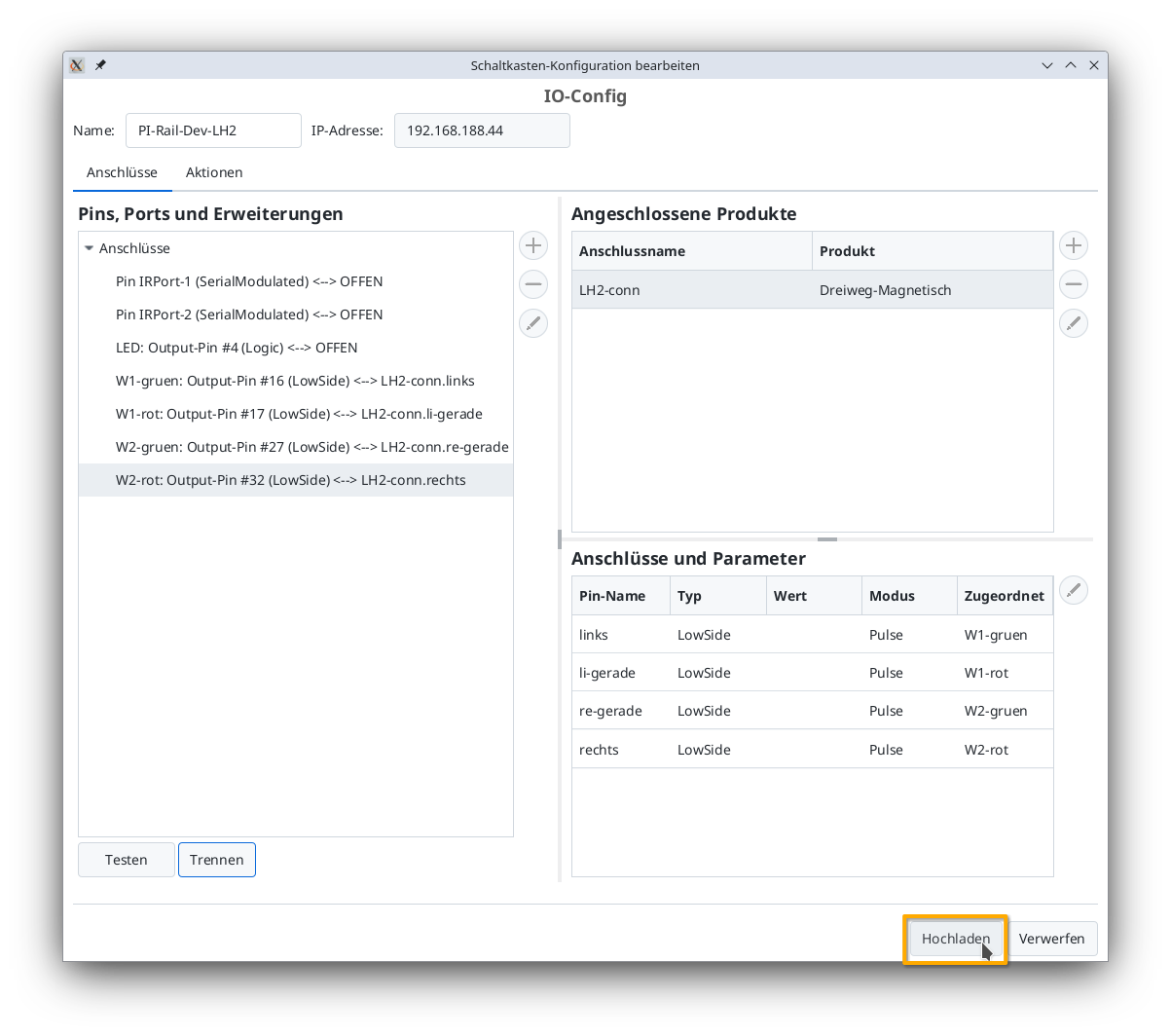
The CTC-Turnout-Module restarts.
Turnout in the control panel
After a few seconds, the newly configured three-way turnout appears in the control panel:
TODO