




This installation guide applies to the motorized turnout drive TR8051 from TrainTronic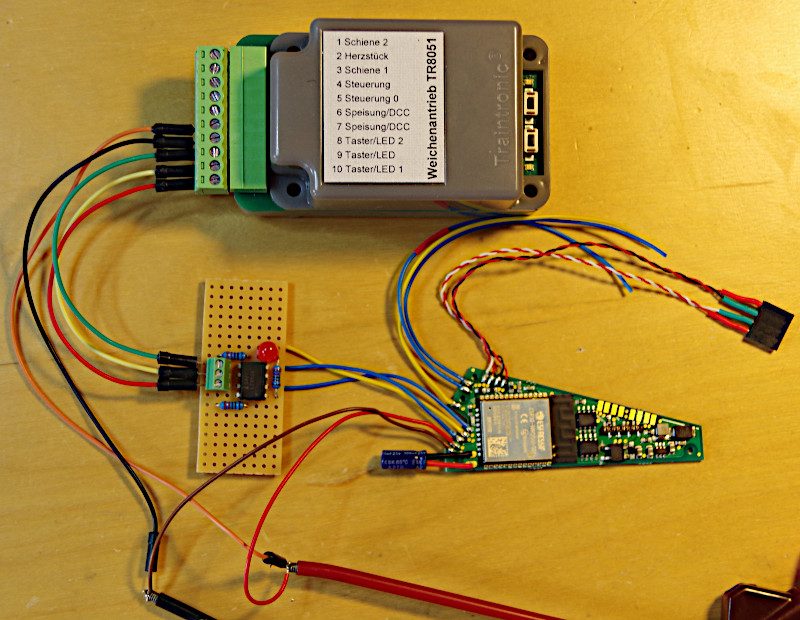
The TR8051 is switched via two pushbuttons. The behavior of a pushbutton can be emulated using an optocoupler.
Note: Direct connection to the switching outputs of a CTC-Turnout-Module should be avoided, as it cannot be predicted whether the TR8051 or the CTC-Turnout-Module will suffer permanent damage.
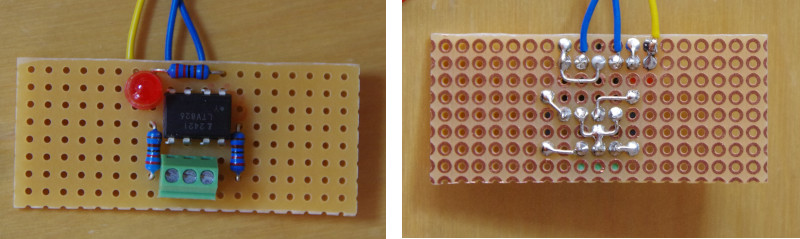
On the CTC-Turnout-Module with the item number WI-M-4L-U , there are three wires to which a suitable adapter was soldered in the example. The adapter (see circuit diagram below) consists of:
- a 2-channel optocoupler LTV-826
- three 2.2 kOhm resistors
- an LED to indicate the switching pulse
- and a 3-pin screw terminal.
Install and connect the CTC-Module
The CTC-Module is mounted on or under the model railway layout.
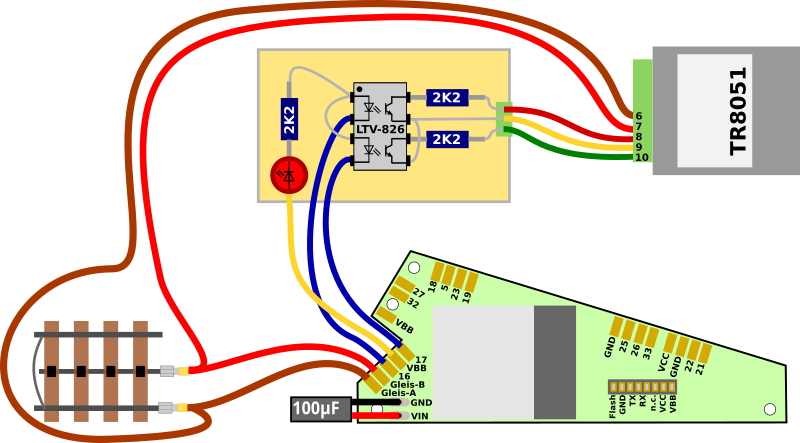
This is how the drive is connected to the CTC-Turnout-Module:
- Connect the middle terminal of the adapter (both emitters of the optocouplers) to terminal 9 (pushbutton/LED) of the TR8051
- Connect the two outer terminals (each collector of the optocouplers) of the adapter to terminals 8 (pushbutton/LED 2) and 10 (pushbutton/LED 1) of the TR8051
- Connect terminals 6 and 7 (power supply/DCC) of the TR8051 to the track or power supply
- Connect the brown wire to the negative pole of the power supply or the track
- Connect the red wire to the positive pole or the other track
- The yellow wire from the turnout drive is connected to both anodes of the optocouplers
- The two blue wires are each connected to one of the cathodes of the two optocouplers
Note: Turnout and drive can also be connected to different power supplies.
The following image shows a right-hand turnout with installed turnout drive and CTC-Turnout-Module.
The remaining three individual wires (2x blue and 1x yellow) can be used to connect a signal or another turnout. Two IR beacons can be connected to the four-pin socket.
Register the CTC-Module in the WiFi
If the CTC-Turnout-Module is not yet registered in the model railway WiFi, you must do this first. You can find the instructions in the operating manual in Chapter 3.1 "Register modules in the WiFi" .
Open configuration
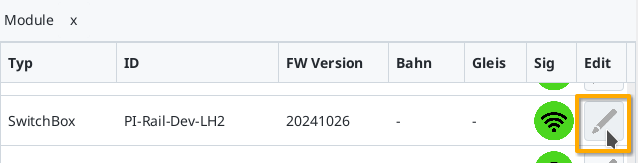
A registered CTC-Turnout-Module can be found under its name in the module list in the CTC-App. Click on the pencil icon to open the "switch cabinet configuration".
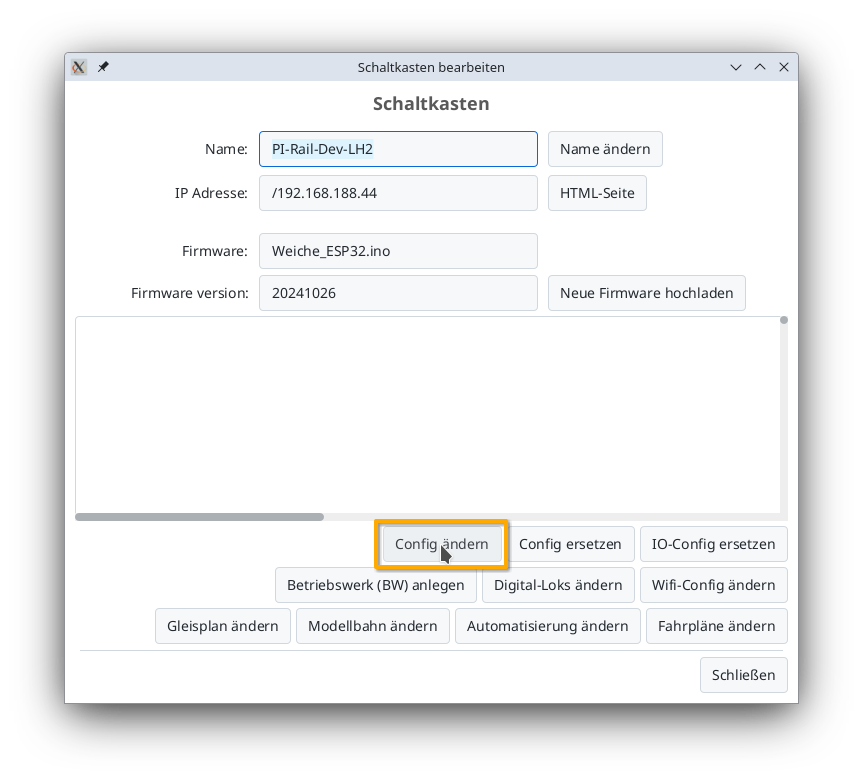
There, click on the "Edit config" button:
Add product
The TrainTronic TR8051 appears to the CTC via the adapter like a classic double-coil drive.
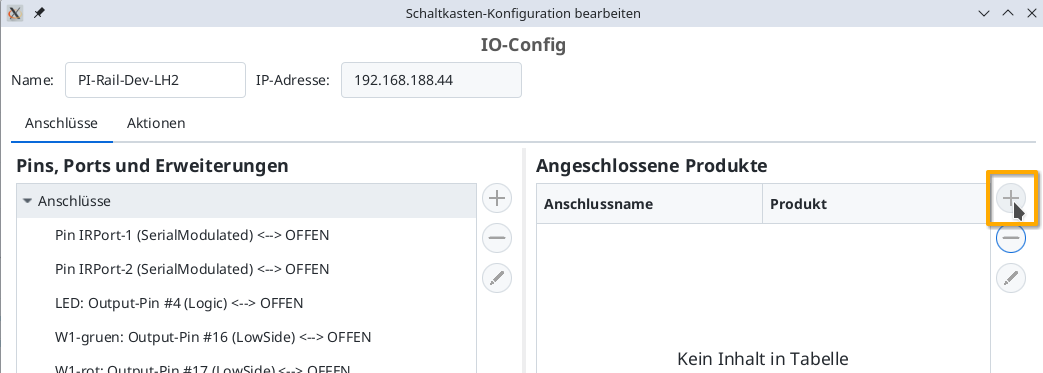
In the config dialog, click on the plus button to the right of "Connected products" to select what product you have connected:
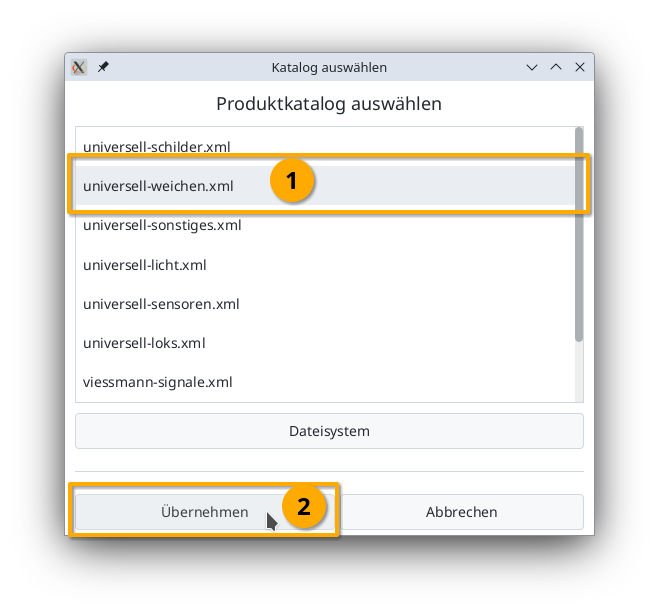
Select the product catalog "universal-turnouts" and then click "Apply":
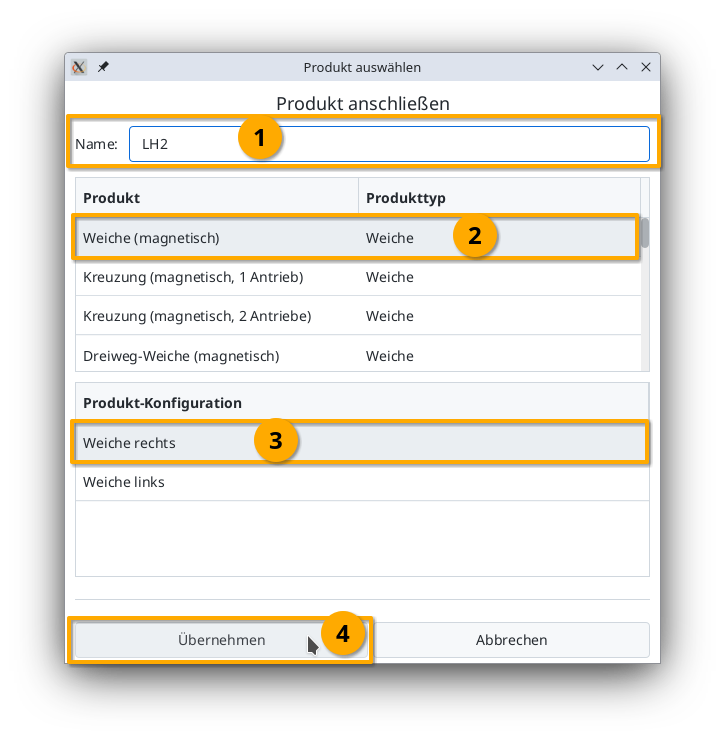
Give your turnout a meaningful name and select the appropriate product and product configuration. Then click "Apply":
Connect product
Now you need to specify which connections of the CTC-Module the turnout is connected to. The plug used above is soldered to "W1-green" and "W1-red". Select "W1-green":
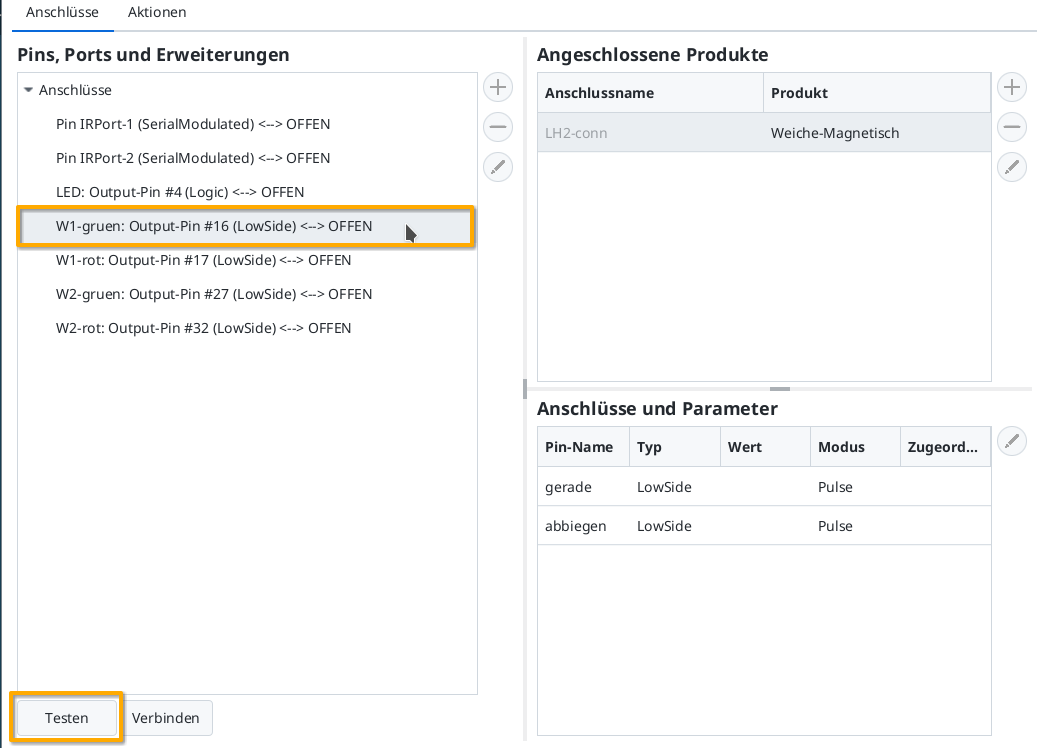
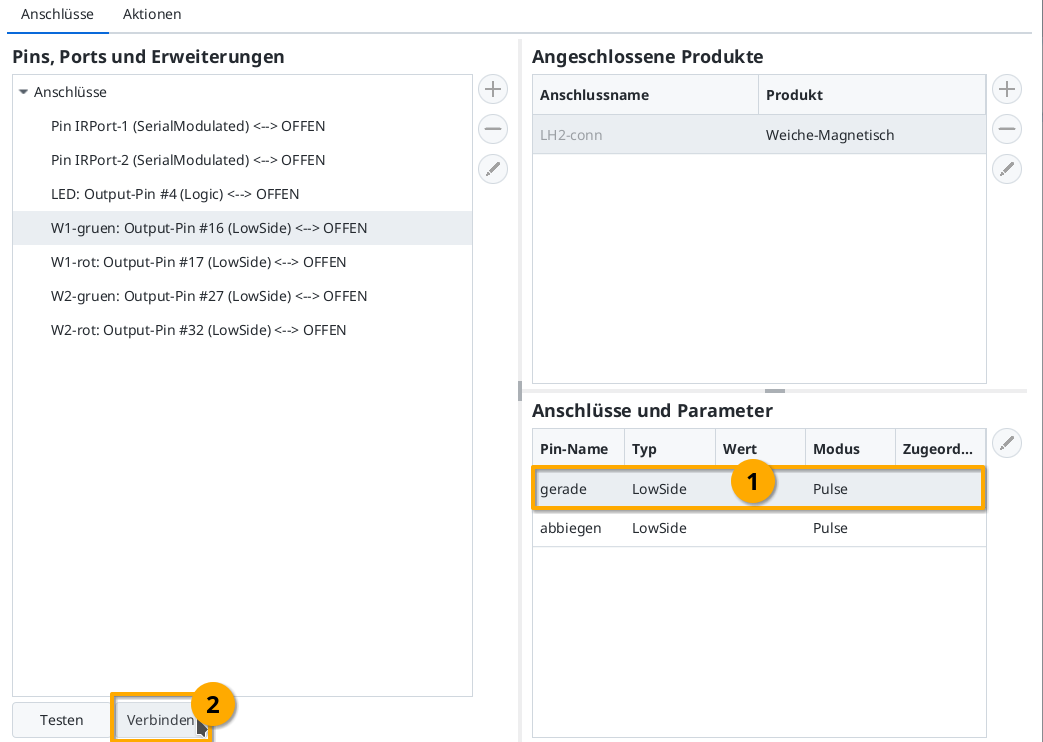
Then you can check by clicking the "Test" button whether the turnout switches and in which direction. In my example, W1-green switches to straight. Therefore, I now select the line "straight" under "Connections and parameters". By clicking "Connect", you assign the left-marked "W1-green: Output-Pin #16" to the connection "straight":
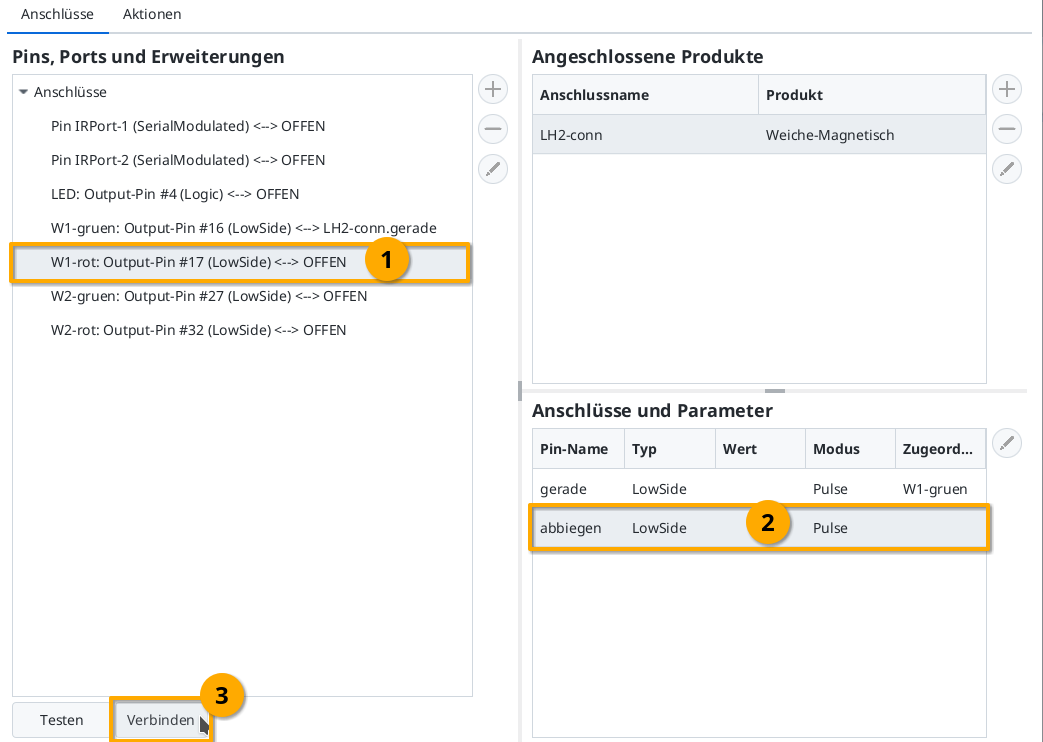
Then connect "W1-red" (Output-Pin #17) to the connection "turnout" in the same way:
Upload configuration
Once all pins are connected, you can click the "Upload" button to save the changes to the config on the CTC-Turnout-Module:
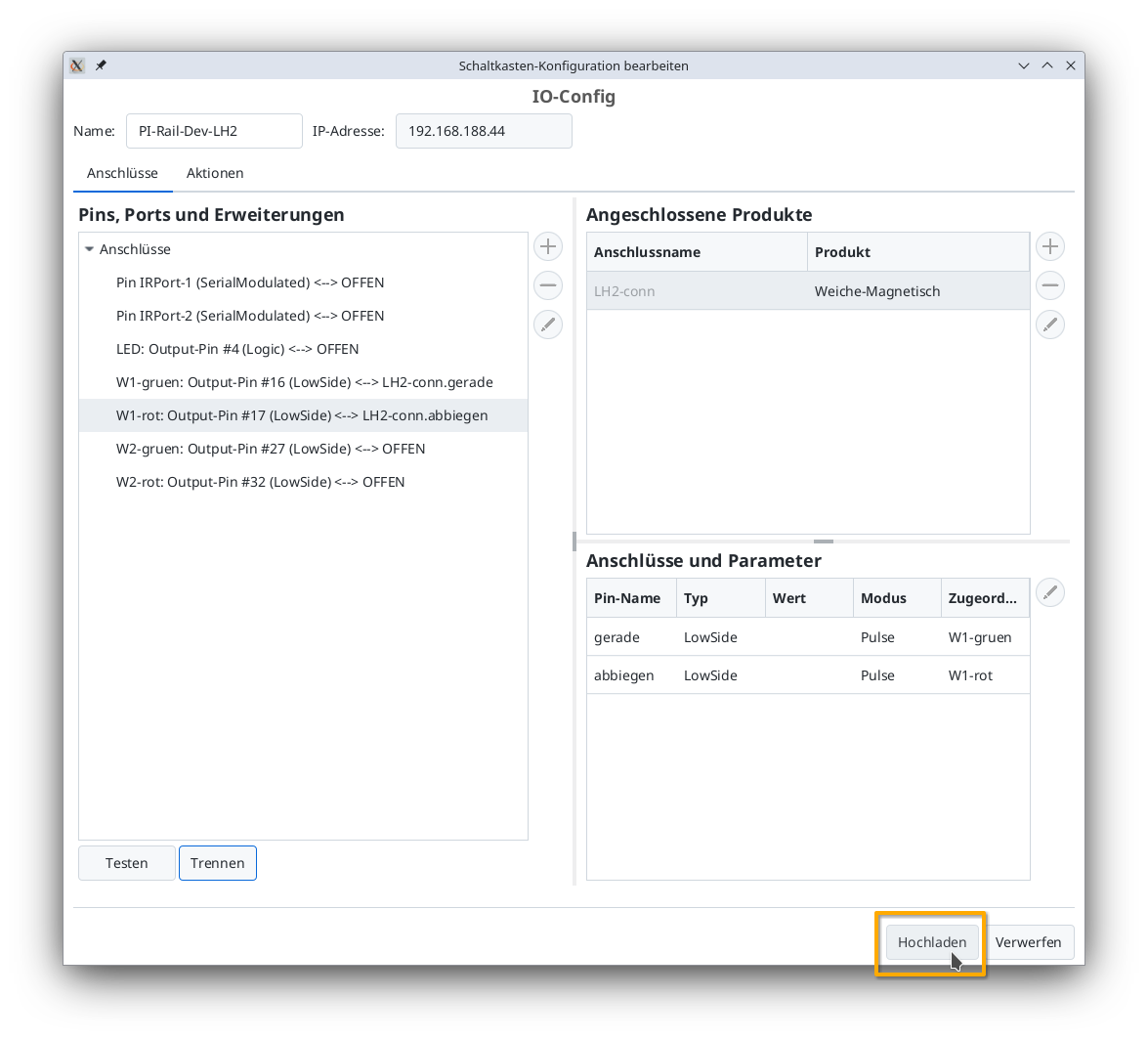
The CTC-Turnout-Module restarts.
Turnout in the signal tower
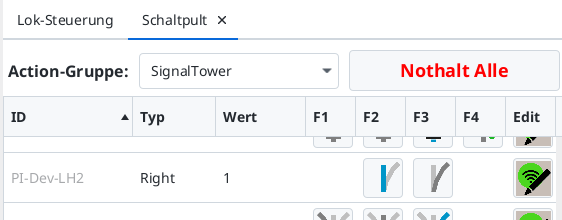
After a few seconds, the newly configured turnout appears in the signal tower: