





This installation guide is for the WS2811-16out from FichtelBahn
Install and connect the CTC module
The pin assignment is as shown in the wiring diagram

Register the module in the WiFi
If the CTC-Multi IO Board 4 is not yet registered in the model railway WiFi, you must do this first. You can find the instructions for this in the user manual under Chapter 3.1 "Registering modules in the WiFi" .
Open configuration
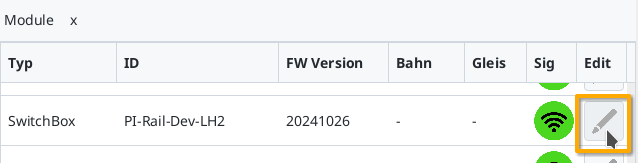
A registered CTC-Multi IO Board 4 can be found under its name in the module list in the CTC app. There, click on the pencil icon to open the "switch cabinet configuration".
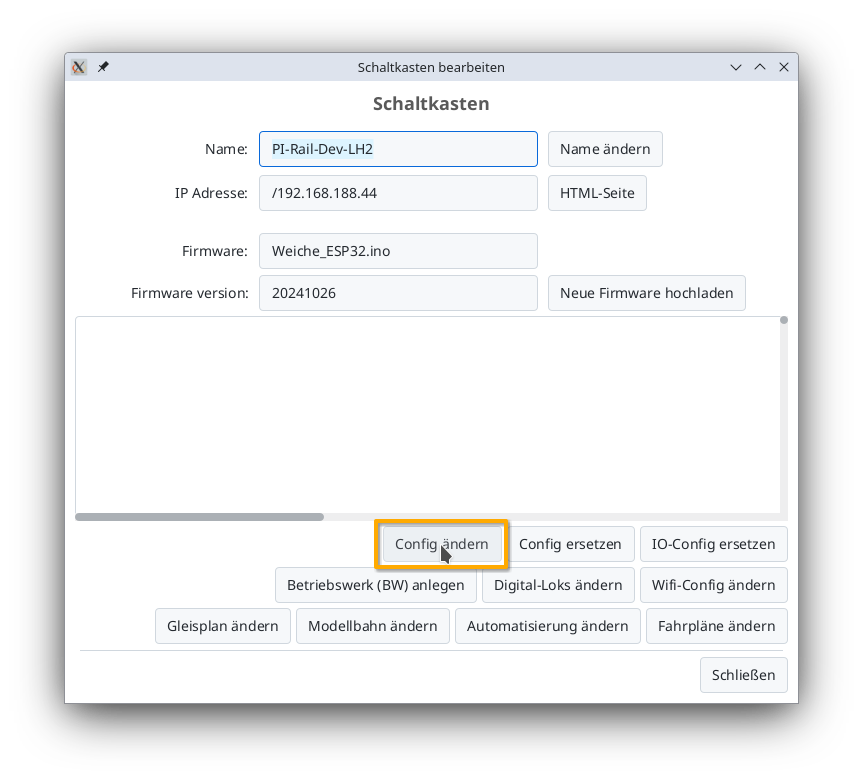
There, click on the "Change config" button:
Add product
In the config dialog, click on the plus button to the right of "Connected products" to select what product you have connected:

Select the product catalog "Viessmann-Signal" and then click "Apply":

Give your signal a meaningful name, select the appropriate product and product configuration. Then click "Apply":

Connect product
Now you need to specify which connections of the CTC module the signal is connected to.

If it is not yet connected, click on "Connect".
For the other signals in the row, proceed exactly as with the first one.
Upload configuration
Once all pins are connected, you can click the "Upload" button to save the changes to the config to the CTC-Turnout-Module:

The CTC-Turnout-Module will restart.
Signal in the signal tower
After a few seconds, the newly configured signal appears in the signal tower:

Here you can now switch between the individual light signals.