





This article series describes the configuration of automation using the example of a garden railway.
In the second part, we focus on train protection using stop beacons in front of buffer stops.
Train protection: Beacons in front of buffer stops
First, we take care of the beacons in front of buffer stops. They ensure that our locos always come to a stop in time before the buffer stop. Of course, we must consider how far the NFC reader in each loco is from the front or end of the loco, and that the loco may not come to an immediate stop even in an emergency brake.
Creating a stop sign (Sh2)
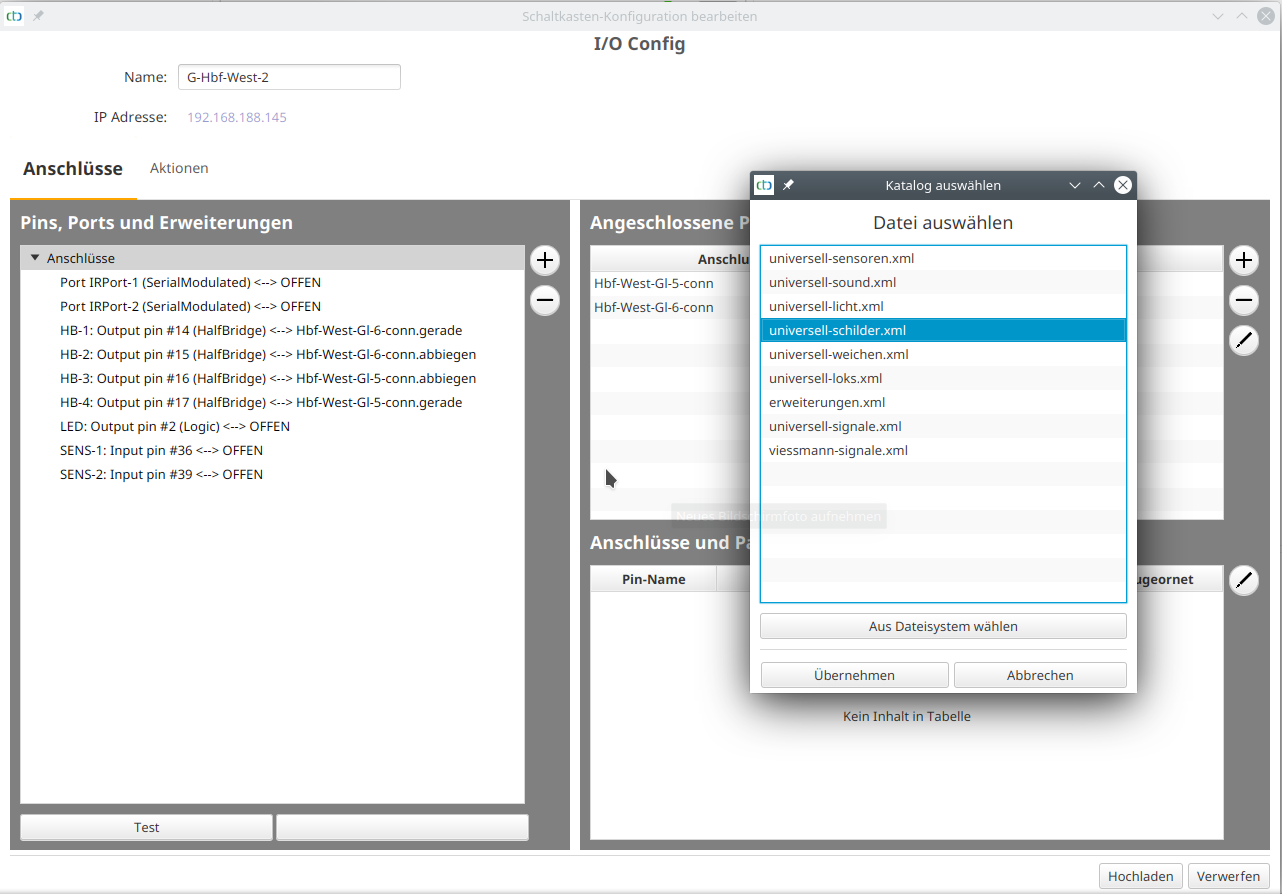
We select a CTC module nearby, e.g., the one that controls the turnout to the associated siding. There, we go into the config and click the "Add product" button. We select the catalog "universal-signs.xml":
Note: Stellwerke.de provides a comprehensive description of common railway signs and their abbreviations.
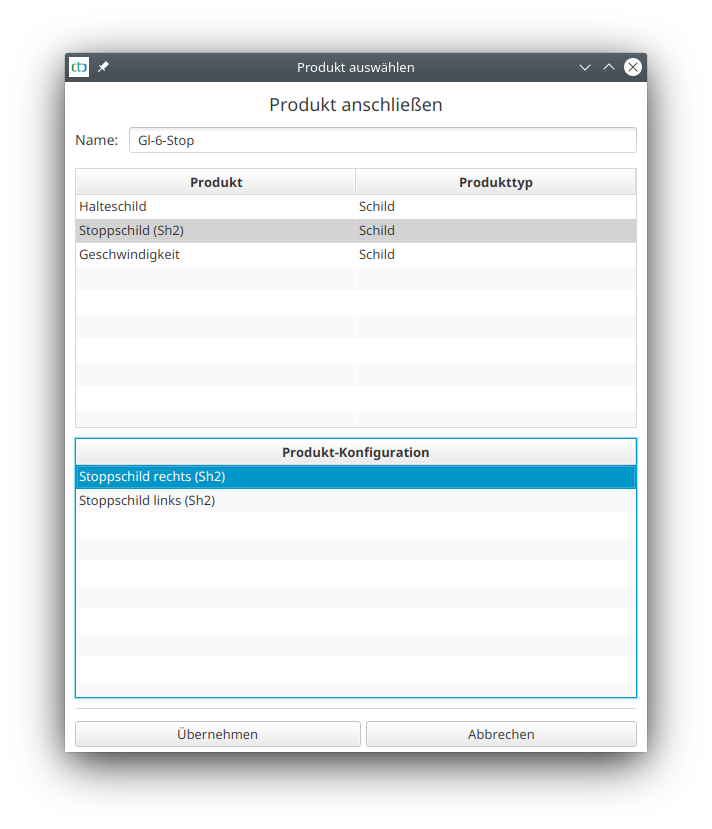
There, we assign a suitable name and select "stop sign" in the correct direction (right means "clockwise"):
The new sign has been added:
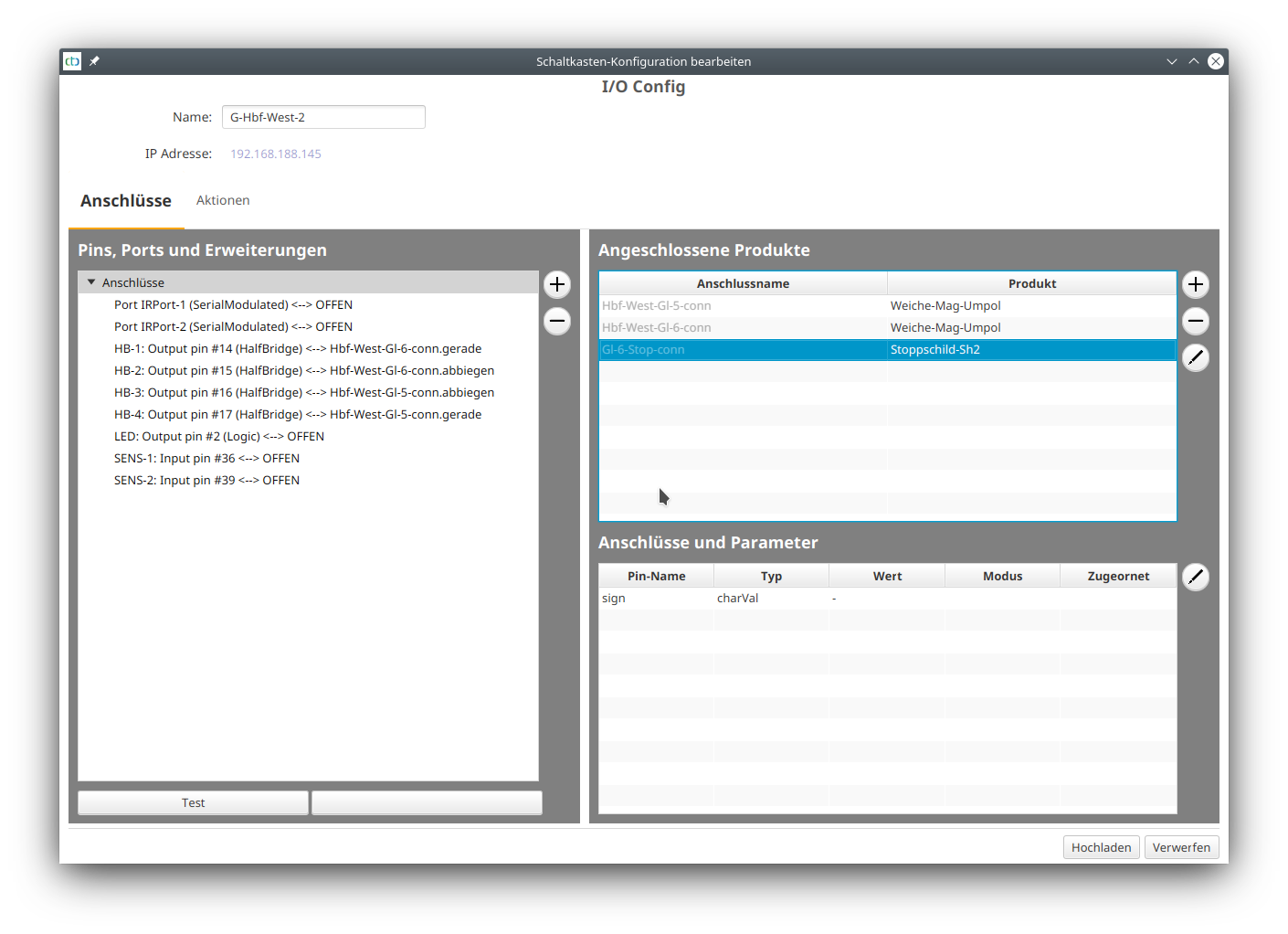
Now we can upload the config and then place the position of the sign in the track diagram.
Placing the stop sign in the track diagram
To do this, we open the track diagram where the buffer stop is to be placed and set a signal (traffic light) at the relevant position.
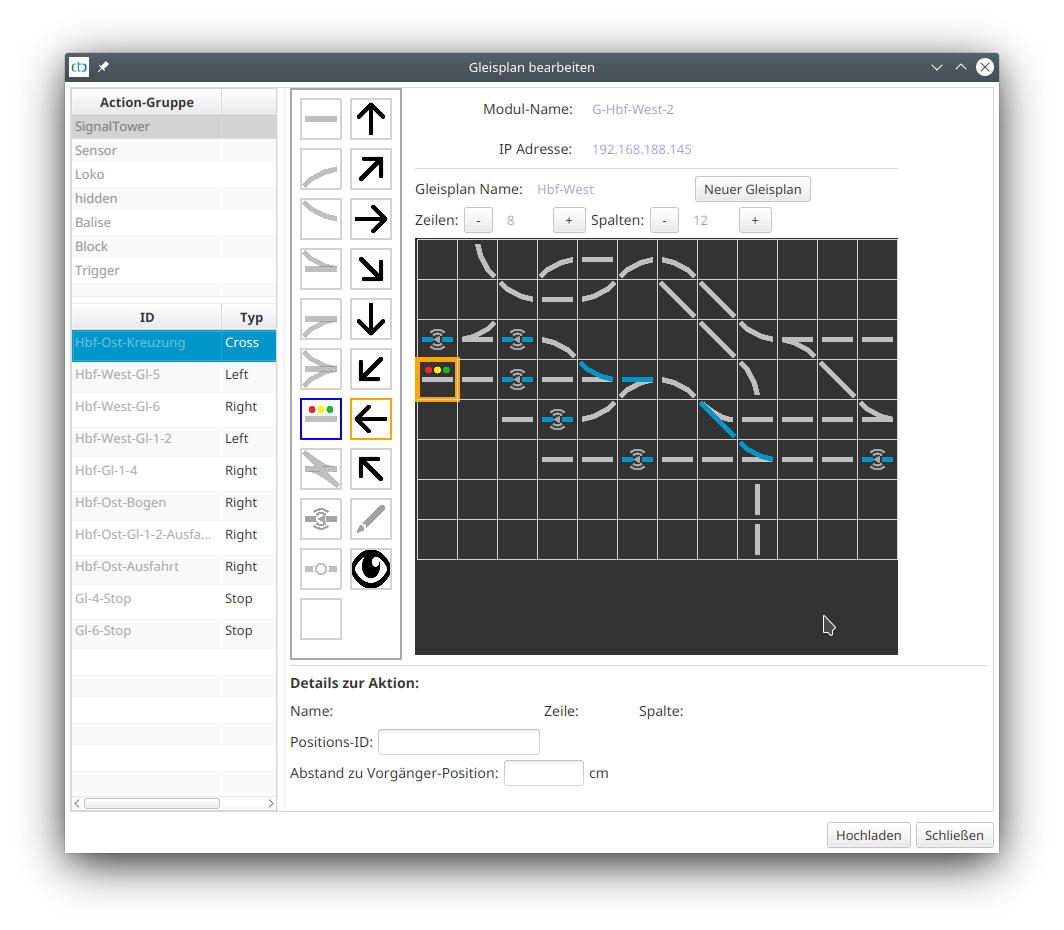
Then we select the sign at the buffer stop:
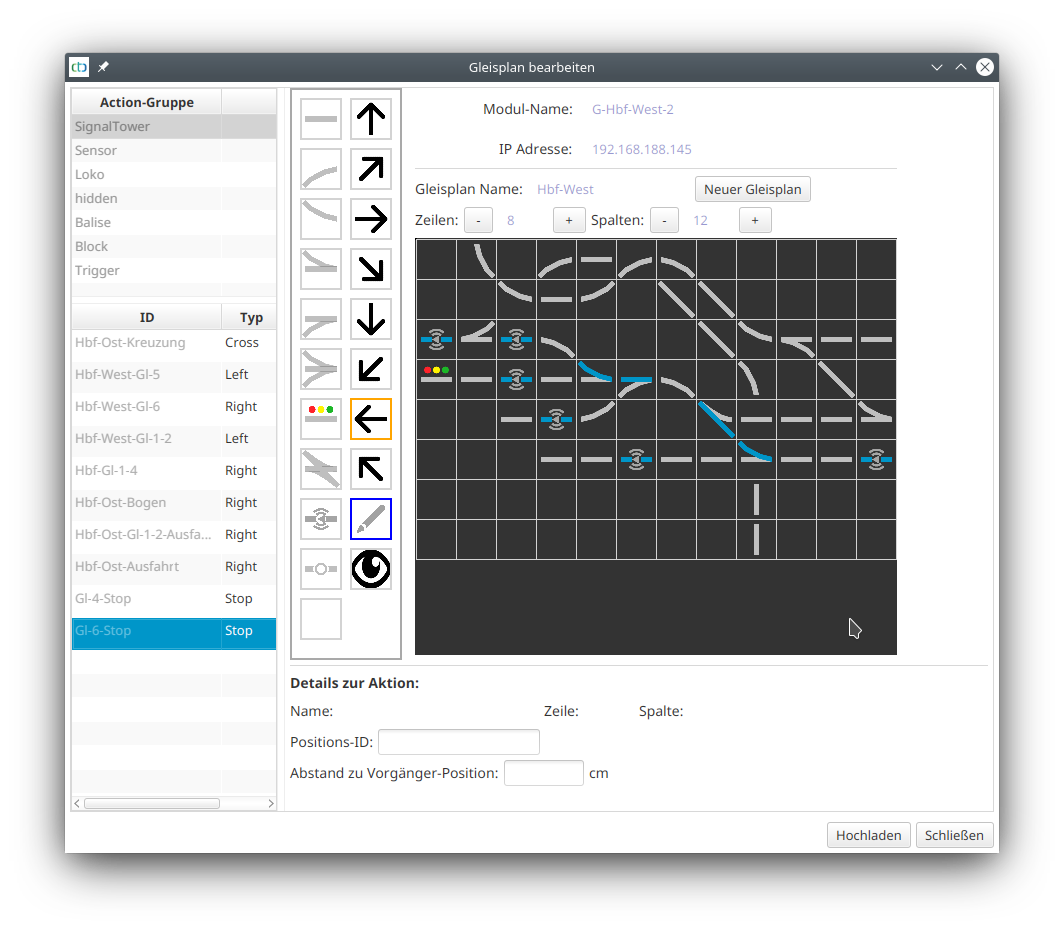
By clicking on the newly placed signal, the buffer stop sign is assigned. The symbol changes to the red rectangle with a white border, as defined for Sh2:
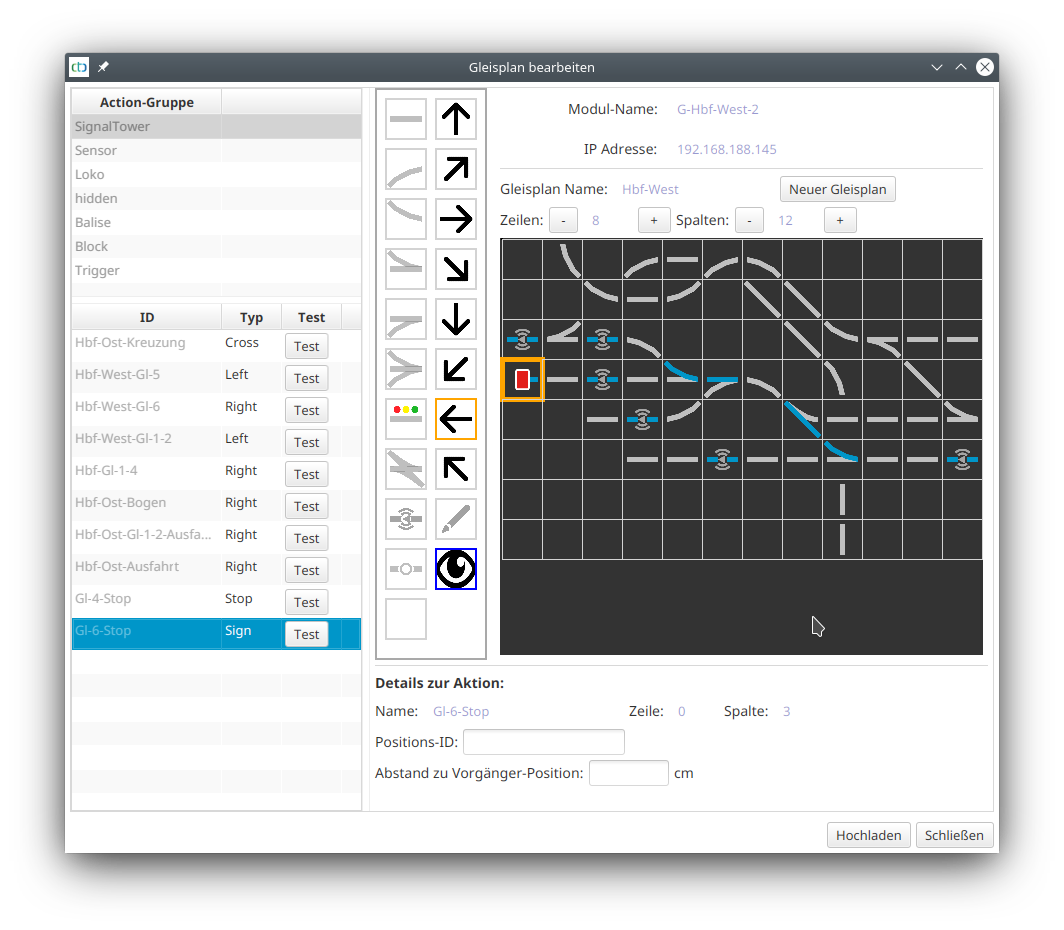
Next, we need to link the stop sign and the NFC beacon.
Linking the stop sign and NFC beacon
To do this, we click on "Change automation" in the switchbox configuration of the CTC module, which also contains the track diagram, and look for the relevant NFC beacon under "Actions". We select the existing trigger:
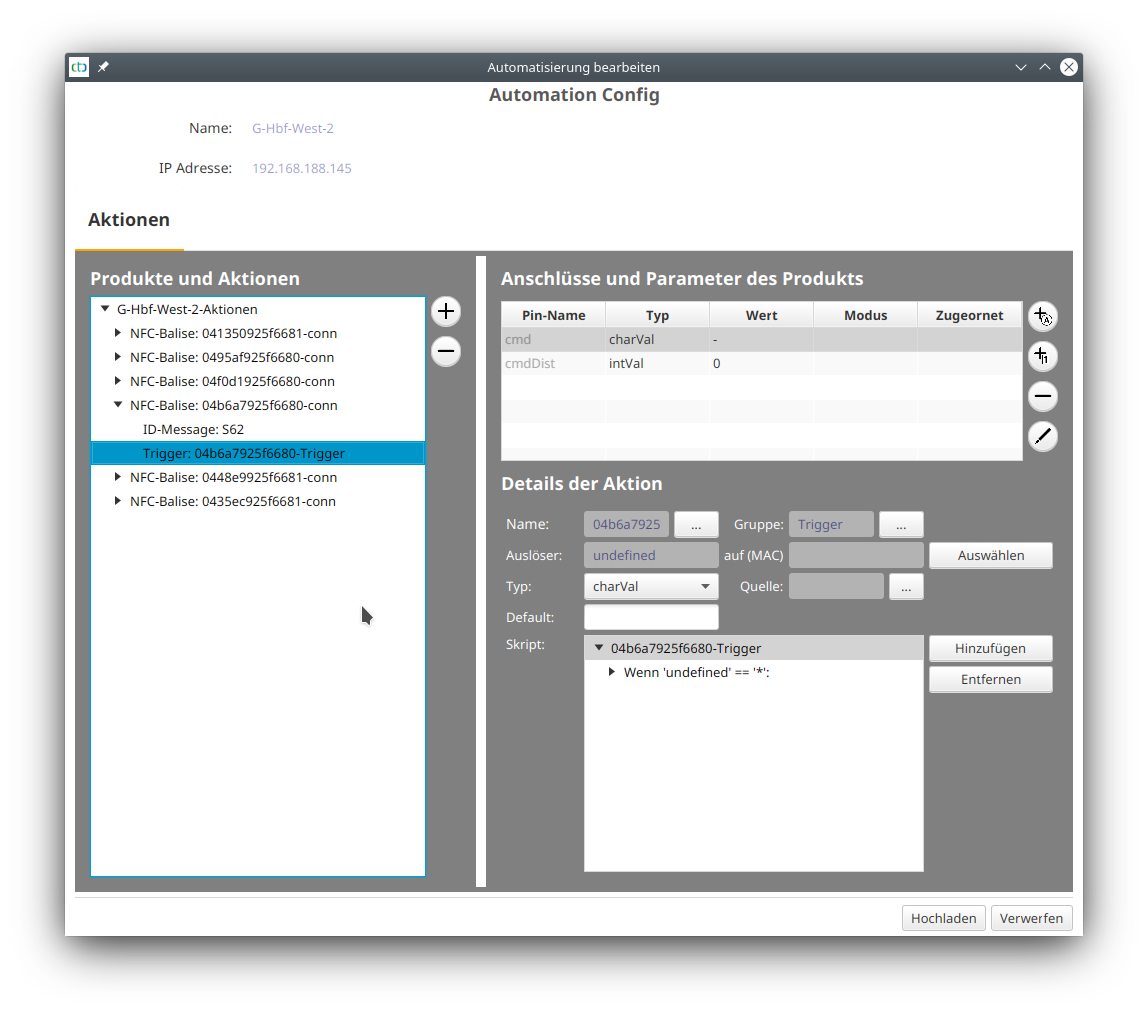
We click the "Trigger" button and select the sign at the buffer stop as the trigger:
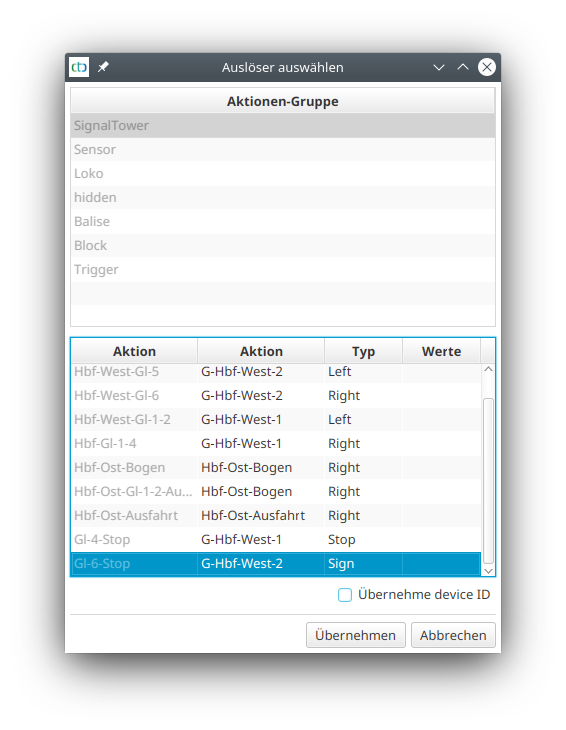
The buffer stop has been added as a trigger:
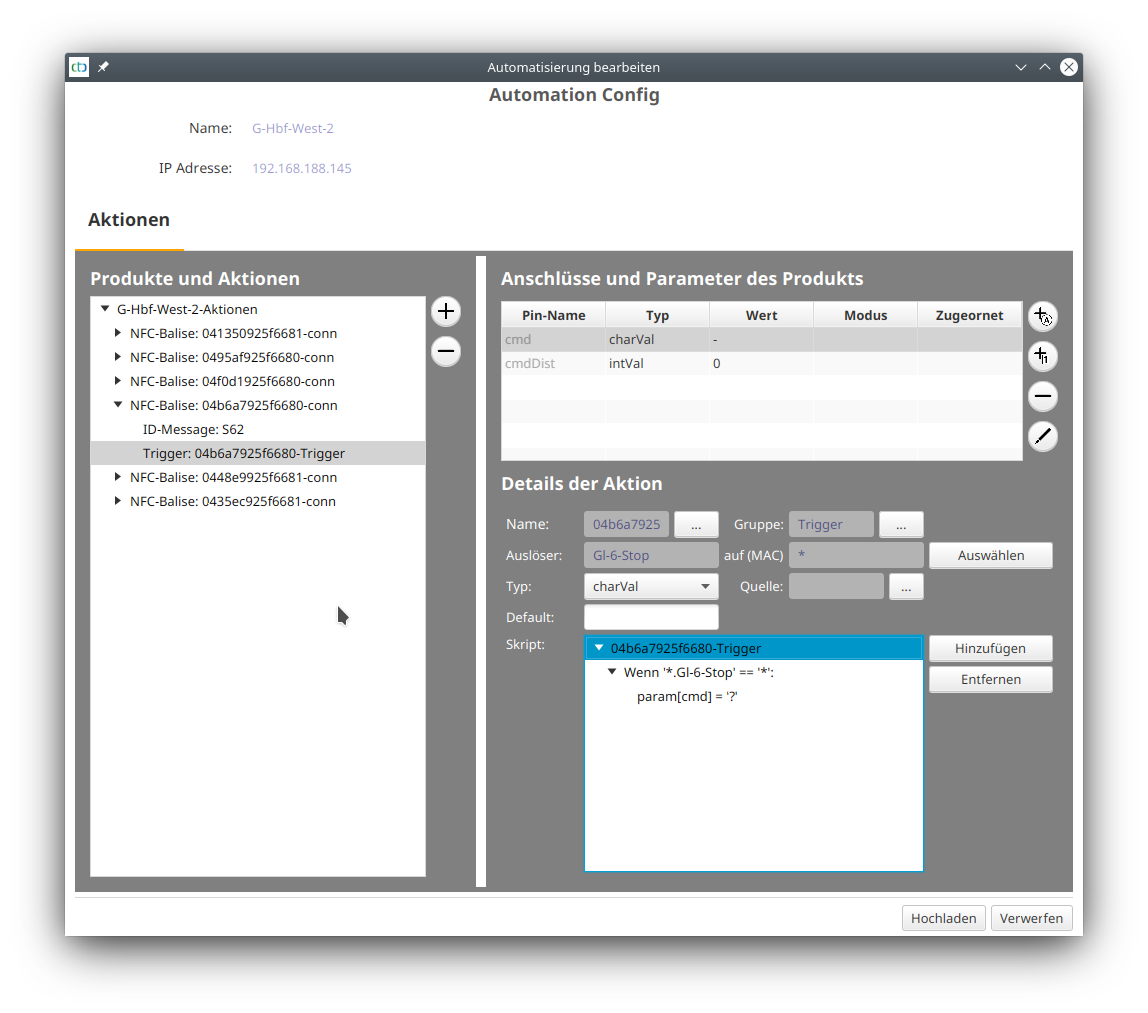
We upload the config and the beacon in front of the buffer stop becomes active. The red marking to the right of the track in the direction of travel indicates the stop sign ahead:
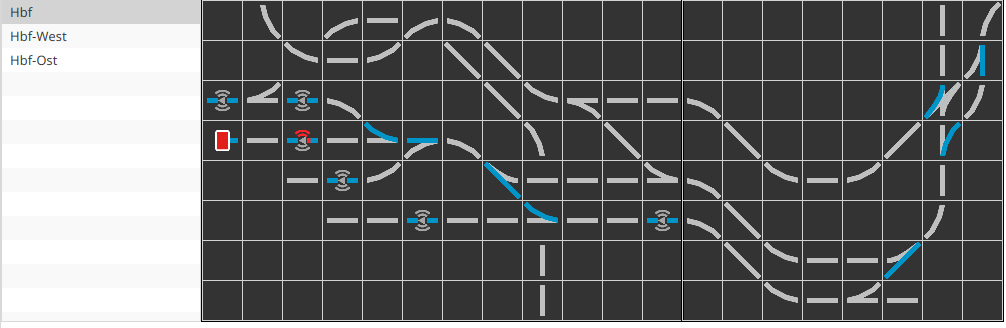
Note: If the display on the beacon appears on the wrong side, you have placed the beacon the wrong way around in the track diagram. When placing the beacon, pay attention to the small gray arrow in the center of the symbol: It must point clockwise.
Checking the status of the beacon
By clicking on the beacon in the track diagram, we can always obtain detailed information about the beacon:
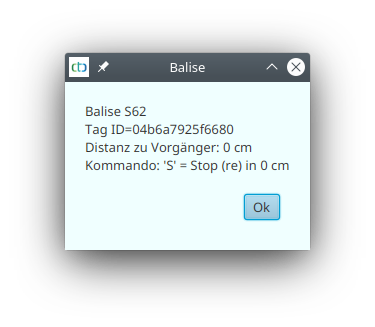
Back to Part 1 | Part 2 | Continue with Part 3 | Go to Part 4 | Go to Part 5