




This article series describes the configuration of automation using the example of a garden railway.
In the fourth part, we expand our station by adding blocks and routes.
Important: In CTC, blocks are always identified by exactly 2 characters (letters, digits). The assignment between beacons and blocks is done exclusively via this name, i.e. all beacons in a block must start with the two letters of the block name .
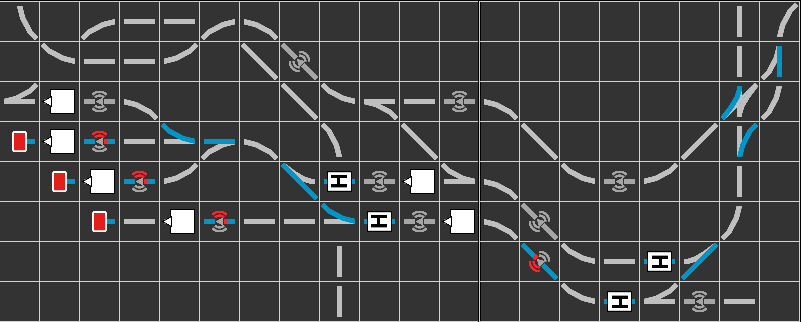
Create a block in the track plan
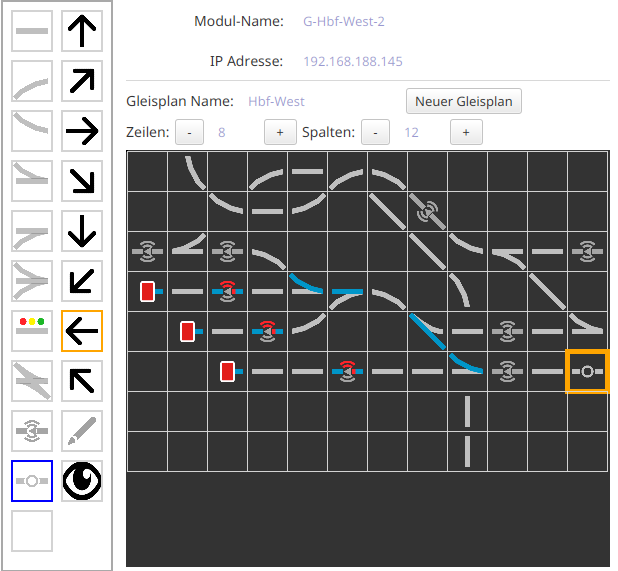
As soon as we have placed the first beacon of a block, the block also exists. In this case, we don’t need to create the block manually; instead, we can place it directly in the track diagram. To do this, we place a sensor at the desired location with the correct clockwise direction:
Then we select the block and click on the location where we just placed the sensor:
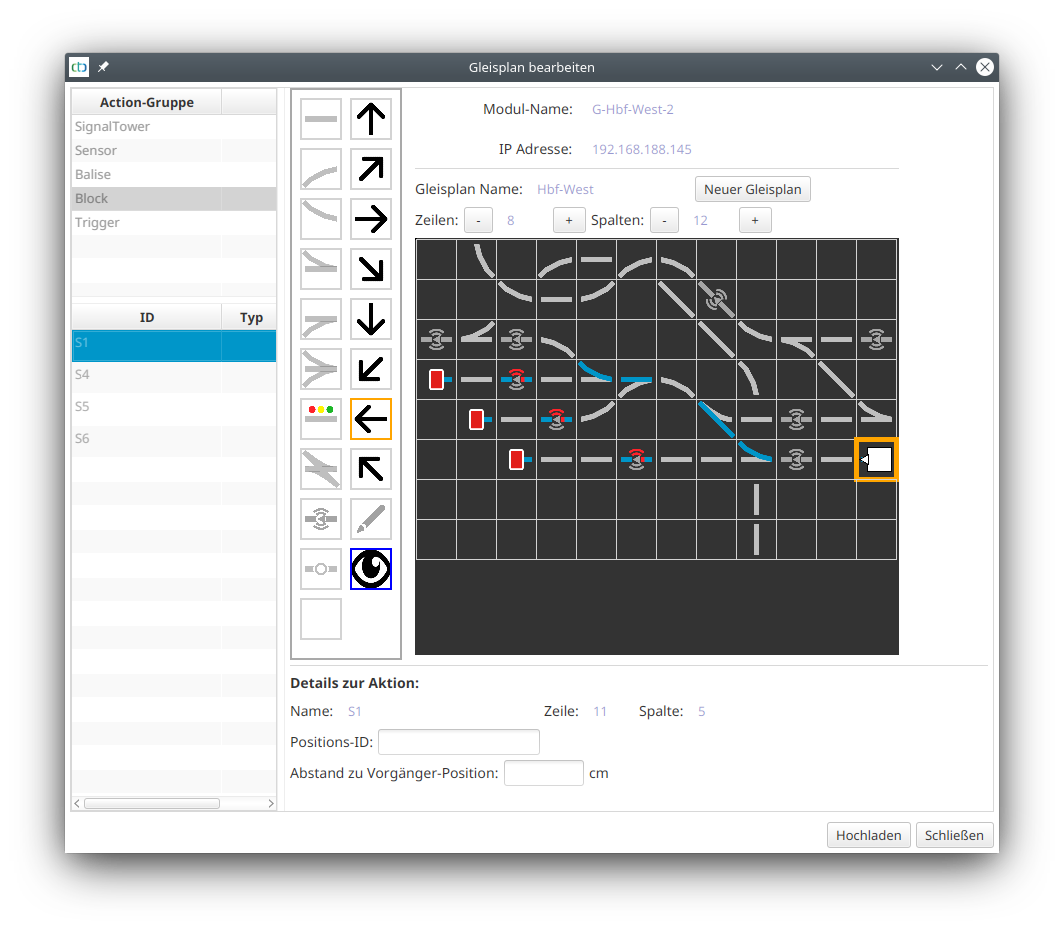
Important: The small arrow on the block must point clockwise.
Create a block in the config
If there is no beacon for the block yet, we can also create it manually. To do this, we open "Edit automation" of a CTC module, preferably the module whose track plan will later display the block.
There, we click the plus button next to "Products and Actions".
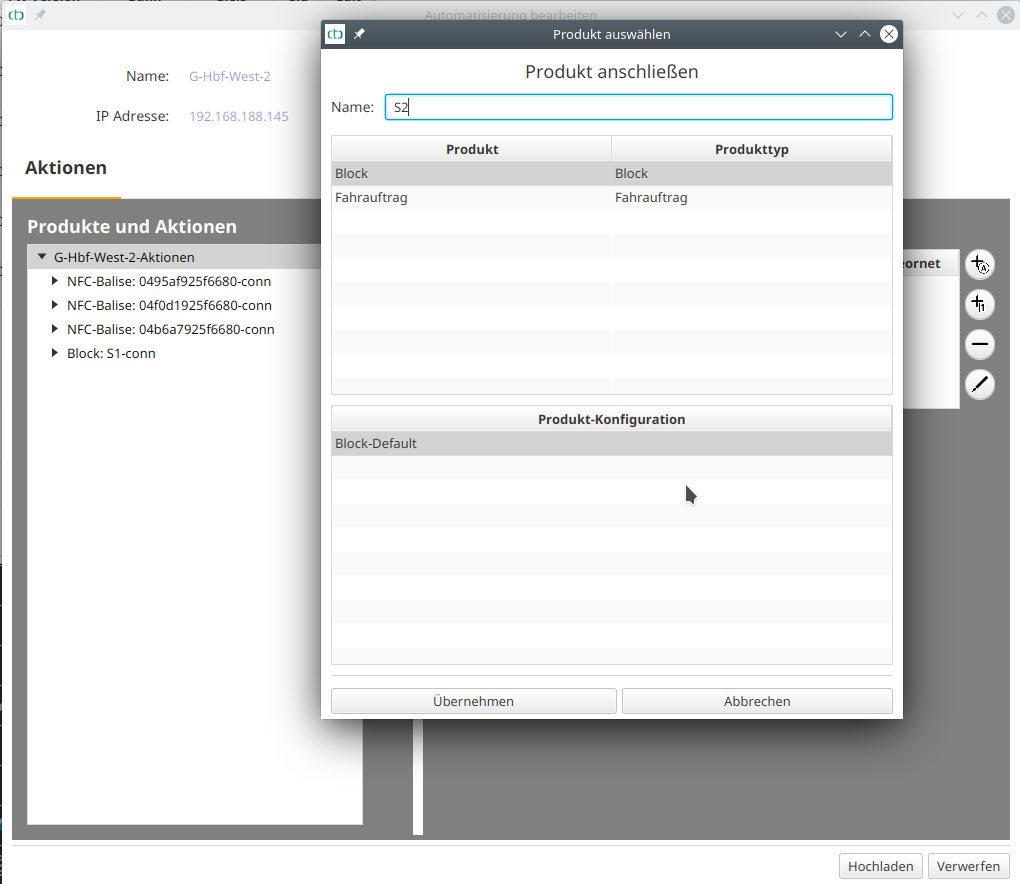
We assign a name (4242exactly 2 characters4242), select "Block", and click "Apply".
Blocks in the track diagram
Create a route
A route is the connection between two blocks. It is always created at the block where the route begins. To do this, we open the "Edit automation" dialog of the CTC module in which the start block is defined. Typically, this is the same CTC module where the track plan showing the block is stored.
There, we click on the block and then on the plus button to the right of "Products and Actions":
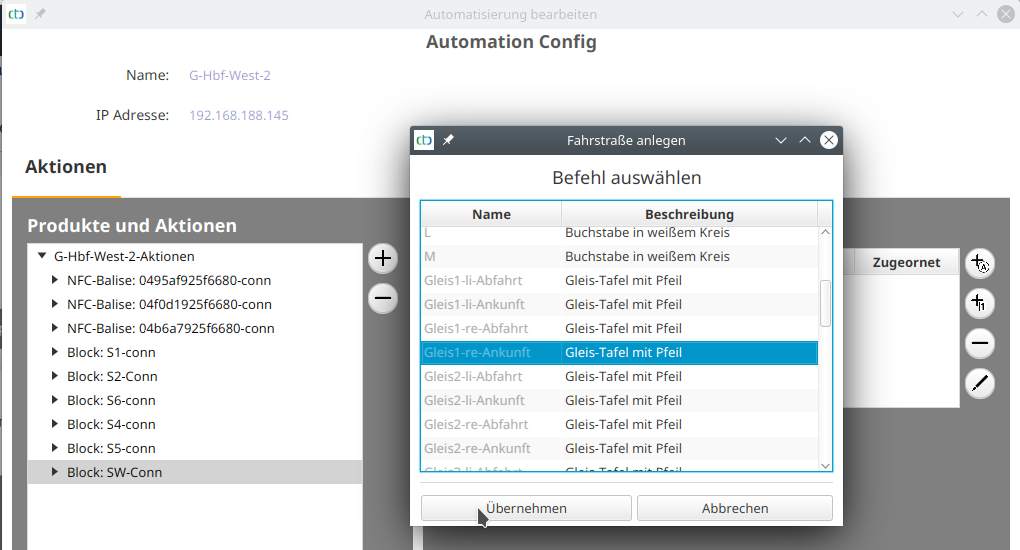
On the newly created route, we select the script line that begins with "Switch to". There, we click the button under "End Block" and select the end of the route:
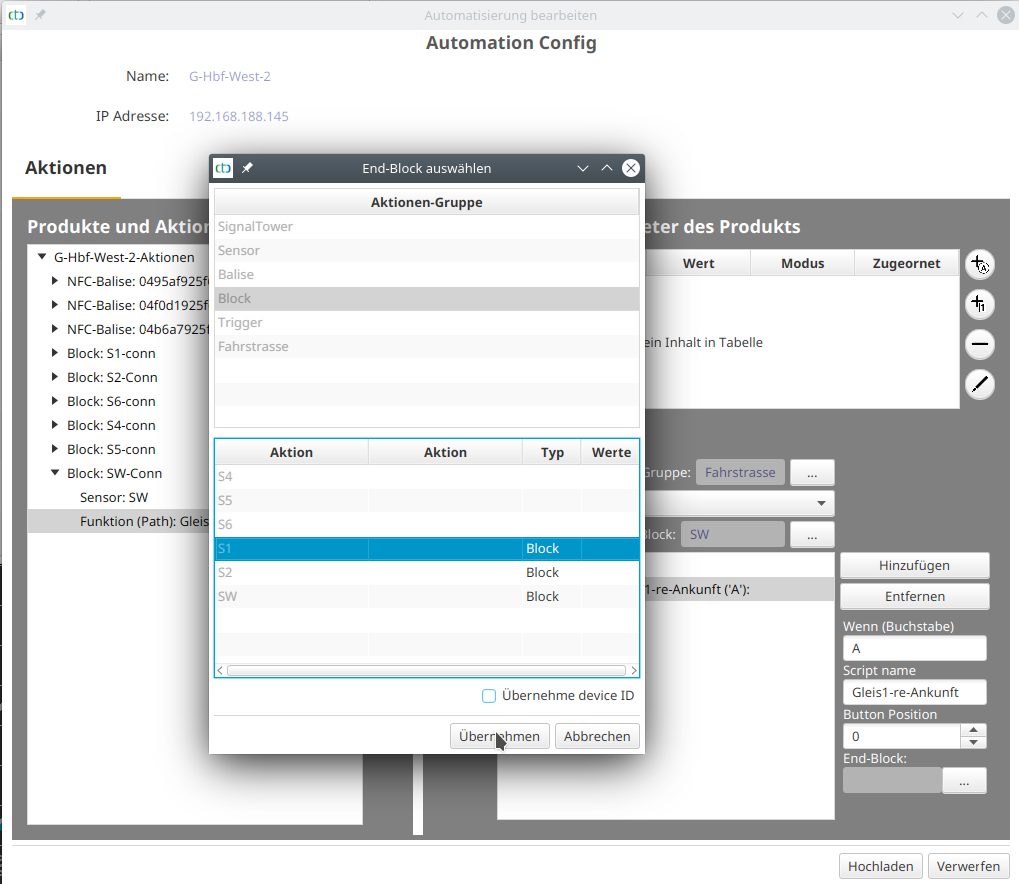
Then we click the "Add" button to add the first switching command:
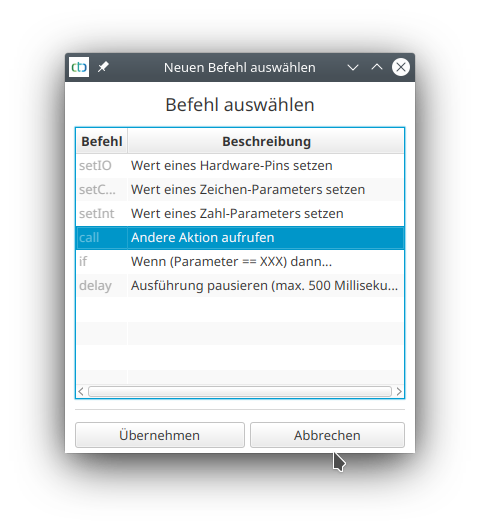
We select "call" and click "Apply". The script window switches to the newly created "call". Then we click the button under "Execute action" to select the turnout to be switched:
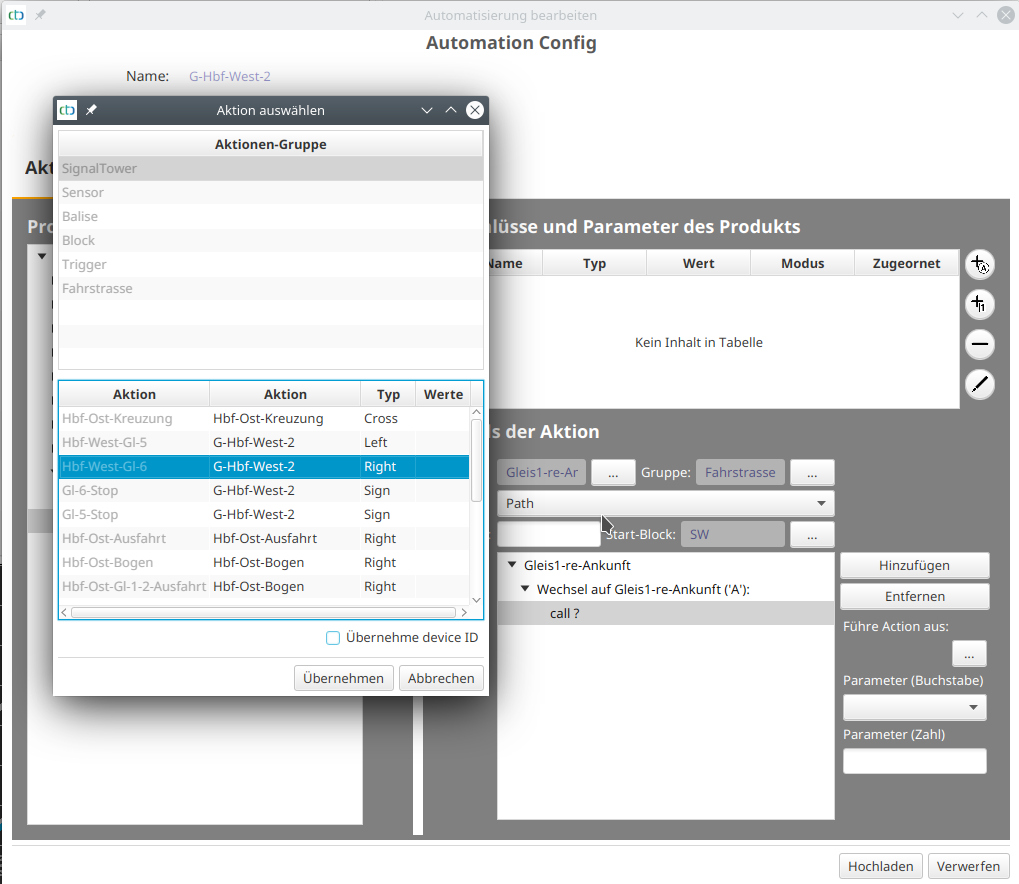
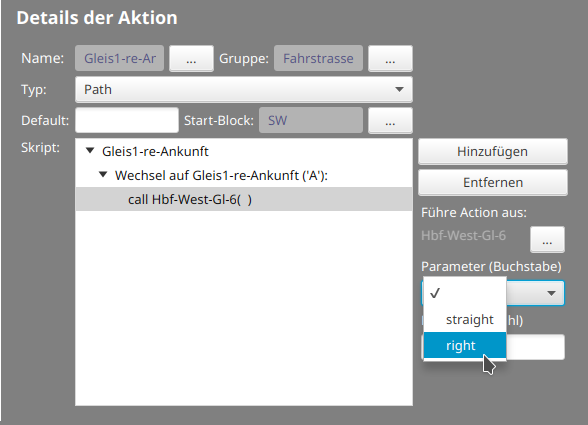
If necessary, we mark the action group, then the desired turnout, and click "Apply". Finally, we use the selection under "Parameter" to define the direction in which the turnout should switch:
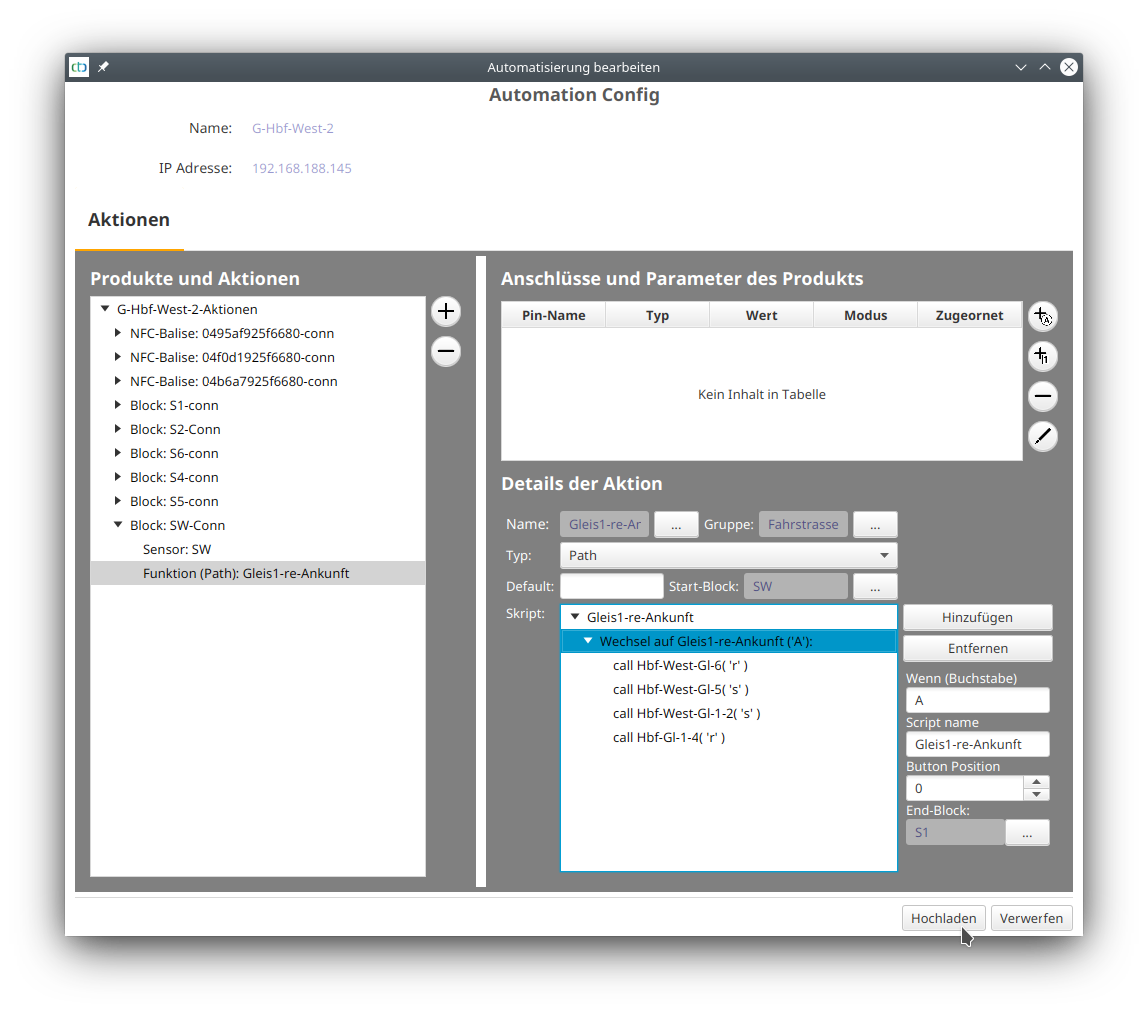
This is what the fully configured route looks like:
Finally, we click "Upload".
Switch a route
In the control panel, we now find an action group "Route" with which we can switch our routes. After clicking the button, it turns colored:
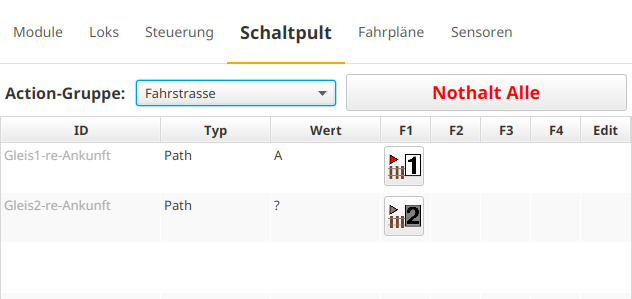
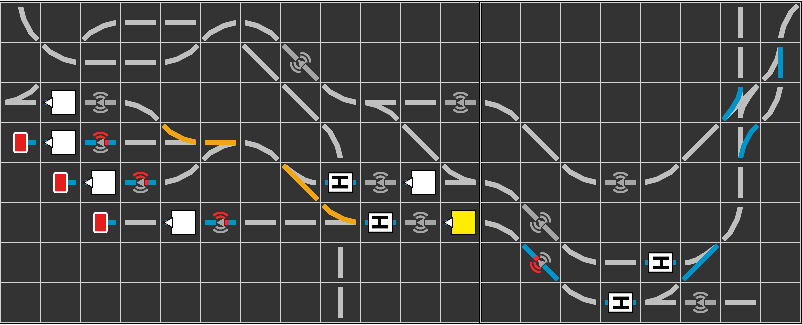
When switching the route, all turnouts and the destination block are first reserved, and then the turnouts are switched. The reservation remains in place until a locomotive reaches the destination block. The reserved turnouts are highlighted in orange, and the reserved block in yellow:
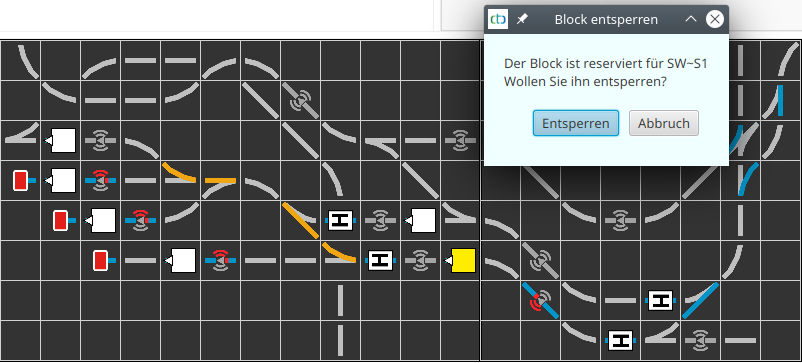
By right-clicking on the destination block, the route can be canceled without a locomotive reaching the destination block:
Cancel a route
Back to Part 1 | Back to Part 2 | Back to Part 3 | Part 4 | Continue with Part 5