





This article series describes the configuration of automation using the example of a garden railway.
In the fifth part, we create driving tasks and use them to create a timetable.
In our timetable, the locomotive standing in siding track 6 should be moved to track 1 in station S. Afterwards, it should complete a lap around the layout and make a stop at track 1 in station T. Upon arrival at track 1 in station S, the locomotive should be returned to siding track 6.
Creating a driving task
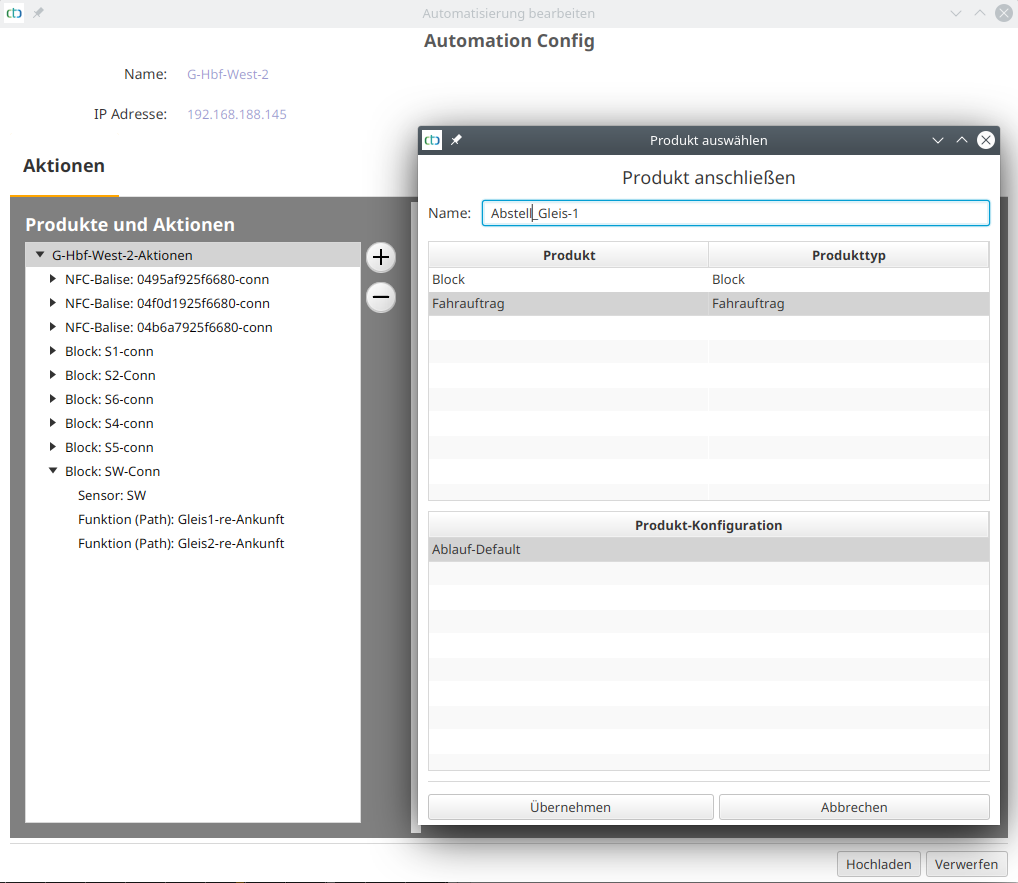
To create a driving task, we open the "Automation Config", select the top entry under "Products and Actions". Then we click the plus button to the right of it:
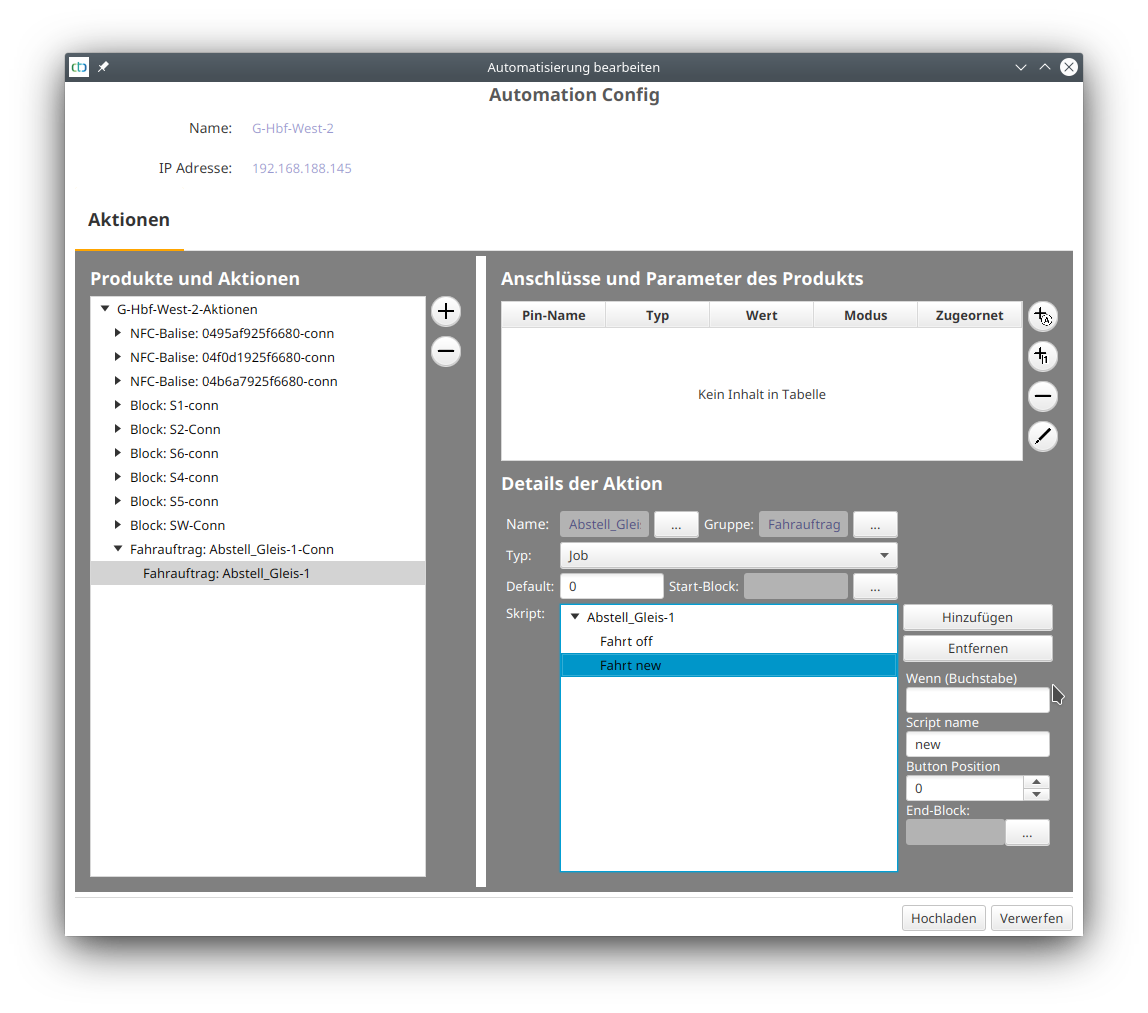
Under the newly created driving task, we select the function (driving task). Then we select the top node in the script and click "Add" to the right of it. A new trip "Trip new" is created:
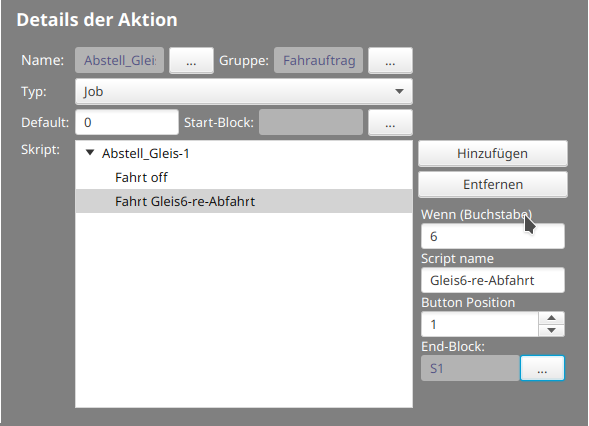
Next, we assign a command letter, a suitable name, and set its target block to the trip:
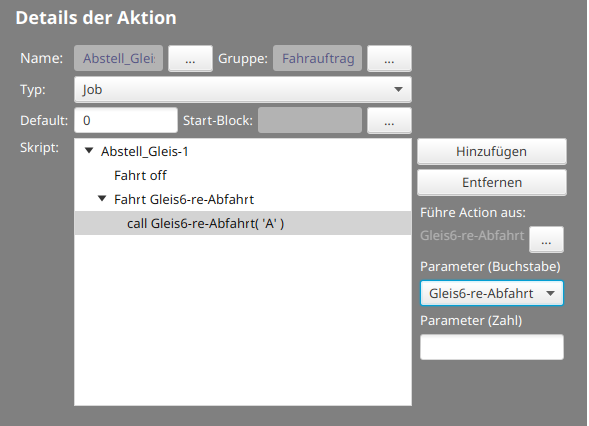
In our simple case, the driving task consists of a single route:
Afterwards, we create the remaining driving tasks:
- From station S track (block S1) to station T track 1 (block T1)
- From station T track 1 (block T1) to station S track 1 (block S1)
- Storing the locomotive in siding track 6: From block S1 to block S6.
Creating a timetable
This will be continued briefly. Until then, the user manual Chapter 7.4 "Automation: Timetables" will help.
Back to Part 1 | Back to Part 2 | Back to Part 3 | Back to Part 4 | Part 5