





This article series describes the configuration of automation using the example of a garden railway. This starts with the placement of the NFC beacons and ends with complete automation via a timetable.
In the first part, we plan the subdivision of the model railway into blocks. Then we place the beacons on the track diagram.
Note: The functionalities described here require at least CTC-App version 4.04 and the associated firmware.
Planning: Blocks and Beacons
In Chapter 7.1 - Automation: Blocks of the user manual, you will find an introduction to blocks.
We divide the entire track plan of our model railway layout into individual blocks (track sections). Turnouts (branches) may only exist between blocks, never within a block.
The main part of our garden railway looks like this. A track leading through several spirals into the storage yard in the garage closes the loop.
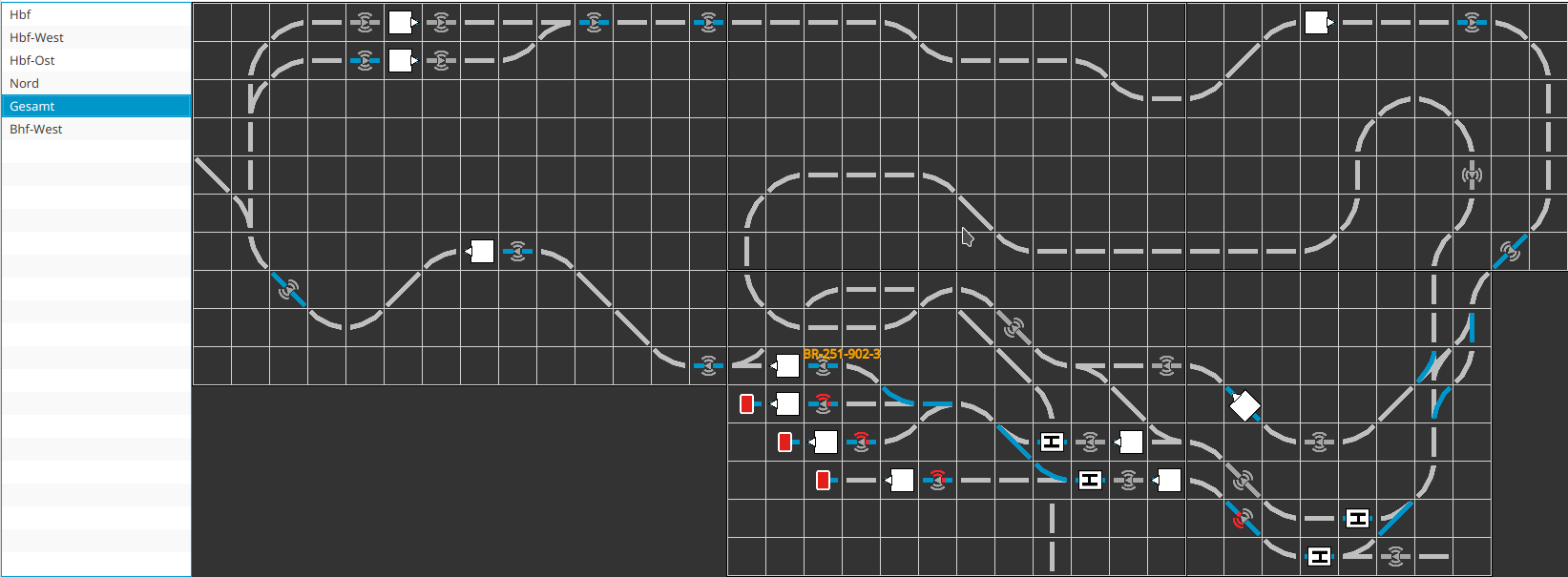
We assign a capital letter to each station. Our layout has three stations, which are given the letters "S", "T" and "U".
Within the station, we number the tracks sequentially, starting with the main tracks, followed by the storage tracks. After the digits 1 to 9, lowercase letters a to z can be used if necessary. Our station "S" has tracks 1 to 3 for passenger traffic and storage tracks 4 to 6.
Blocks between stations begin with the letter of the nearest station followed by another capital letter.
The beacons within a block are numbered clockwise. Track 1 of our main station "S" has two beacons, which thus receive the position IDs "S11" and "S12".
Each storage track receives at least one beacon in front of the buffer stop so that a locomotive that reads this beacon can still stop in time before the buffer stop. For a long storage track, we place another beacon near the turnout so that a locomotive that stops over this beacon is already fully inside the storage track.
A beacon is also placed in front of every signal or stop sign so that a locomotive stopped over this beacon by the NFC reader still has sufficient distance to the signal. A further beacon is placed at a sufficient distance in front of this beacon, which can announce the signal to an approaching locomotive so that it reaches its minimum speed just before the second beacon and then comes to a stop exactly over the second beacon.
Signals or signs do not necessarily have to exist visibly on the model railway. They can also only be present in the track diagram and still be used for train control. Only the beacons must exist in reality.
Placing NFC Beacons
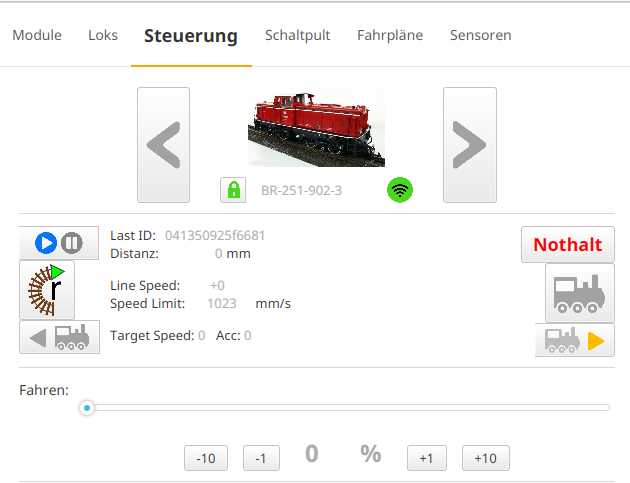
After we have plugged all beacons into the planned positions on the track, we drive the NFC reader of a locomotive over the nearest beacon.
Directly below the image of the locomotive, the unique number of the NFC beacon appears behind "Last ID":
Then we open the track diagram where we want to place the beacon. There, we click on the Action group Beacon and mark the NFC beacon just read by the locomotive in the list at the bottom. Usually, it should be the last one in the list. Then we click on the position in the track diagram where we want to place the beacon. The position is marked with an orange rectangle and the track section turns blue:
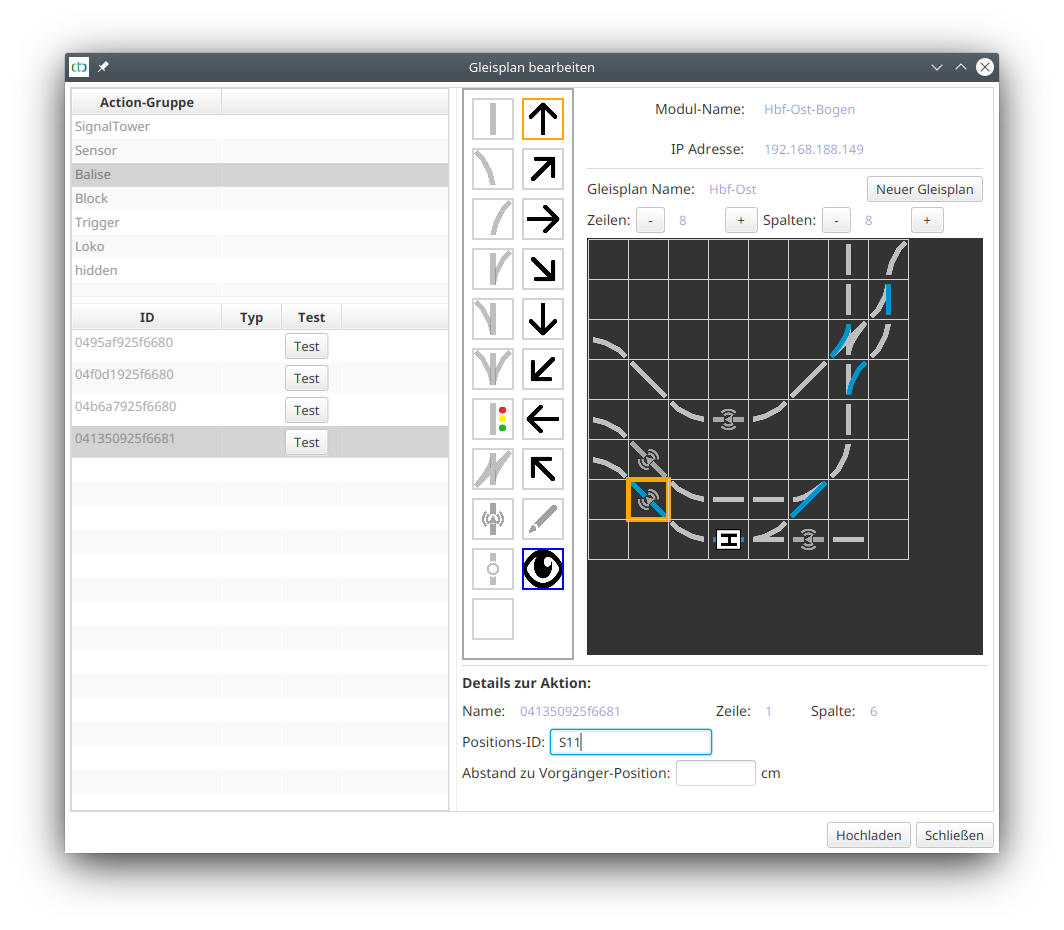
Finally, we enter the three-digit position ID in the (here blue-framed) input field.
We can repeat these steps for several NFC beacons. We can keep the track diagram open while driving the locomotive to the next beacon.
When we are finished with the beacons of this track diagram, we click "Upload".
Part 1 | Continue with Part 2 | Go to Part 3 | Go to Part 4 | Go to Part 5