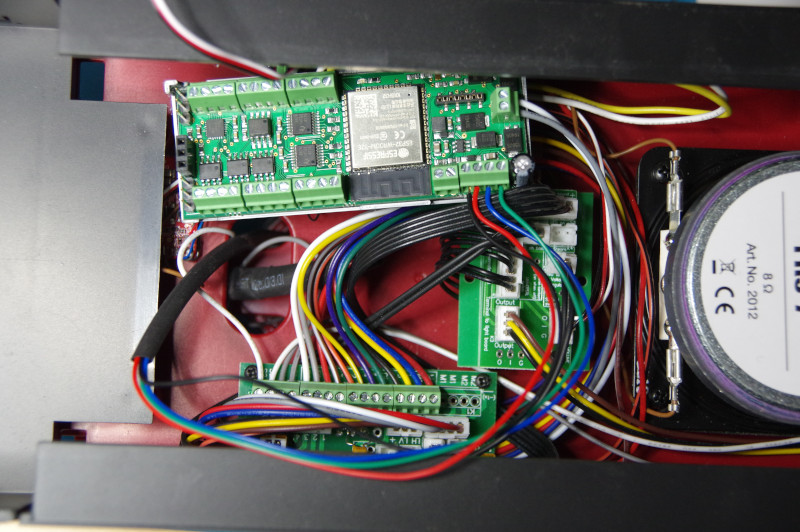





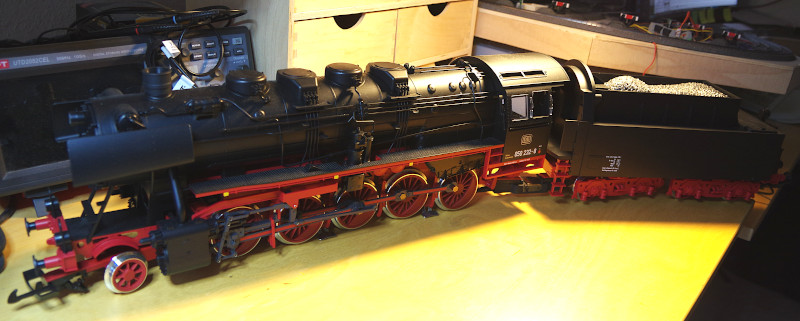
For this conversion, we are working with a current PIKO model featuring a DCC decoder and sound module. To enjoy the sound with CTC as well, the CTC-Loco-Module-G is installed between the track and the DCC decoder.
Pages 12 and 13 of the PIKO BR 50 manual describe the installation of the DCC decoder. Although it is already installed in our model, we now know that it is located in the tender and how to disassemble the tender.
The following image shows the open tender in PIKO’s factory condition:
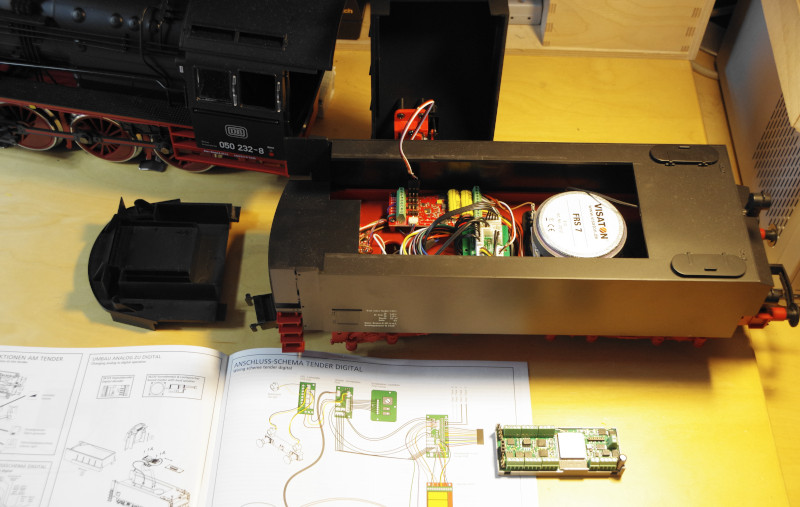
Installing the CTC module is quick: We disconnect the two cables (white and black) from the track connection of the DCC decoder and connect them to the CTC-Loco-Module (Track-A and Track-B). Using two new cables (white and yellow in this case), we connect the DCC decoder (track connection) to the Motor-1 output of the CTC-Loco-Module. Since I am too curious to see if the locomotive works, I am skipping the NFC reader connection for now. I think I will mount it on the suspension of the frontmost locomotive axle.
The following image shows the fully installed CTC-Loco-Module-G:
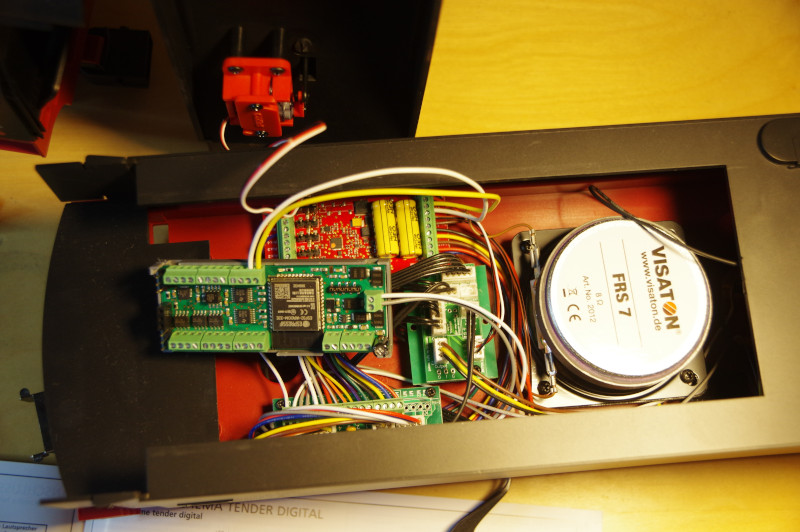
To put the locomotive into operation, the configuration of the installed CTC-Loco-Module must now be adjusted. We don’t even need to connect the tender and locomotive: placing the tender on a powered track is sufficient. However, for a later test of the DCC functionality, the locomotive and tender must be reconnected.
If not already done, we register the CTC-Loco-Module in the model railway WiFi .
Then we open the configuration dialog:
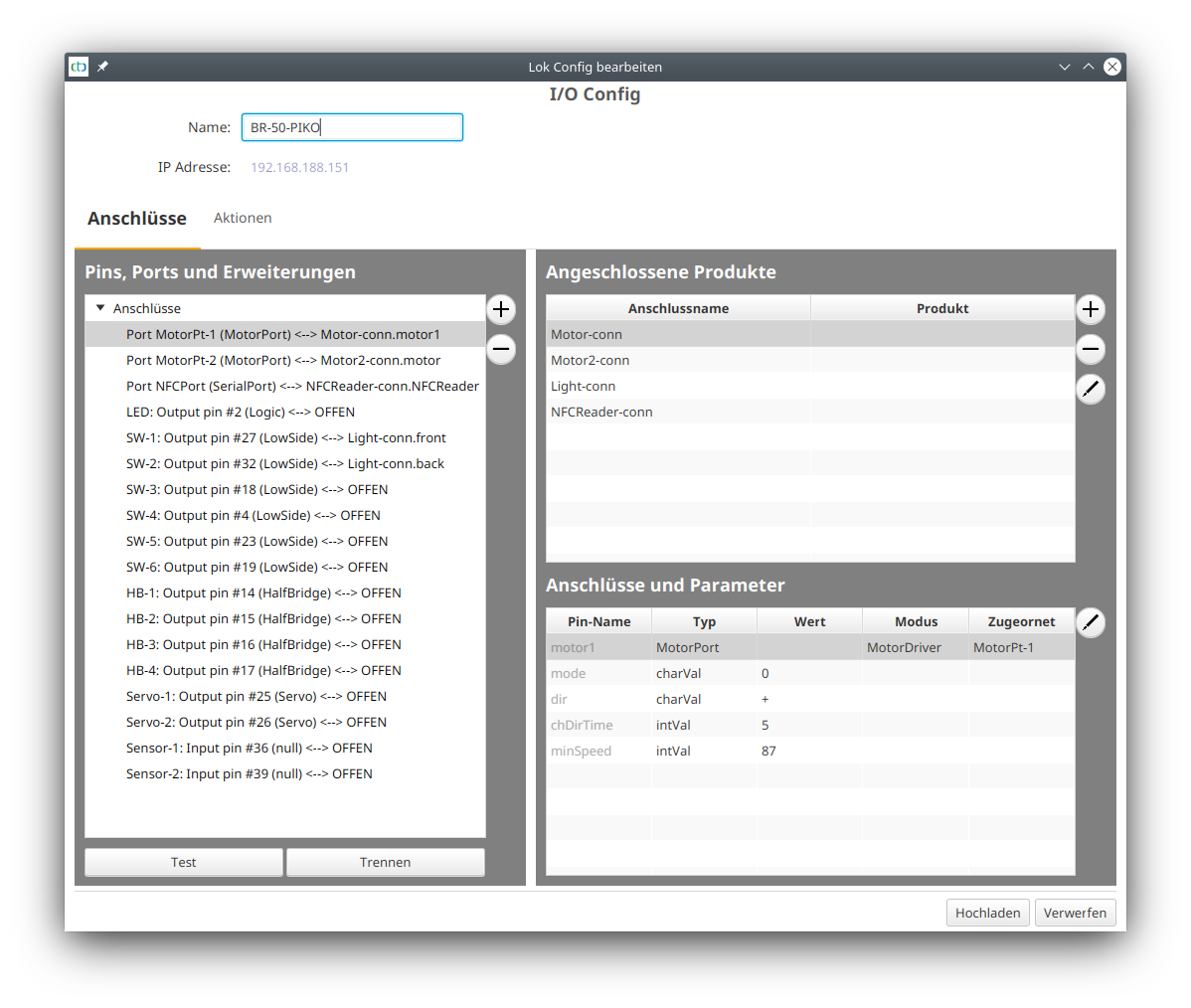
We remove the two preconfigured motors and the light by marking each under “Connected Products” on the right and clicking the minus button. We leave the preconfigured NFC reader in place for later installation.
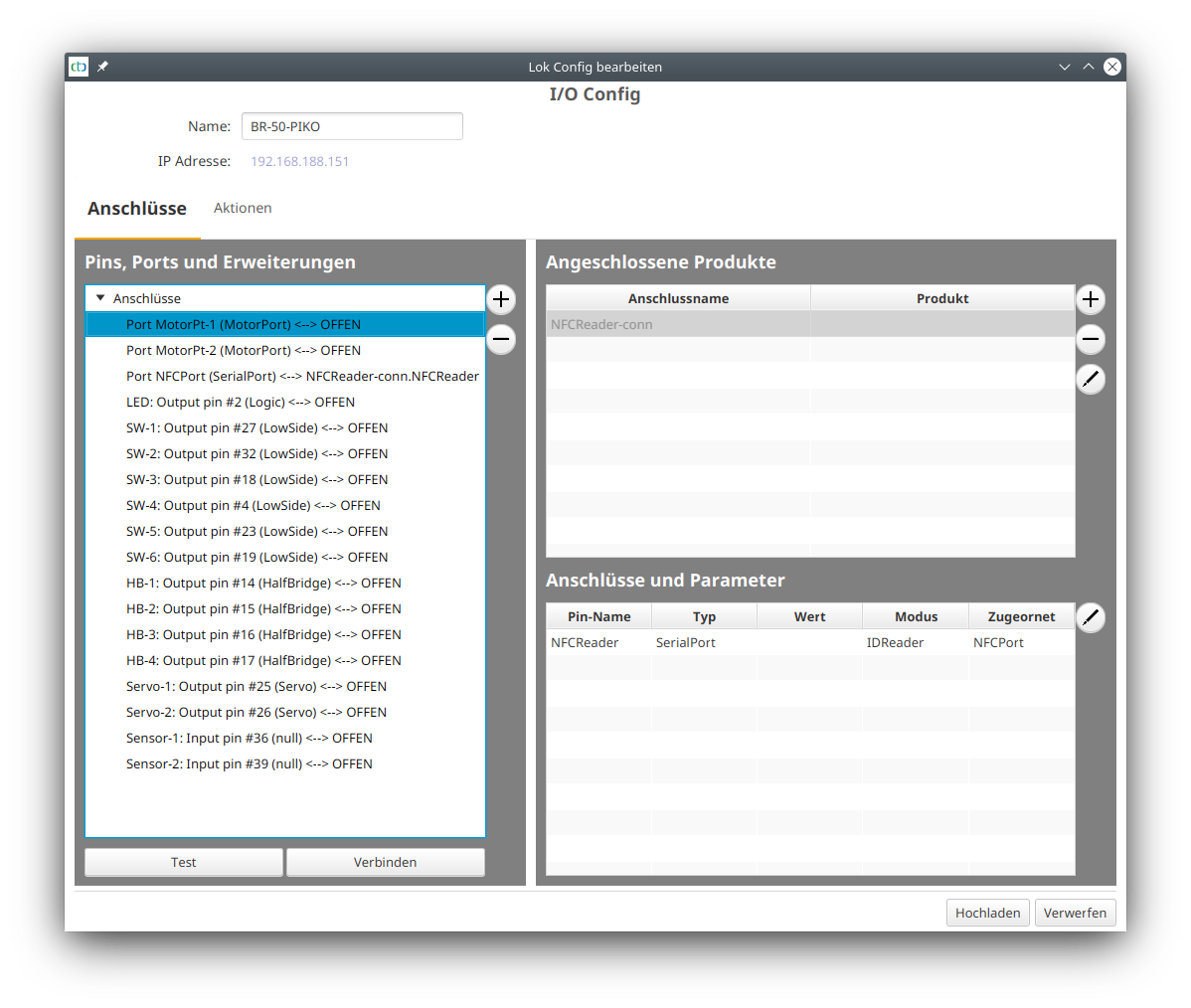
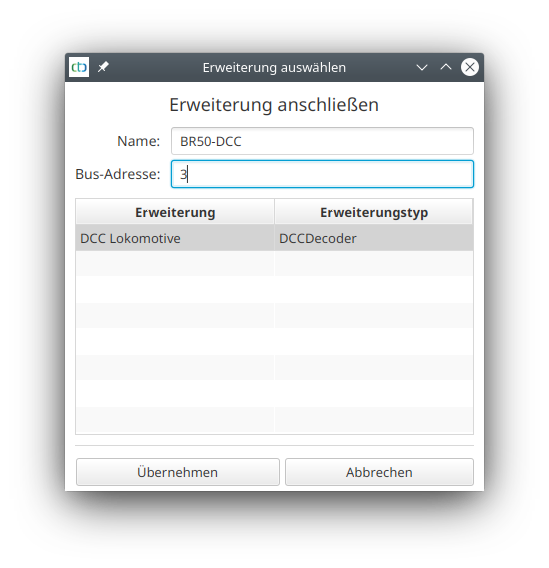
Next, we click on the port “Motor-Pt-1” under “Pins, Ports and Extensions” on the left and then on the plus button to the right. We select the extension catalog “dcc.xml.” There, we choose “DCC-Locomotive,” give it a name, and enter the DCC address. Note: For factory-new DCC locomotives, the address is always set to 3.
Now our configuration looks like this:
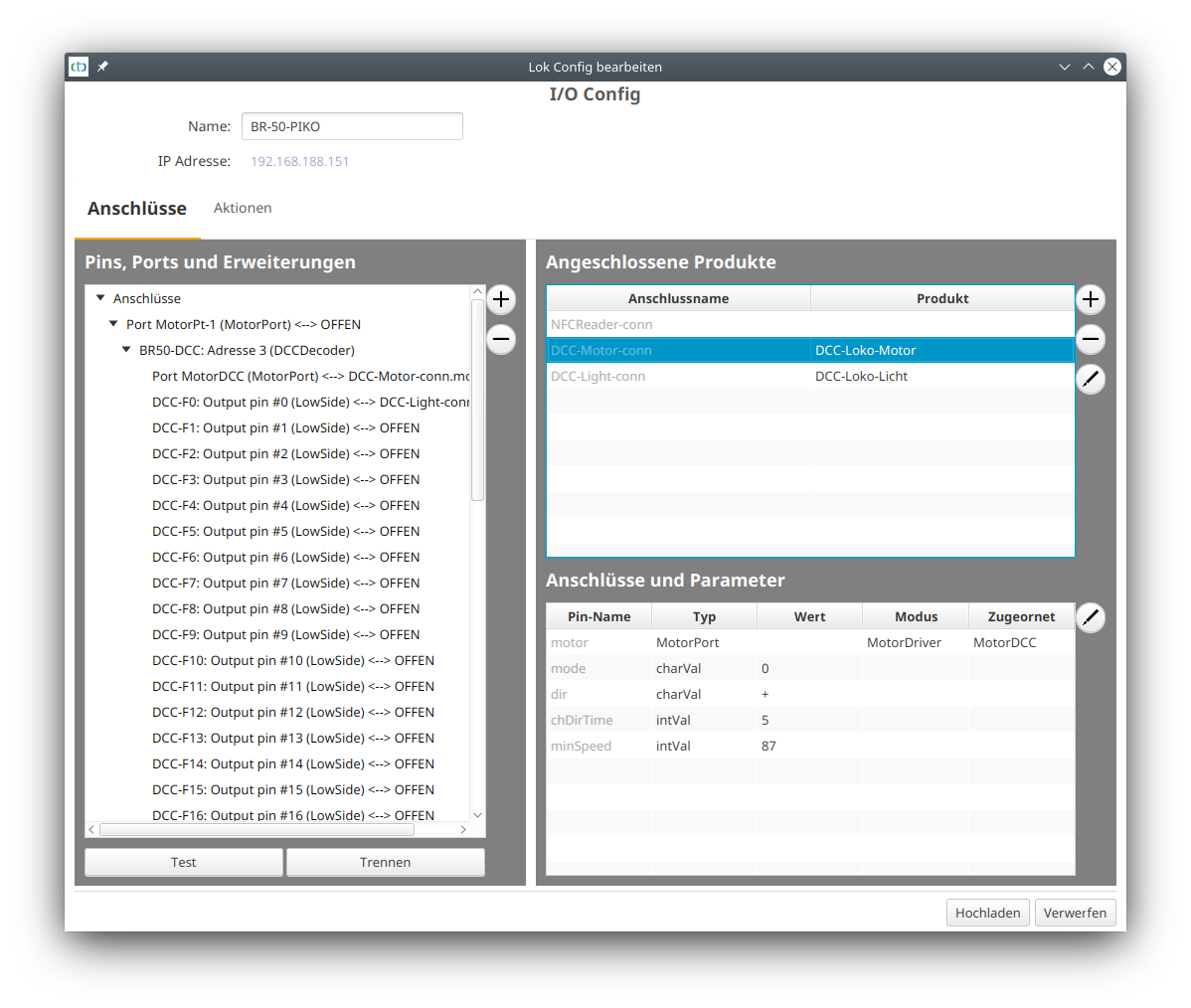
Before we can test, we must upload the changed configuration and a restart of the CTC app is also recommended. After the restart, we can already drive the locomotive. For the many DCC functions, we need to go back into the configuration dialog. There, we can test the 28 DCC functions, e.g., the steam whistle sounds with DCC-F2.
Using the information sheet of the DCC decoder, we can now set up the functions. To do this, we select the appropriate products from the product catalog “universell-loks.xml” in the CTC app, see also manual “Connecting Products” .
Note:
We need at least firmware 20210702
to add all sounds of the BR 50. Older firmware crashes from about 10 sounds onward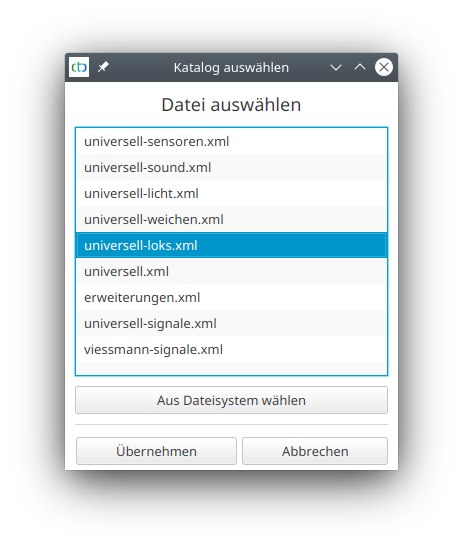
From the catalog, we select locomotive sound and assign a suitable name:
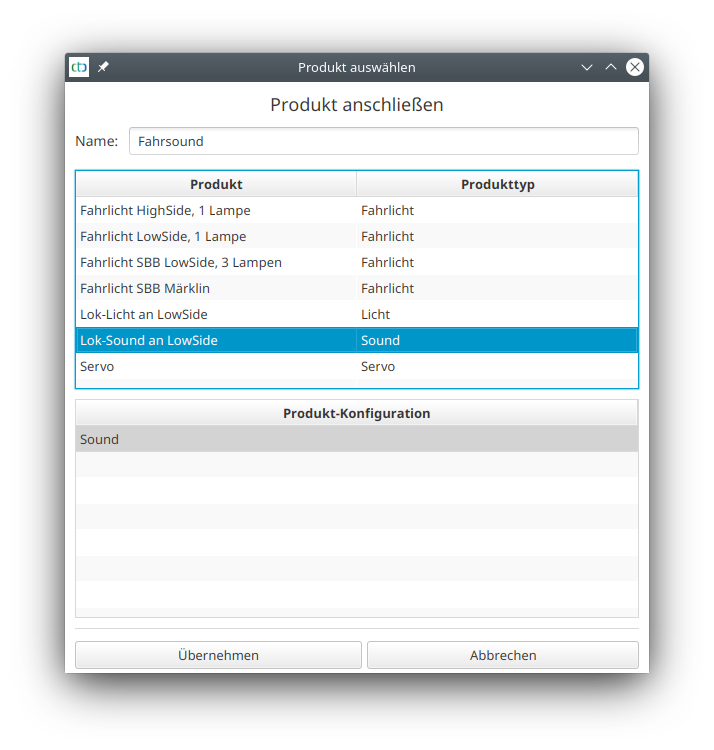
Once we have done this for all sounds, our configuration looks like this:
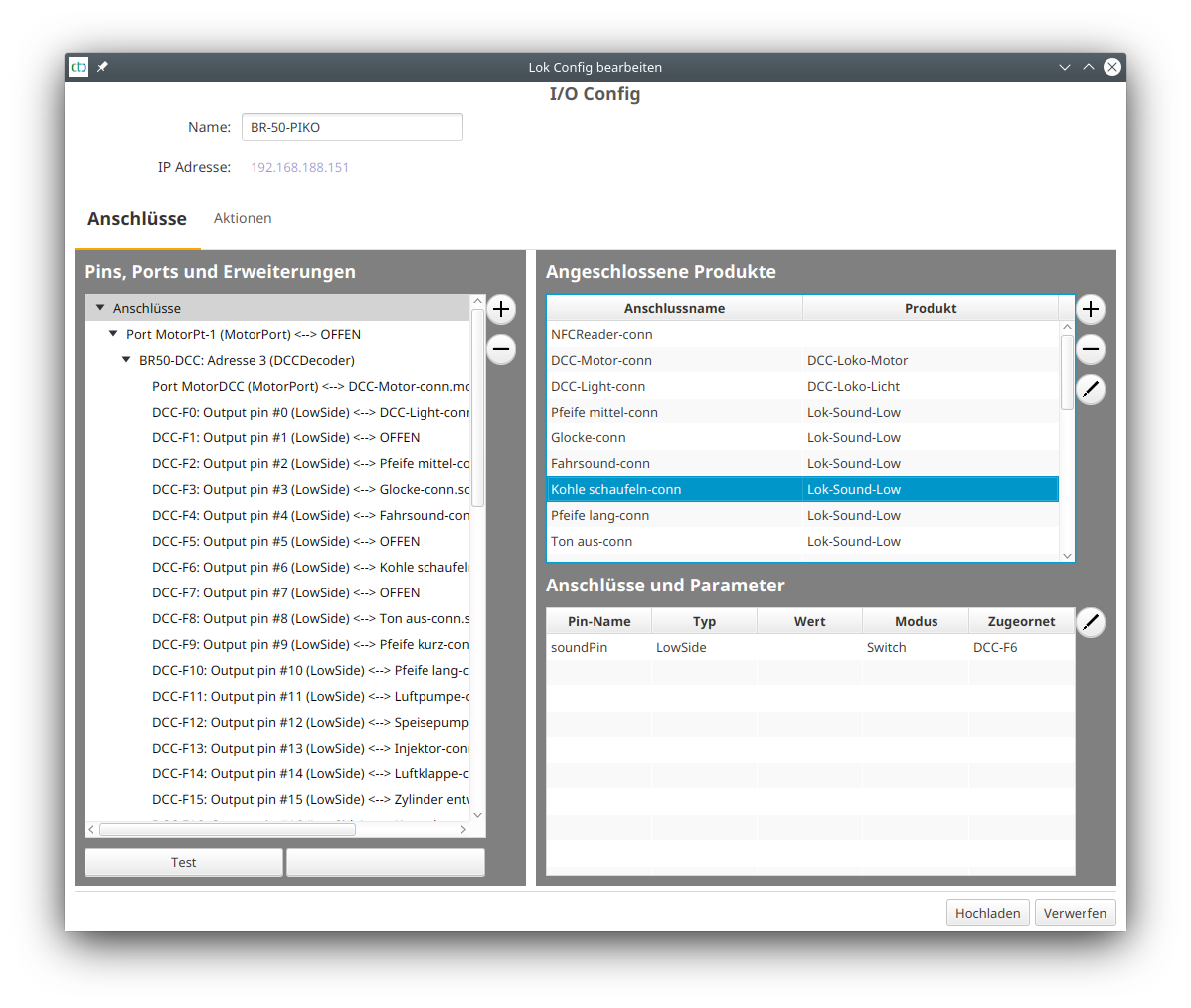
With so many sounds, it makes sense to group sounds like the different whistle lengths into one function so that they appear side by side in the app in a single line. Technically, this is no problem, but there is still no suitable entry in the product catalog.
NFC Reader Connection (Update from 19.09.2021)
For installing the NFC reader, there are two possible positions:
- Right at the front behind the first axle
- Rotated by 45° under one of the tender bogies
Since wiring to the frontmost axle seemed too cumbersome to me, I decided to mount it under the tender. Fortunately, there are two holes there that match the drilling pattern of the NFC reader and are also suitable for the provided 2.2 x 16 mm sheet metal screws. Using an 8 mm spacer and the packaging supplied with the NFC reader by CTC, the result looks like this:
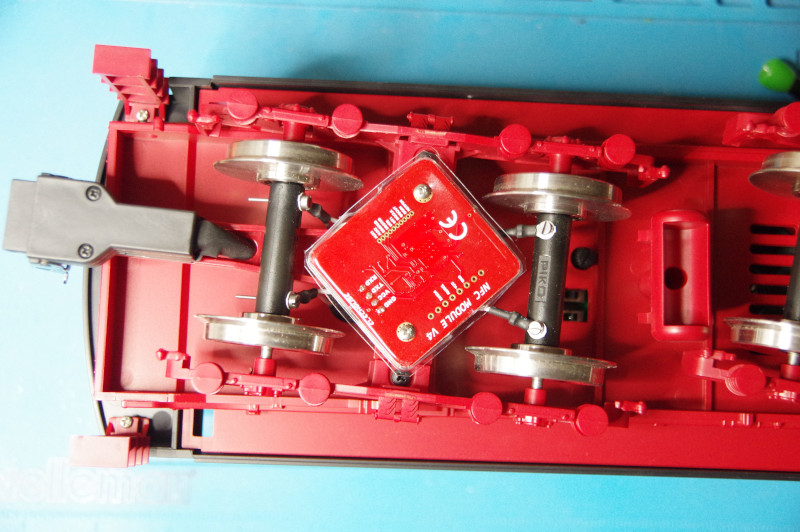
Visually, the NFC reader is almost completely concealed by the frame of the bogie.
The hole above the bogie, through which the supply cables from the axles are also routed, provides enough space for the NFC reader’s connection cables. These are connected to the designated contacts of the CTC-Loco-Module-G: