



Basic Idea
It is desirable for a locomotive to come to a stop precisely in front of a signal that is displaying "Stop". In the track layout of the starter set, two IR beacons are installed in the tracks in front of each signal. If a locomotive approaches a signal and passes one of the IR beacons, it receives the following information:
- the identifier of the IR beacons,
- whether the signal is displaying "Stop" or "Proceed", and
- the distance from the IR beacon to the signal.
The latter information can be used by the loco module to stop precisely in front of a signal displaying "Stop". This requires that the motor can be controlled with sufficient precision. To obtain the necessary control parameters, the sensor for the motor control must be calibrated. The CTC app supports this process, which is referred to as "Calibrate sensor".
The following steps are described in detail. It is absolutely essential to follow the procedure described.
Prerequisites
To calibrate the sensor of a locomotive, a track section for measuring is required. For this purpose, a measuring section is defined:
- a fixed start point: "measurement starts here",
- a fixed end point: "end of the measuring section has been reached", and
- the distance between start and end.
The necessary definitions are stored in the configuration of the CTC module that controls the IR beacon and in which the model railway data is stored. An IR beacon is used as the start and end point of the measuring section. The distance between the IR beacons is taken from the model railway. If the locomotive travels this measuring section several times at different speeds, the control parameters for the locomotive's motor can be calculated from this.
To be noted:
- Convention: The designation of the IR beacons has a running index in a clockwise direction.
- Convention: The track layout is driven in a clockwise direction for the measurement.
A prerequisite for calibrating the sensor of a locomotive's motor control is that the most up-to-date firmware is loaded in the loco module. To do this:
- Open the configuration of the corresponding loco module,
- click on "Load firmware", which opens the selection window,
- select the firmware and confirm by clicking "Open",
- the selected firmware is transferred to the loco module.
Defining the Measuring Section
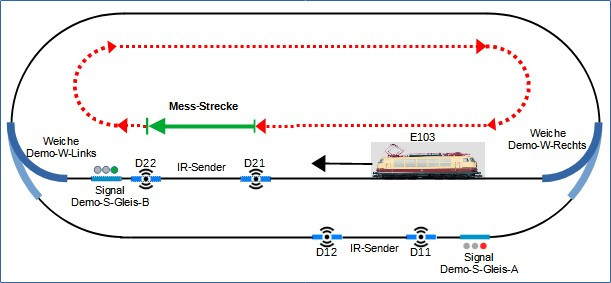
The image of the track layout shows:
- the measurement starts at D21,
- the measurement ends at D22, and
- the length of the measuring section is the distance traveled from D21 to D22.
Where the measurement starts and ends is defined in the model railway. The length of the measuring section is stored in the associated configuration of the second IR beacon.
Start and End of the Measuring Section
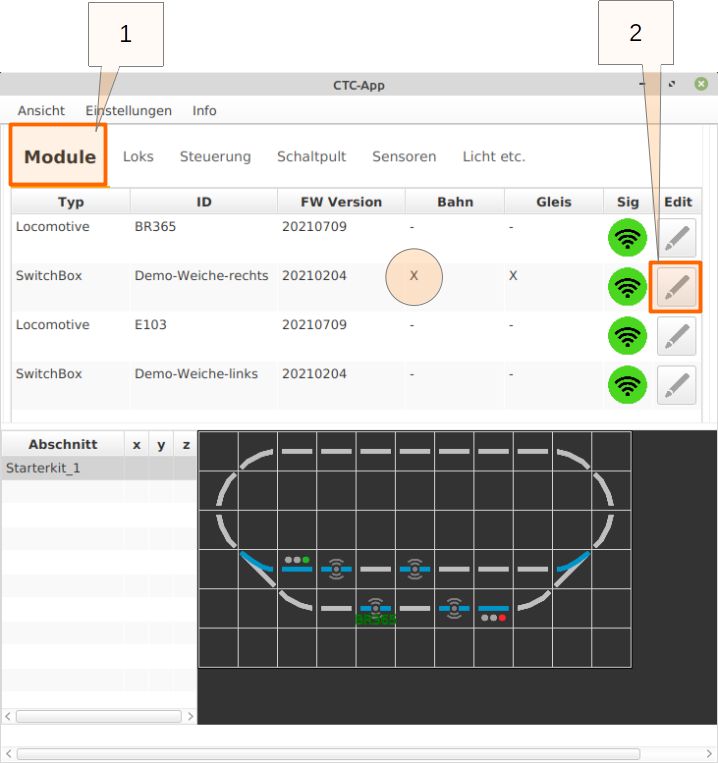
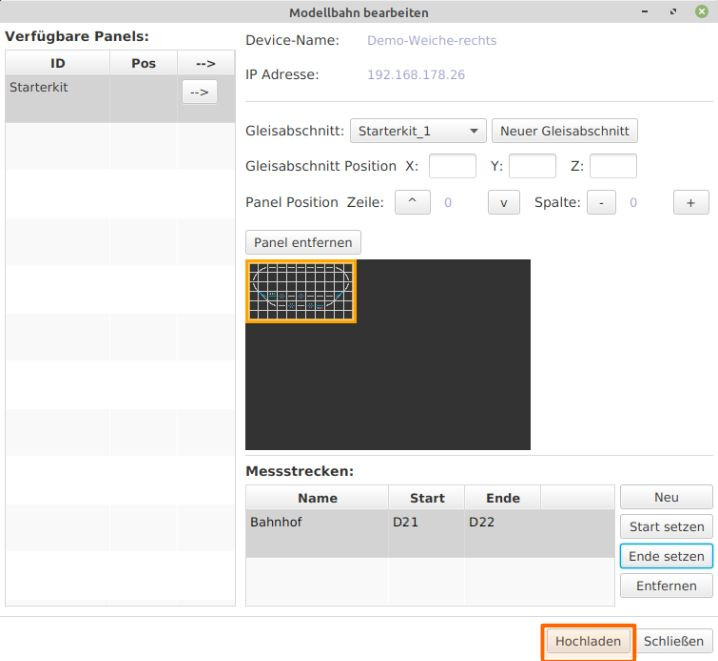
The start and end of the measuring section is defined in the model railway. This is stored in the "Demo-Weiche-rechts" module: In the CTC app, click on the "Modules" tab. Click on "Edit" of the "Demo-Weiche-rechts" module to open the "Edit control box" window.
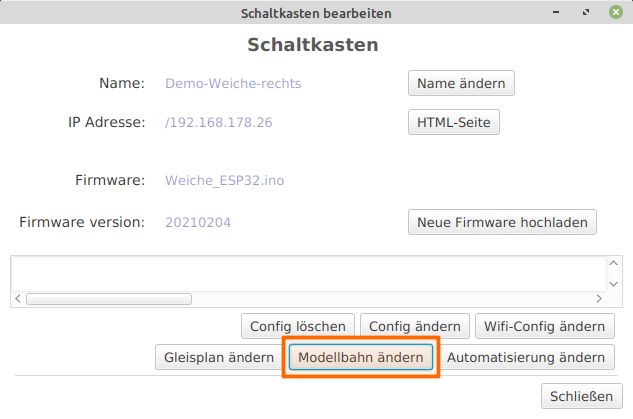
- In the "Edit control box" window – click on "Edit model railway".
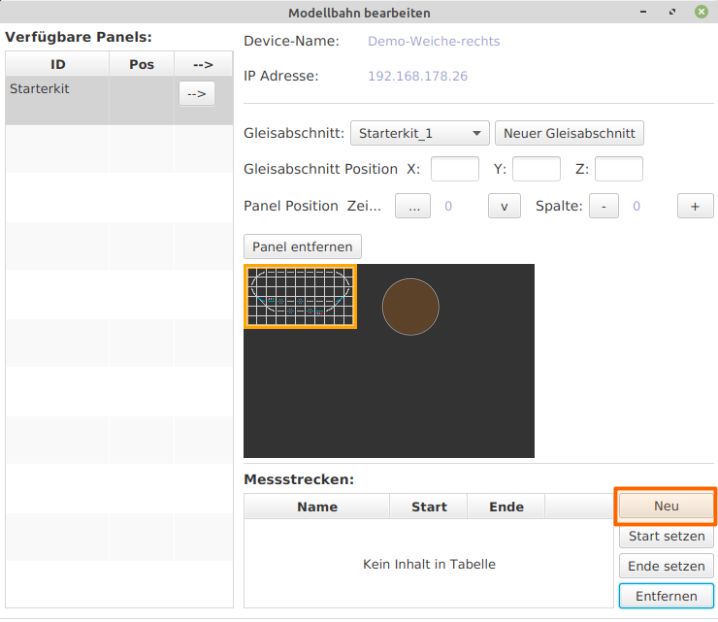
- The "Edit model railway" window opens – click on "New" under "Measuring sections".
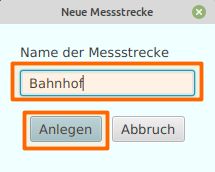
- Enter the name of the measuring section, in this case "Bahnhof", and confirm by clicking "Create".
- Back in the "Edit model railway" window, click on "Set start".
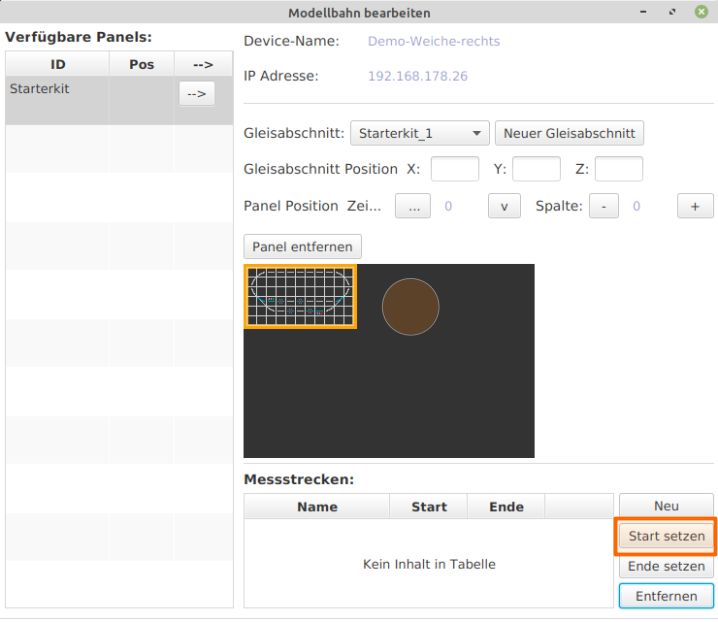
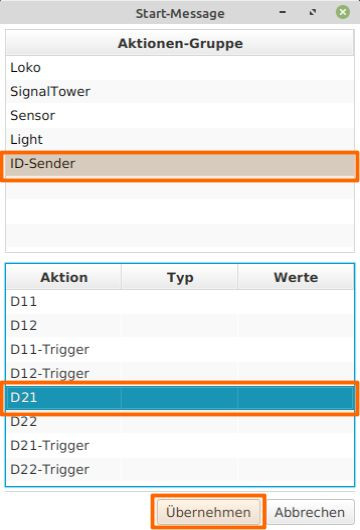
- The "Start message" window opens.
Select "ID sender", select "D21" for "Action", and click "Apply".
- Back in the "Edit model railway" window, click on "Set end".
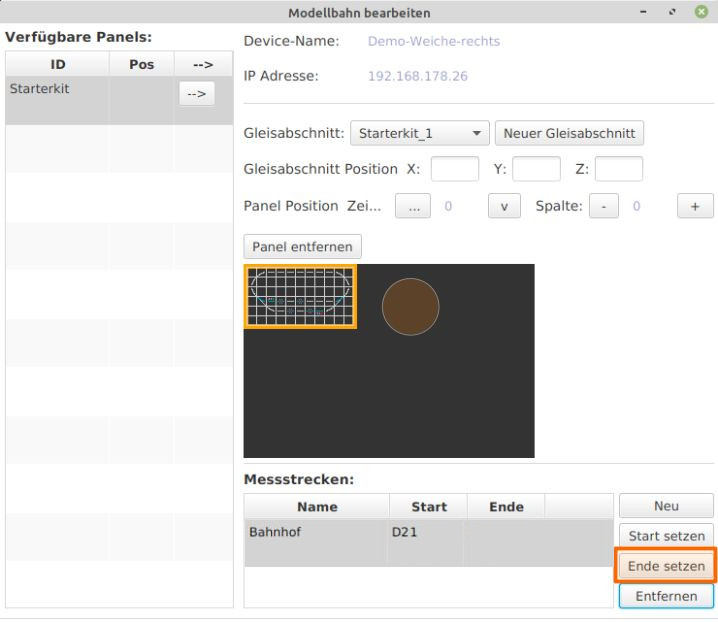
- The "End message" window opens.
In this window, select "ID sender", select "D22" for "Action", and click "Apply".
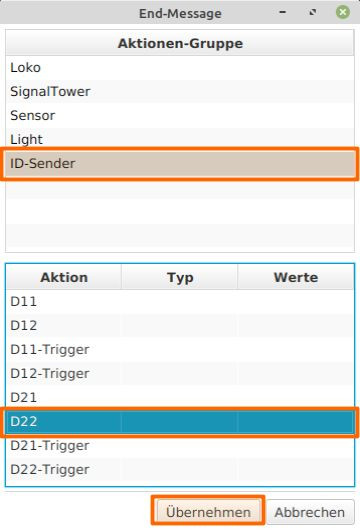
The start and end of the measuring section are now defined in the model railway. In the current version of the app, only one measuring section can be defined; multiple measuring sections are not possible. Back in the "Edit model railway" window – click "Upload", then "Close".
Length of the Measuring Section
The following information must be transmitted: "If the locomotive passes D21 and then D22, it has traveled the distance from D21 to D22, namely XXX centimeters. In other words: 'D22 is 'xxx' centimeters away from D21'." The length of the measuring section is defined in the configuration of the corresponding IR beacon. In this starter set, the IR beacons D21 (start) and D22 (end) are connected to the "Demo-Weiche-links" module. This length information must be stored in the "Demo-Weiche-links" module: In the CTC app, click on the "Modules" tab. Selecting "Edit" of the "Demo-Weiche-links" module opens the "Edit control box configuration" window of the Demo-Weiche-links.
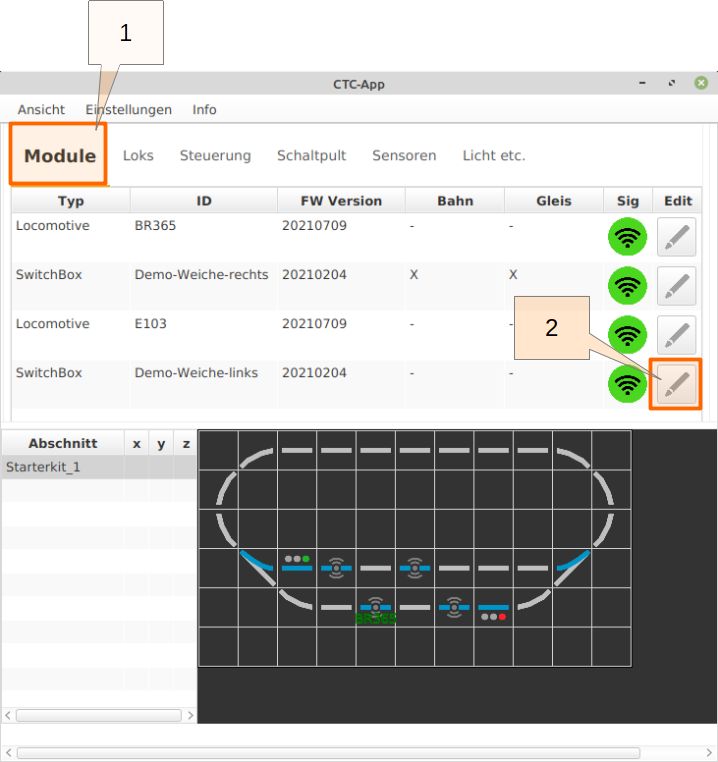
Selecting "Edit config" opens the "Edit control box configuration" window.
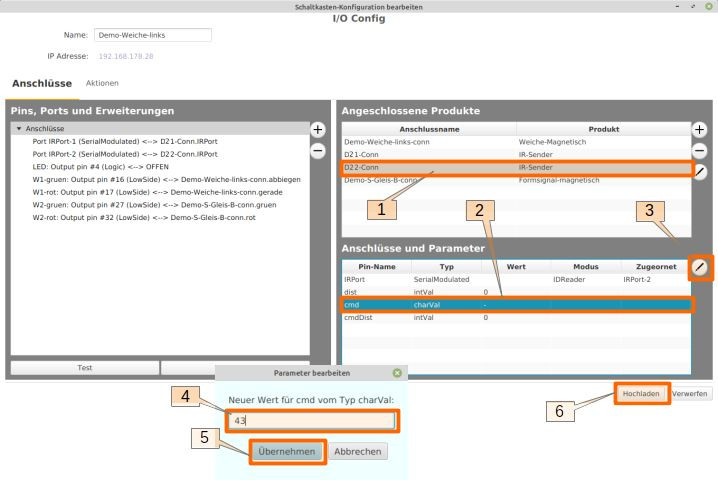
- In the "Connected products" section, select "D22-Conn".
- In the "Connections and parameters" section, select the "dist" line.
- Click on the edit pencil.
- Now enter the correct distance (in cm) from D21 to D22. In this setup, it is assumed that the distance between the two IR beacons is 43 cm.
- Click "Apply" to complete the entry and return to the "Edit control box configuration" window.
- Click "Upload".
Running the Sensor Calibration
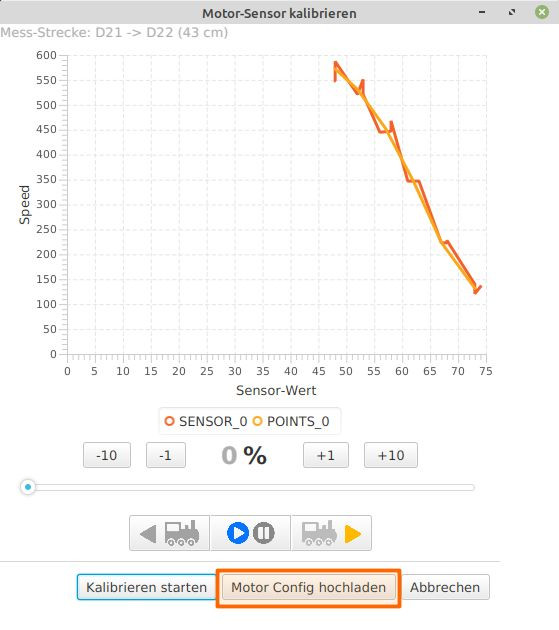
With this preparation, the sensor of a locomotive can be calibrated. The CTC app performs a series of measurements, with the measuring section being traveled by the selected locomotive at different speeds. The initial speed must be selected manually by the user. The actual measurement cycle is carried out automatically by the CTC app; no further intervention is required. The measuring section is traveled several times, with the speed being increased after every three runs. The progress of the measurements can be observed in the graph of recorded measurement values.
In the CTC app main window, prepare the locomotive's route: Set "Demo-Weiche-links" to "diverge". Set the signal "Demo-S-Gleis-B" of the station track to "Proceed". Set "Demo-Weiche-rechts" to "diverge". Select locomotive E103 and click on "Edit" in the row.
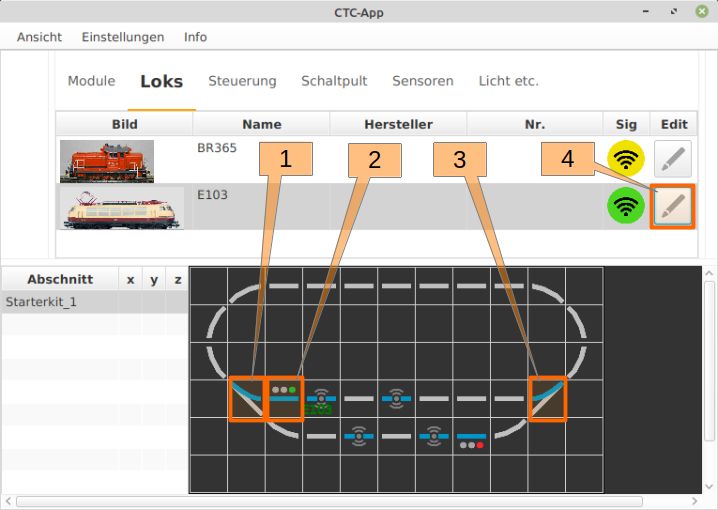
The locomotive configuration window opens; click on "Calibrate sensor".
- The measurement cycle of the CTC app should start with the slowest possible travel speed of the locomotive.
This must be set by the user. Typically, this value should be between 10 and 20 percent. In the case of the locomotive used here, it is exceptionally a significantly higher value; 35% must be set. Click on "Drive/Halt" to start the locomotive. The locomotive should run for some time to allow the set minimum travel speed to be checked and, if necessary, adjusted. Click on "Start calibration" to start and automatically carry out the measurement cycle.
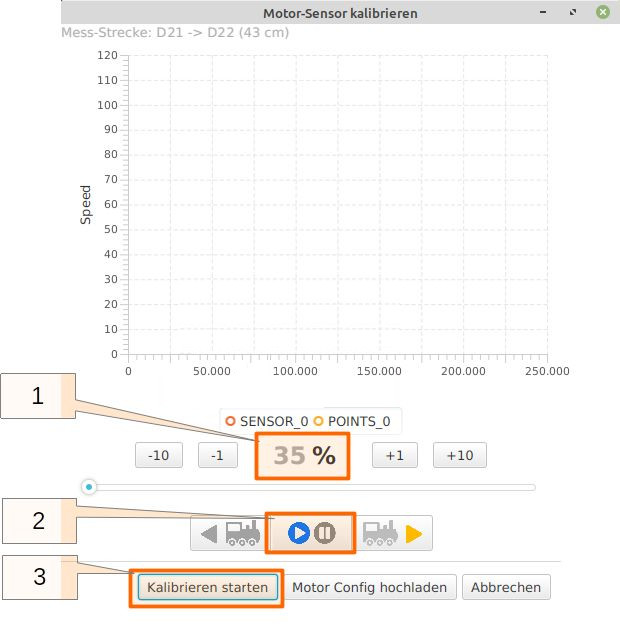
Once the locomotive has traveled the measuring section three times, the app automatically increases the travel speed by 10 percentage points. Again, the measuring section is traveled three times. The app continues in this manner until the 80% speed mark is exceeded. The progress of the measurement data acquisition and evaluation can be observed in the "Motor sensor calibration" window.
When the measurement cycle is complete, the locomotive stops and the calibration values calculated by the app are transferred to the loco module by clicking on "Upload motor config". These values are then available for operation.