




In the CTC PC apps, you will find the track diagram at the bottom edge of the window, and on tablets and smartphones as a tab with the track symbol.
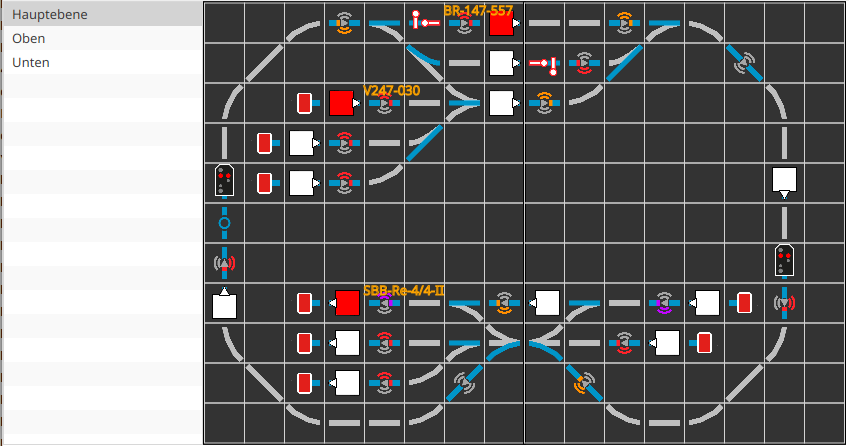
To learn how to create a track diagram, refer to Chapter 6 - Track Diagram Signal Tower .
On the left side of the view, you will see a list of all available track sections. In the example, the model railway is divided into a left (Top) and right (Bottom) half. The "Main level" combines both halves and is therefore suitable for tablets and PCs. "Top" and "Bottom" are better suited for the narrower smartphone displays.
All track pieces displayed in blue are connected to an action. This can be either a switching action (turnouts, signals, ...) or a sensor (balise, block, ...).
Turnouts and Signals
The symbols for turnouts and signals are identical to those in the control panel. The symbol shows the current state of the turnout or signal. If the symbol is colored orange, it is reserved for a route and cannot be switched.
Clicking on a turnout or signal will switch it to the next state, in the order shown in the control panel from left to right.
In the PC app, you can right-click to open the config dialog of the module in which the turnout or signal is configured.
Sensors
Classic sensors currently (still) do not display a state.
In the PC app, you can right-click to open the config dialog of the module in which the sensor is configured.
Balises
Balises display the state of the balise using colored symbols. The small arrow in the center of the symbol indicates the clockwise direction (arrowhead is to the right). The direction of travel for which the symbol applies can be identified by which side the arcs are colored (to the right in the direction of travel).
| Symbol | Color | Commands | Meaning |

|
gray | Balise is not assigned or the associated CTC module is not active. | |

|
gray | - | Balise is active but does not send any command to the loco. |

|
green | 'F', 'f' | Balise is active and sends the command "clear track". |

|
yellow | 'W', 'w', 'L', 'l' | Balise is active and sends the command for speed limitation. |

|
orange | 'M', 'm' | Balise is active and sends the command "slow down". |

|
red | 'H', 'h', 'S', 's', 'T', 't', 'E', 'e' | Balise is active and sends a stop command. |

|
purple | 'R', 'r' | Balise is active and sends the command "reverse direction" (from CTC-App 4.08) |
Details on the commands can be found in the section "Commands for Locs/Signals" in Chapter 4.5 - Edit Script .
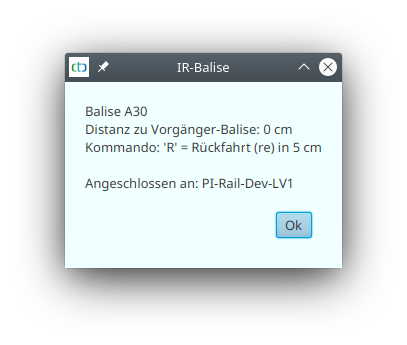
Additionally, a balise can be clicked to view its exact state:
Blocks
Blocks are displayed as colored filled rectangles. The small arrow at the edge of the rectangle indicates the clockwise direction (arrowhead is to the right).
| Symbol | Color | Meaning |

|
gray | Block is not assigned or the associated CTC module is not active. |

|
white | Block is active and unoccupied |

|
yellow | Block is active and reserved for a route |

|
red | Block is active and occupied by a loco |
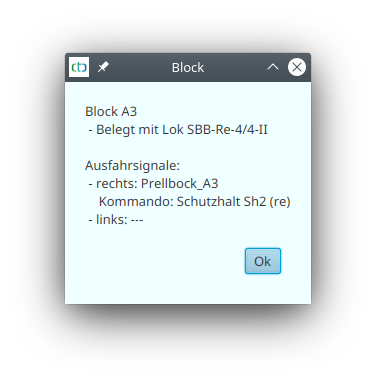
A block can be clicked to view its exact state:
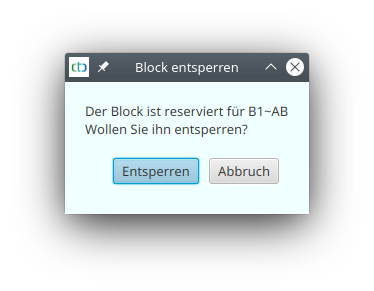
On the PC, a reserved block can be released again by right-clicking: