





General Scripts
Scripts exist in functions, triggers, and timers. They define a sequence of simple commands that are executed when the action reaches a certain state.
Each action contains at least one state in which the commands of a state are defined. Possible commands are
| Command Name | Function | Possible Attributes |
| setI0 | Set a pin to a specific value | pinID, pinValue, varID, i, value |
| set | Set a value | id, intVal, value, varID |
| call | Call another action | actionID, intVal, value, varID |
| if | Execute the commands under "if" only if a parameter has a specific value. | id, intVal, value, varID |
| else | Execute the commands under "else" only if a parameter has a specific value. | id, intVal, value, varID |
| delay | Wait for a specific time Note: stops the loop (deprecated) | ms, value, varID |
| on | The loco shall pass balise XXX and optionally execute a command - see Chapter 7.3 - Driving Orders |
When the state of an action changes depends on the type of action:
- Functions and value controllers are changed by the user of the CTC-App by pressing a corresponding button or adjusting a slider.
- Timers are triggered once after a specific time or at regular intervals automatically by the CTC module.
- Sensors are triggered via switches. These can be pressed by a person or triggered by a locomotive or wagon passing by.
- Triggers are triggered as a result of another action. Triggers can be functions and value controllers, as well as sensors and IDs read by locos.
The top level of the script defines how the action should react to which values. In the value configuration, the actions that are possible for a function are defined (they are part of the cfg.xml). For example, for the light of a loco, the four actions:
- off
- on
- front
- back
can be defined.
For each action, it can be specified which of the outputs defined in the IO configuration should be switched. This is often only a single output, but can also be a sequence with conditions, as shown in the example dialog for the action straight of turnout PI-Dev-LH5 .
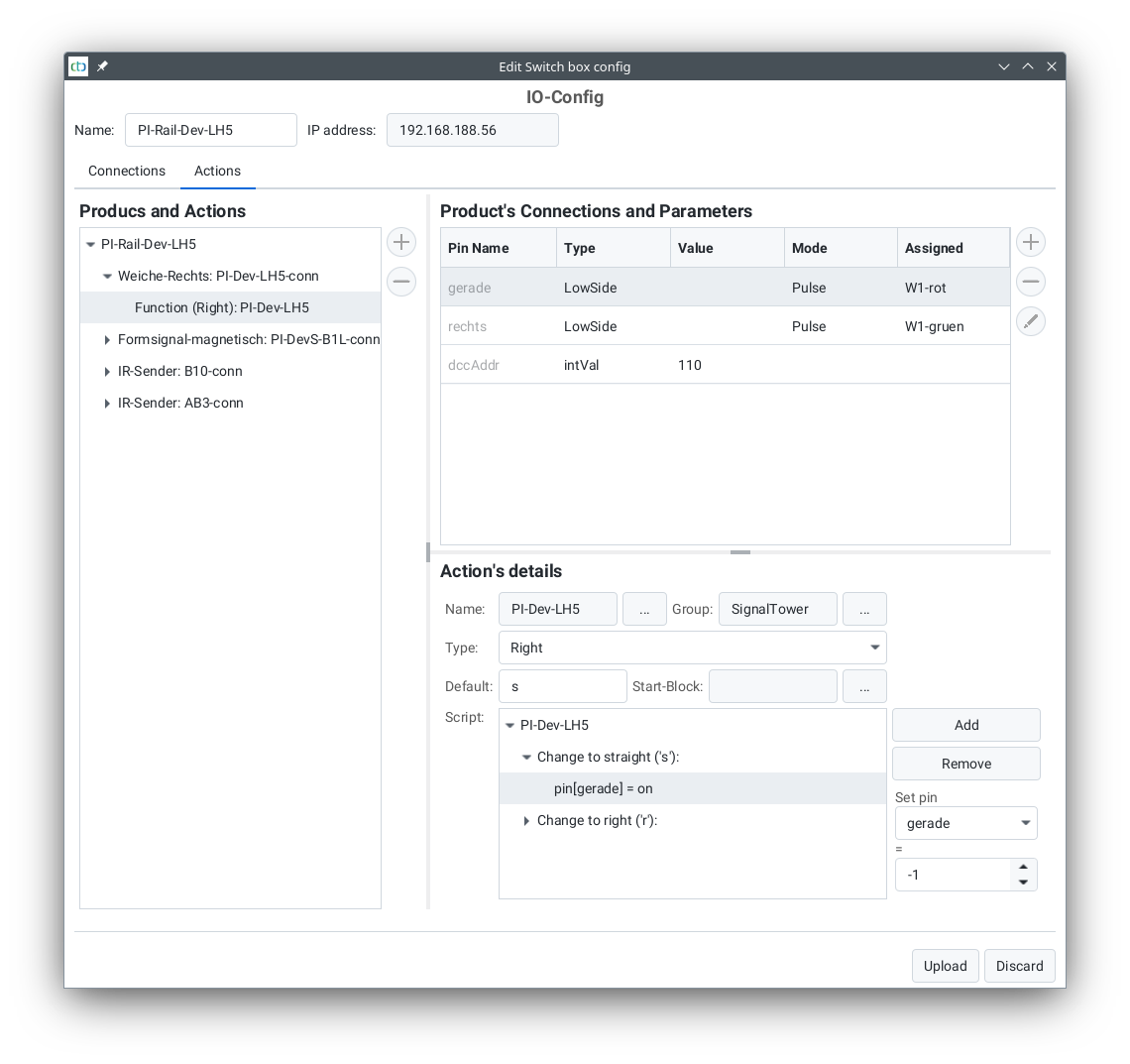
For turnouts, it should be noted that the icon displayed in the turnout list is determined via the action name . The position (0 to 2) specifies the column in the turnout view:
| Function | Action Name | Character | Icon | Recommended Position |
| Turnout left | left_left | l |

|
0 |
| left_straight | s |

|
1 | |
| Turnout right | right_straight | s |

|
1 |
| right_right | r |

|
2 | |
| Three-way turnout | three_left | l |

|
0 |
| three_straight | s |

|
1 | |
| three_right | r |

|
2 | |
| Diamond crossing | cross_notcross | n |

|
0 |
| cross_cross | x |

|
1 | |
| 4-way Diamond crossing | cross_hor | h |

|
0 |
| cross_vert | v |

|
1 | |
| cross_left | l |

|
2 | |
| cross_right | r |

|
3 |
Commands for Locs / Signals
If (from firmware 20260105, CTC-App 4.46) '@' (send WiFi SSID/password) is set as a command at a balise, the CTC module's WiFi configuration is transmitted instead of the normal command, see Chapter 3.6 "Temporary WiFi" .
The following commands can be interpreted by locomotives when linked to a balise:
| Function | Character | Meaning | cmdDist | Description |
| Stop (Hp0 / red) | 'H', 'h' | Notice of an upcoming red signal. | Distance | The loco decelerates and stops before this signal. If the signal turns green again, the loco resumes its journey and accelerates to the maximum speed permitted by the signal aspect. |
| Proceed (Hp1 / green) | 'F', 'f' | Notice of a green signal. | Distance | Any previous speed restriction is lifted here. In manual control, nothing happens; otherwise, the loco accelerates to its maximum speed. |
| Slow speed (Hp2 / green+yellow) | 'W', 'w' | Notice of slow speed. | Distance | If the loco is too fast, it decelerates to reduced speed, e.g., to avoid derailing over a diverging turnout. |
| Speed restriction | 'L', 'l' | Notice of a speed restriction. | Speed | If the loco is too fast, it decelerates to this speed. The distance is multiplied by 10 and interpreted as speed. |
| Minimum speed | 'M', 'm' | Notice of an upcoming red signal with a second balise for final stop. | Distance | The loco decelerates to crawl speed. The second balise before the signal then sends stop with distance 0 cm or emergency stop. |
| Emergency stop | 'E', 'e' | Emergency stop, e.g., near track end or signal. | Distance | The loco stops abruptly. If the signal turns green again, the loco resumes its journey and accelerates to the maximum speed permitted by the signal aspect. |
| Stop | 'S', 's' | Notice of a stop according to the timetable. | Pause in seconds | In automatic mode, the loco stops, waits for the pause time, and then continues its journey. From CTC-App 4.08: In manual mode, acts like protective stop with distance 0. |
| Reverse | 'R', 'r' | Notice of an upcoming stop at the turnaround point of the timetable (shuttle train). | Pause in seconds | In automatic mode, the loco stops, waits for the pause time, and then continues its journey in the opposite direction. From CTC-App 4.08: In manual mode, acts like protective stop with distance 0. |
| Protective stop (Sh2) | 'T', 't' | Notice of the track end, e.g., buffer stop. | Distance | The loco decelerates and stops before this sign. |
Almost every command is associated with a distance in cm from which this command applies. The loco calculates its braking distance accordingly; e.g., "Stop" with distance "65" causes the loco to stop after 65 cm.
Note: Prerequisite for functioning target braking is a correctly calibrated motor sensor (see Chapter "Calibrate Motor Sensor" )
The commands can either be permanently stored at the balise or dynamically changed using "triggers". For example, a balise can be linked to the state of a signal (see Chapter "Config - Link Actions" ). Therefore, the same letters should be used for signal states as for the associated loco command.
Scripting or general programming of the config is now possible directly in the app. To access this, press the Actions button. Now you can select the product and which action you want to add. You have the choice between several actions.
Once you have selected one, you enter the associated script window to adjust the script.
You can also make changes by directly editing the cfg.xml file.
Caution
Directly editing the cfg.xml is strongly discouraged, as this method carries a high risk of damaging the file and potentially bricking the module, making it inaccessible. This cannot be verified.
More on scripting and their programming can be found in (see Chapter 11 "Config - Scripts and Commands" )