




Basic Information
A track plan is initially just a grid with track symbols without further meaning. The functionality of a track diagram signal tower is derived from the assignment of turnouts, signals, beacons, and blocks.
The track plan is stored on the CTC-Module, from whose config dialog the track plan editor is opened (see below). The assignment of turnouts, signals, beacons, and blocks is stored in their respective modules. This means in particular that changes to a track plan can only be fully saved if the CTC modules of all actions (turnouts, signals, beacons, blocks) assigned there are reachable via WiFi .
When clicking the "Upload" button, all CTC modules affected by your changes are updated (provided they are reachable). The final dialog lists which modules have been changed.
Creating a Track Plan
To create a track plan, first select the CTC switch module where the track plan is to be stored. Open its config dialog:
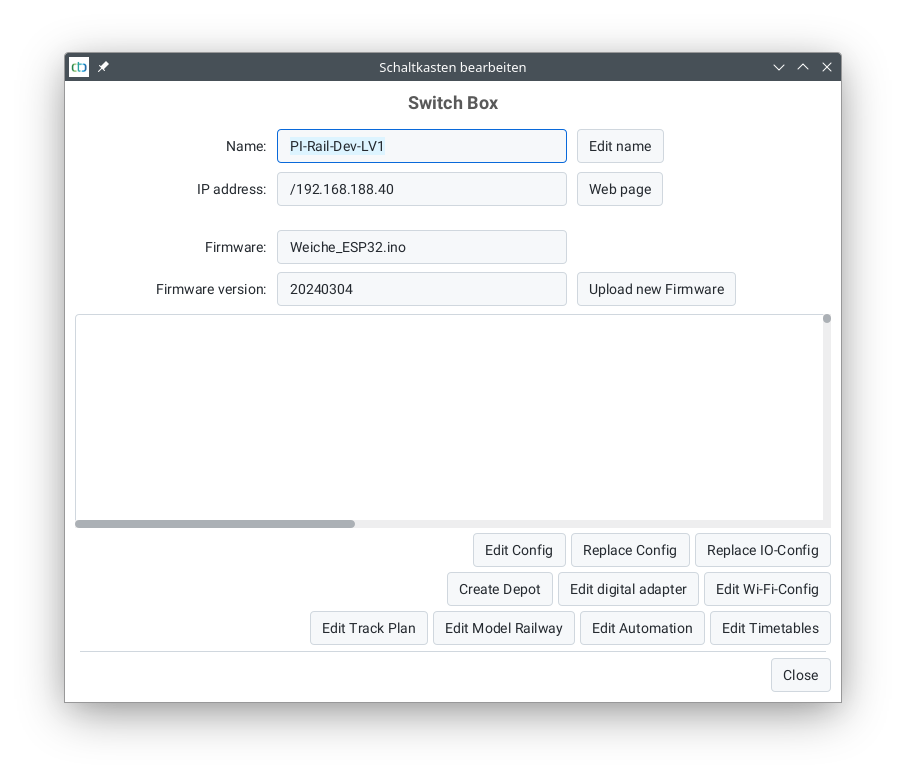
There, select Change track plan . The following dialog will open:
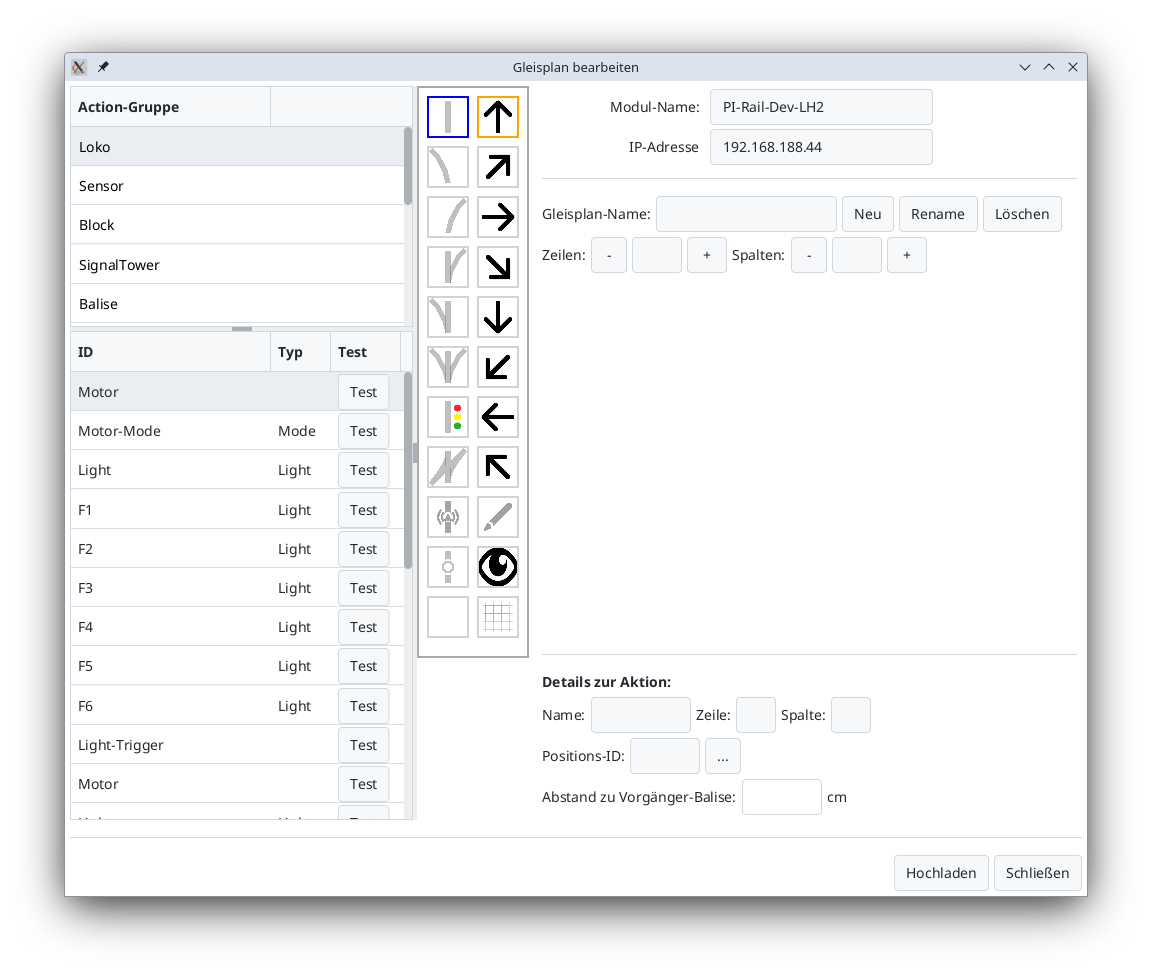
Use the New button to create a new track plan. Ensure the names are unique.
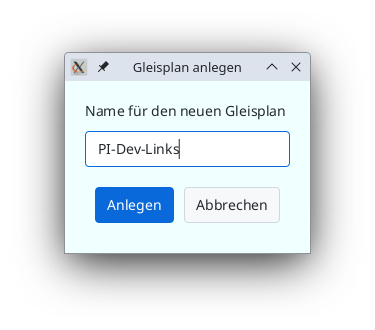
Afterward, a grid appears where you can place track symbols and later link them with turnouts, signals, etc.
The size of the grid can be adjusted using the buttons to the right of Rows and Columns .
Placing Track Symbols
To place a track symbol, first select the track symbol (1) in the left symbol column (in the example, a right-hand turnout). Then, use the arrow symbols (2) to select the orientation (here diagonal at 45 degrees). Finally, place the track symbol at the desired position by clicking the grid cell (3).
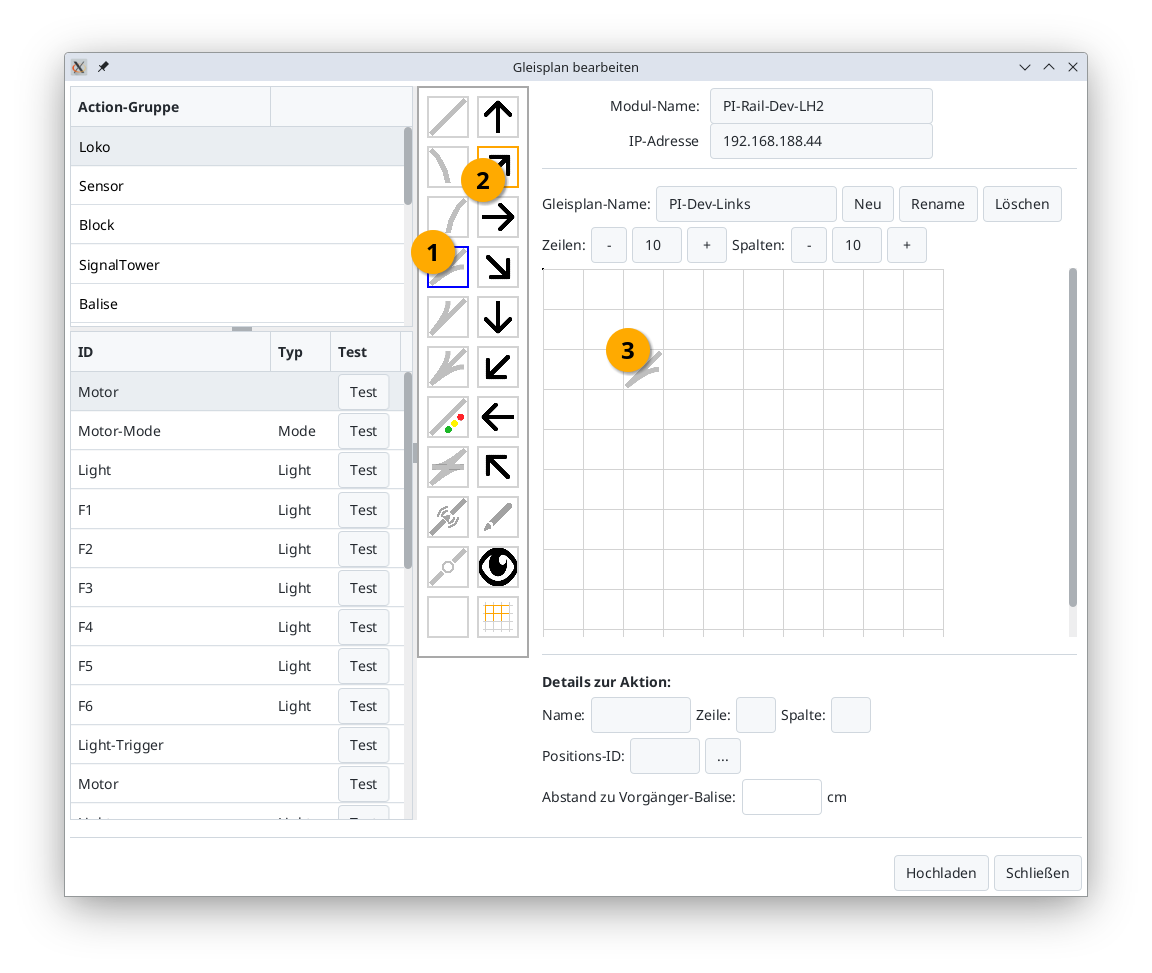
Now you can assign a turnout, signal, beacon, etc., to the track symbol.
Assigning Turnouts, Signals, etc.
To assign a turnout to a track symbol, first select the action group (1) of the turnout in the top left (usually "SignalTower"). The list at the bottom left will now display all actions in the "SignalTower" group (usually all turnouts and signals). Then click the desired turnout (2). The pen tool is automatically activated in the tool palette (thick orange frame in the image).
Finally, click the previously placed turnout in the track diagram (3). You can tell this worked by the orange frame in the track diagram and the turnout now showing its current position in blue.
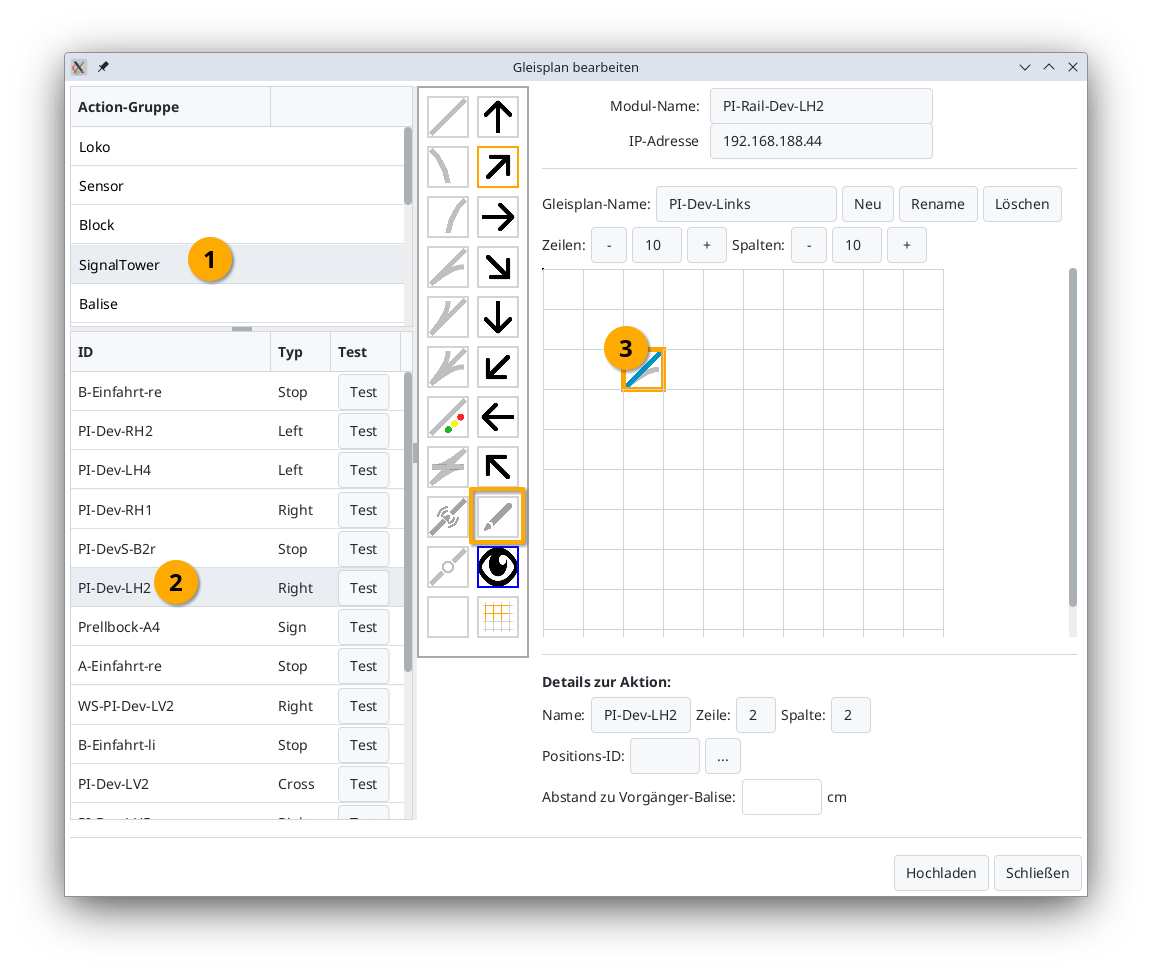
Notes:
- The action group is predefined when selected from the CTC product catalog but can be changed at any time in the config dialog .
- If the turnout is already assigned to a position in the track plan during step (2), its position in the track plan will be highlighted in orange.
To find out where a turnout is located in the track plan, click the turnout in the list (1). The associated turnout symbol in the grid will then be highlighted in orange:
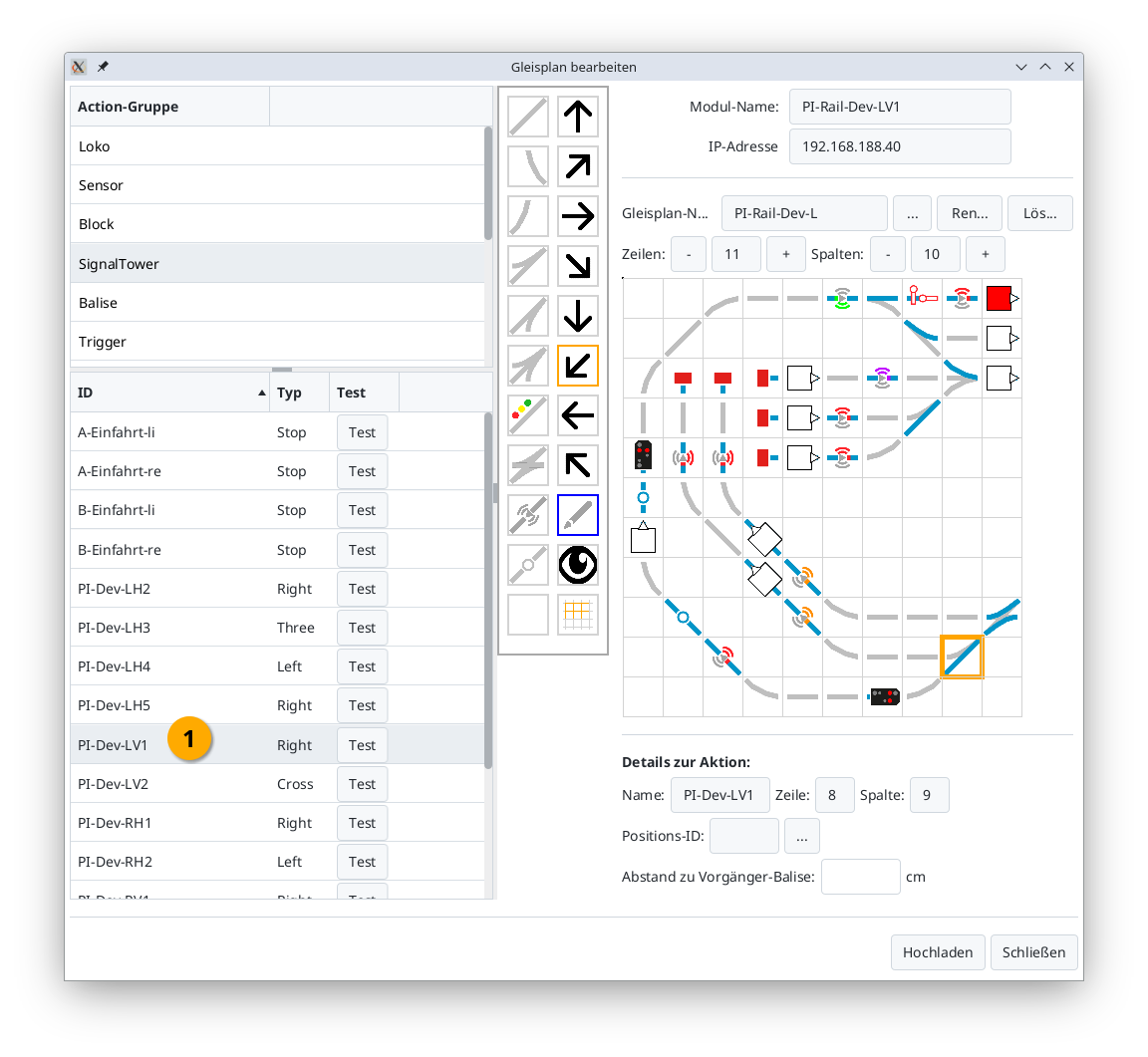
Rotating Track Symbols (from CTC-App 4.39)
If a track symbol has the wrong orientation, you can rotate it by selecting the display symbol (1) (eye). Then click the track symbol (2) so that it is highlighted in orange. Finally, select the orientation by clicking the appropriate arrow symbol (3).
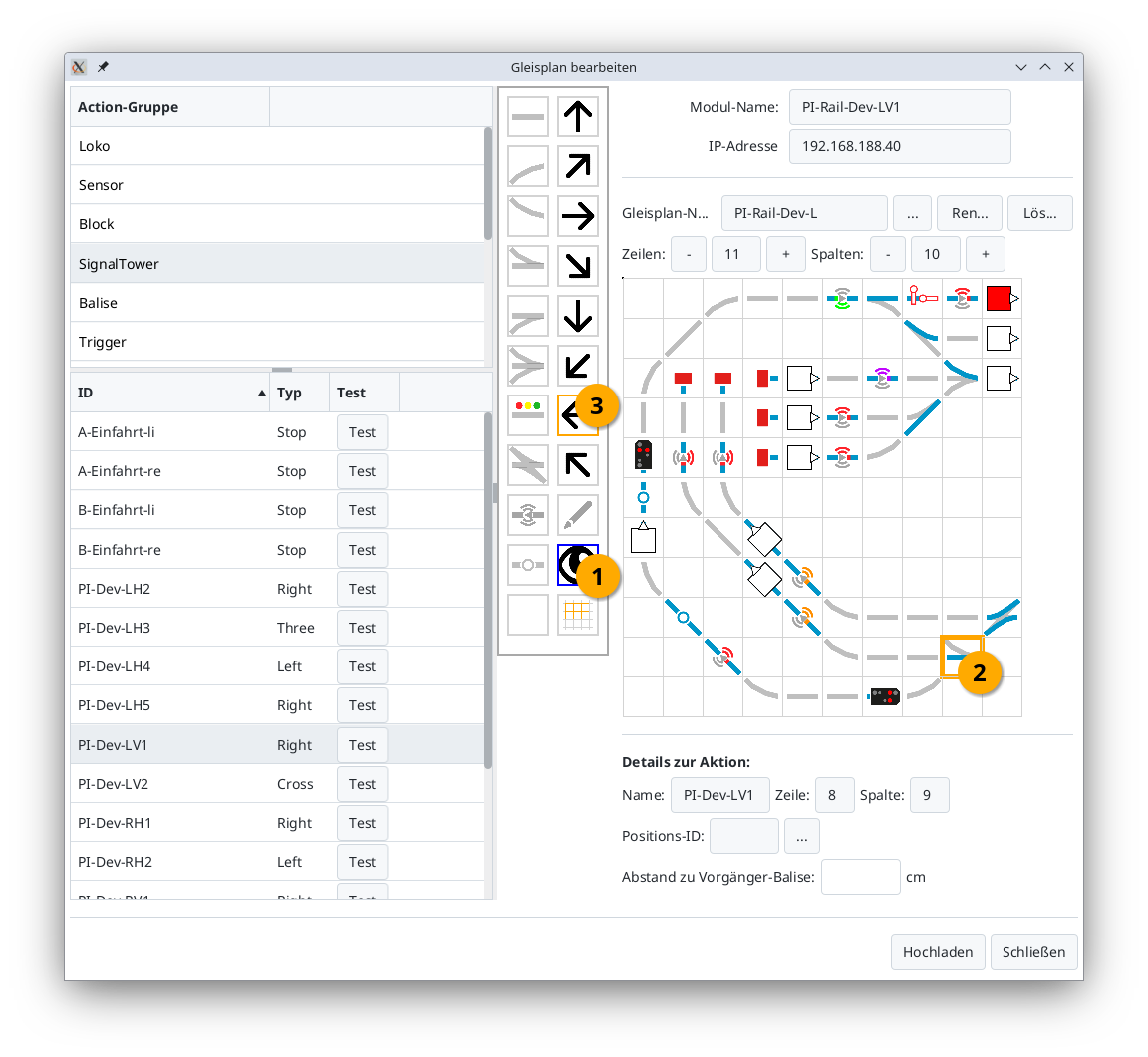
Moving an Area (from CTC-App 4.39)
If you want to move a part of your track diagram, proceed as follows: First, mark the top-left corner of the area to be moved by selecting the display symbol (1) (eye) and then clicking the cell in the track plan (2).
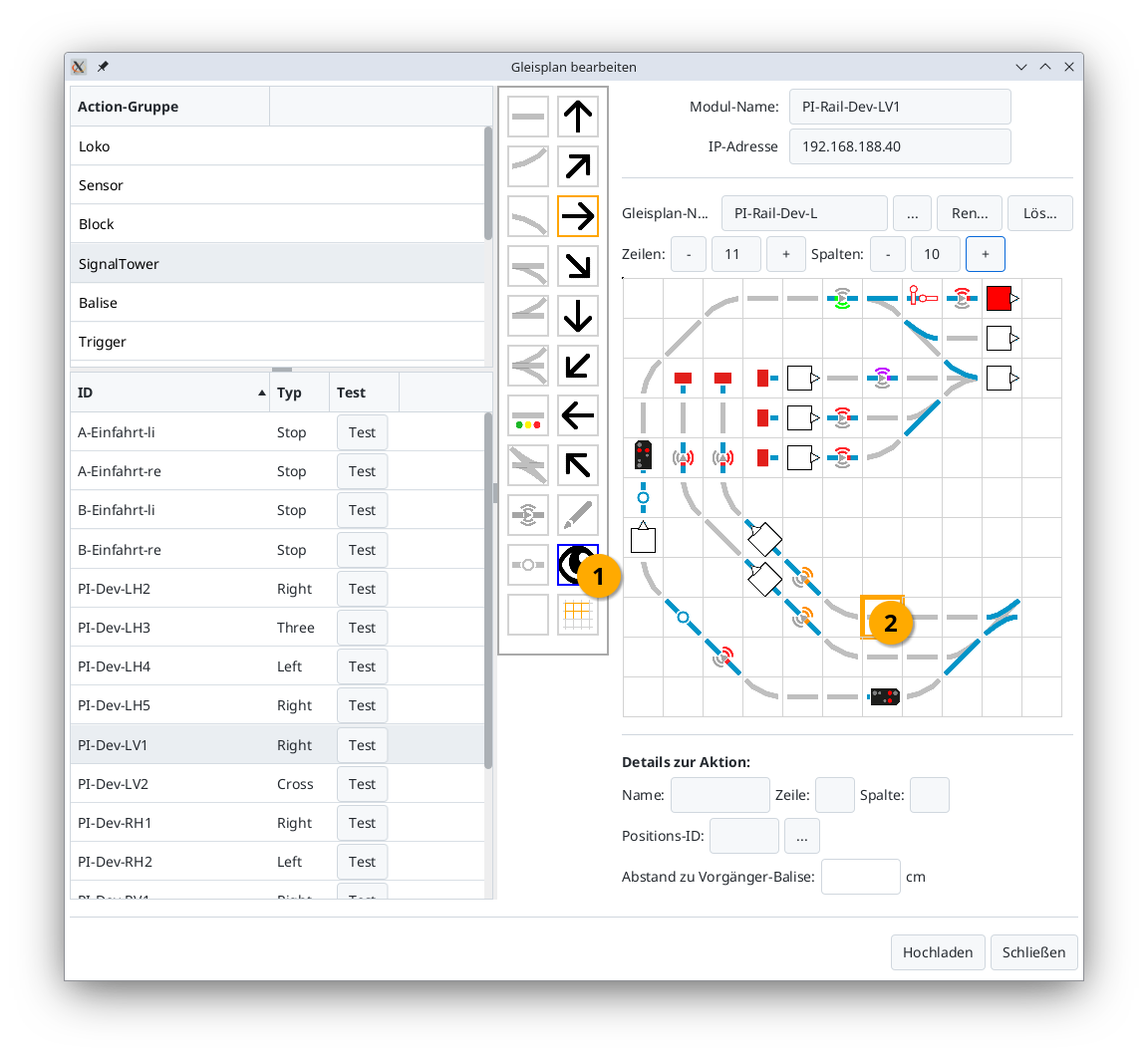
Then mark the bottom-right corner of the area to be moved by selecting the area tool (3) (grid) and clicking the cell in the track plan (4).
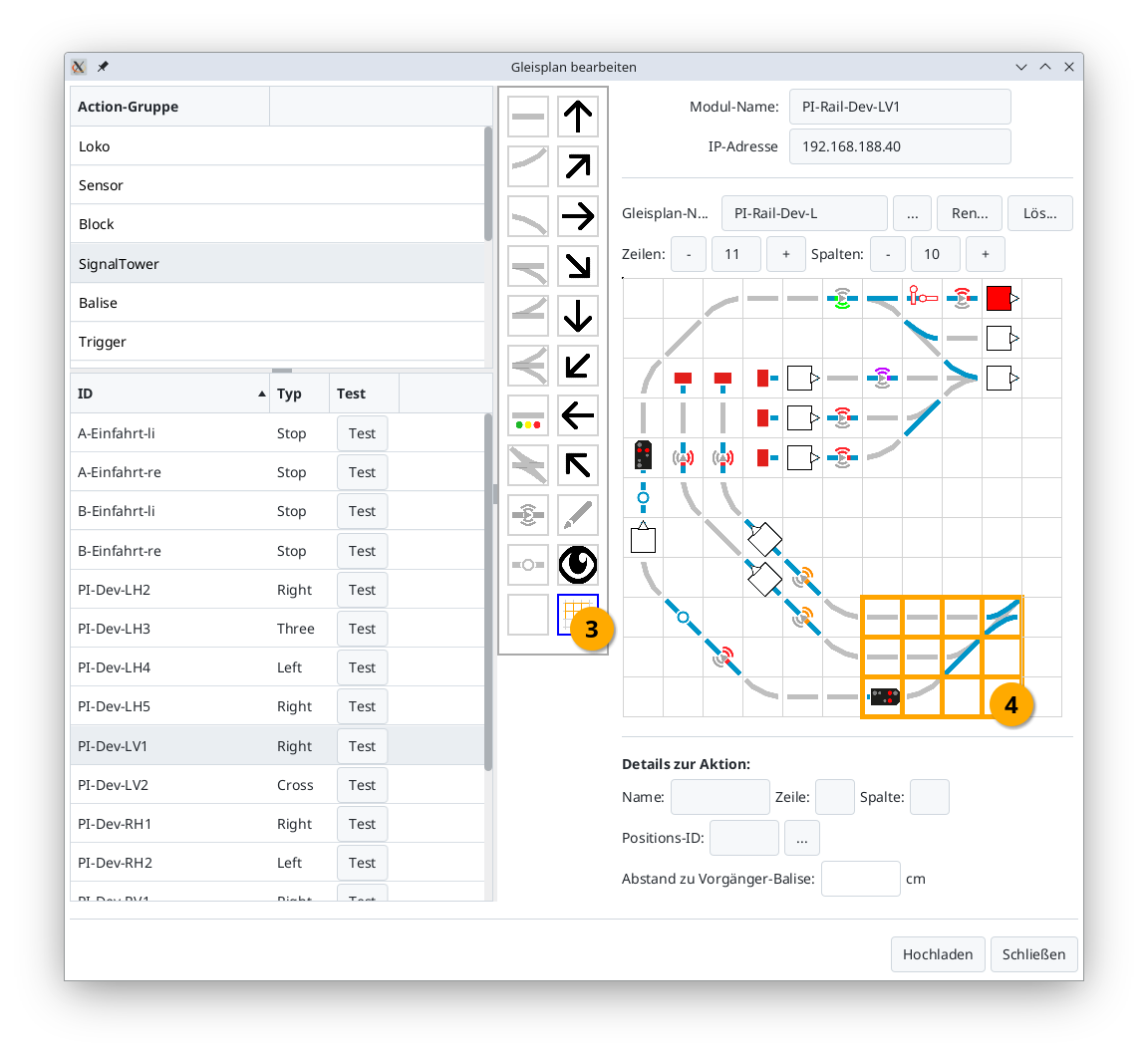
Now you can move the marked area using the arrow symbols in the direction of the arrow. In the example, the right arrow (5) was clicked:
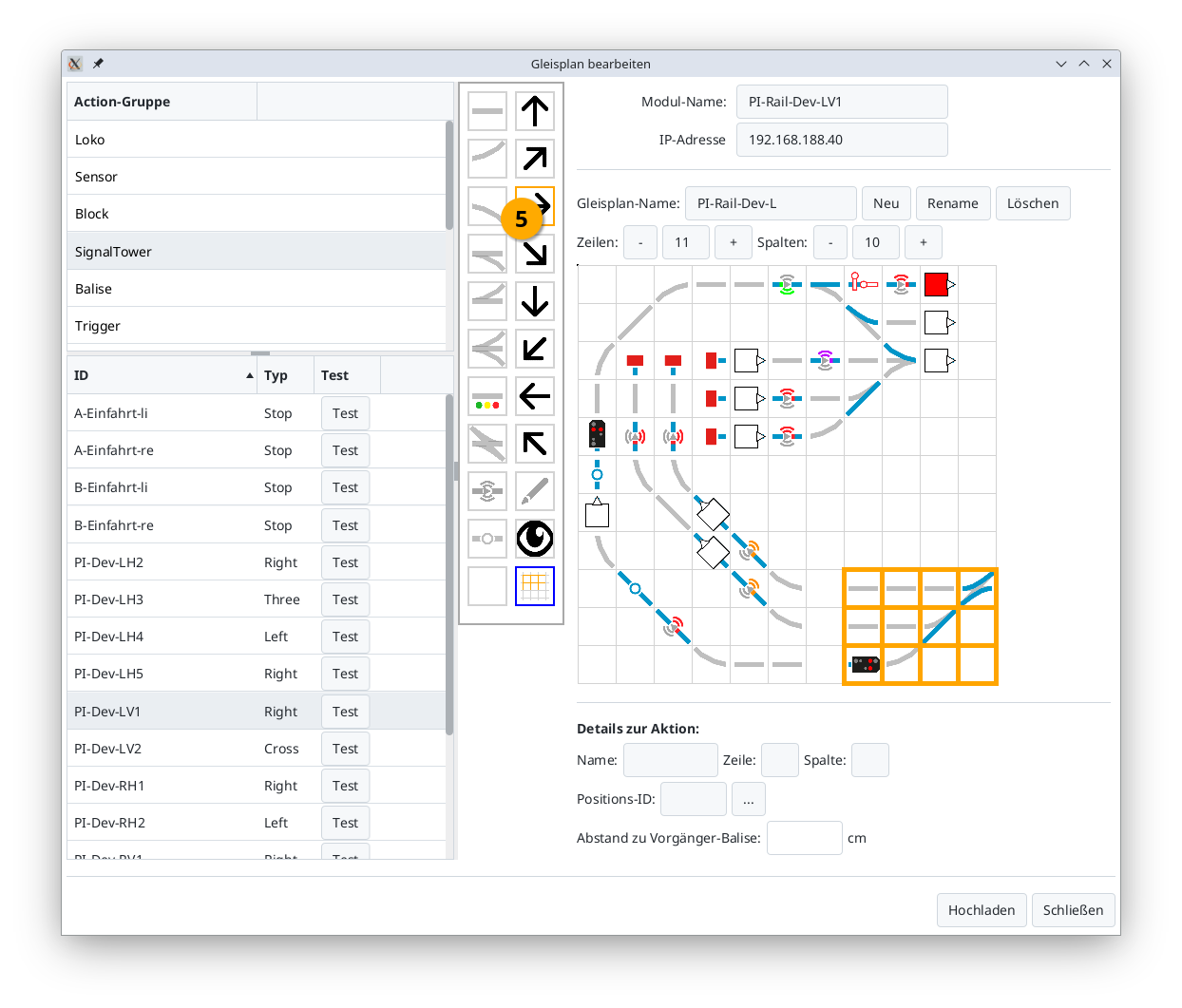
Notes:
- When moving, the assigned actions (turnouts, signals, beacons, blocks) are moved along with it.
- If you move into a non-empty area, the existing content of that area will be overwritten, i.e., track symbols and assignments will be replaced. Existing assignments may thus be lost.
Renaming a Track Plan (from CTC-App 4.39)
Use the "Rename" button to change the name of the track diagram.
Notes:
- The assignment of turnouts, signals, etc., is automatically adjusted.
- If the track plan is already displayed in a track section, it will not be adjusted. An error symbol will then appear in the track section.
Deleting a Track Plan (from CTC-App 4.39)
Use the "Delete" button to delete a track diagram including all assignments of turnouts, signals, etc.
Note:
- If the track plan is already displayed in a track section, it will not be adjusted. An error symbol will then appear in the track section.