





TODO pictures to be adjusted and replaced
This installation guide is suitable for WS2811
Connect signal to module
On the Multi IO Board, connect 15 volts power to Gl-A and Gl-B (polarity does not matter). On the VBB, connect the wire from the signal to which the diode is attached.
A five-core plug goes from the bottom of the board to a further distribution board. From this board, four cores go to the WS2811 board. TODO picture of the boards From the WS2811 board, the three ELD colors now go to the signal and are connected in the order green, yellow, red and then the diode.
TODO circuit diagram
Register module in WiFi
If the CTC-Multi IO Board 4 is not yet registered in the model railway WiFi, you must do this first. You can find the instructions in the user manual in Chapter 3.1 "Register modules in WiFi" .
Open configuration
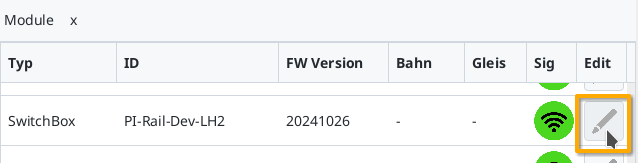
A registered CTC-Multi IO Board 4 can be found under its name in the module list in the CTC-App. There, click on the pencil icon to open the "switch cabinet configuration".
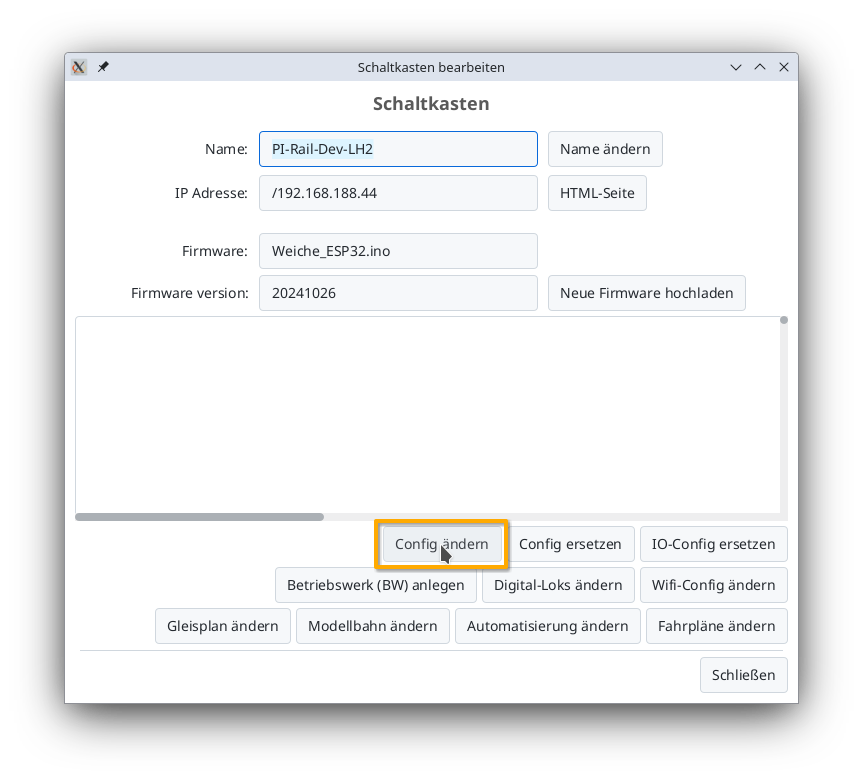
There, click on the "Change config" button:
Add product
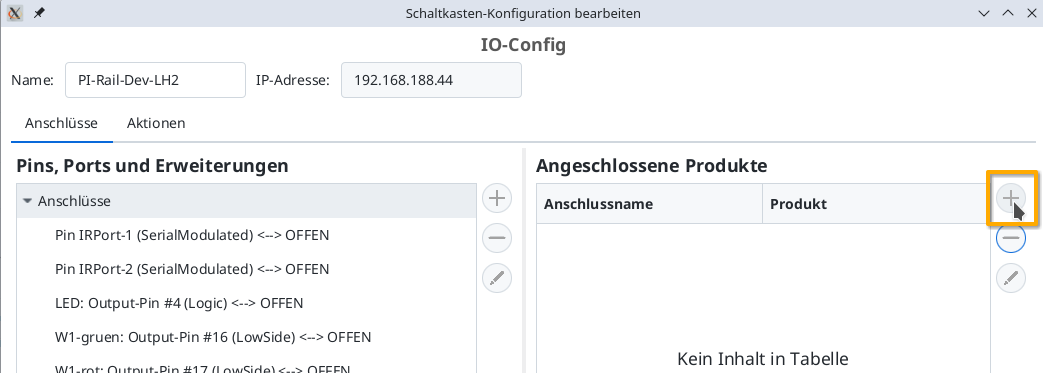
In the config dialog, click on the plus button to the right of "Connected products" to select what product you have connected:
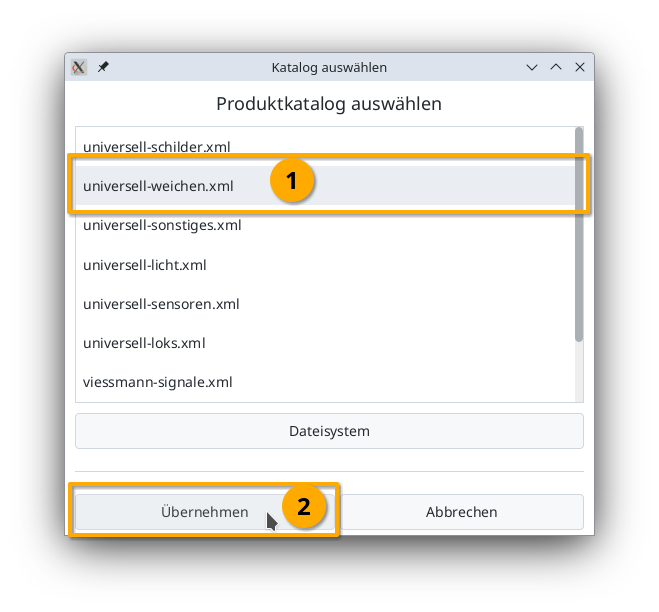
Select the product catalog "universal-signal" and then click "Apply":
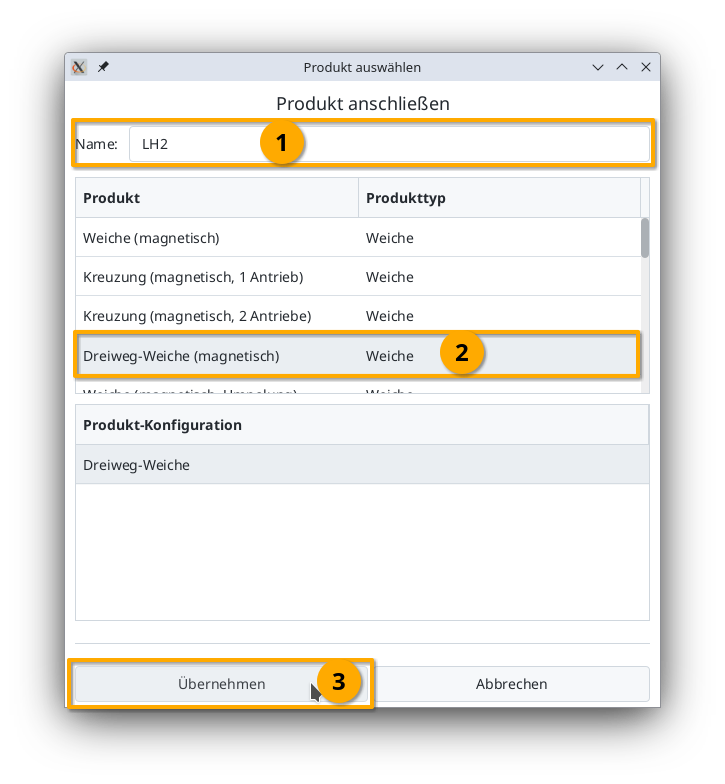
Give your signal a meaningful name and select the appropriate product and product configuration. Then click "Apply":
Connect product
Now you need to specify which connections of the CTC module the signal is connected to.
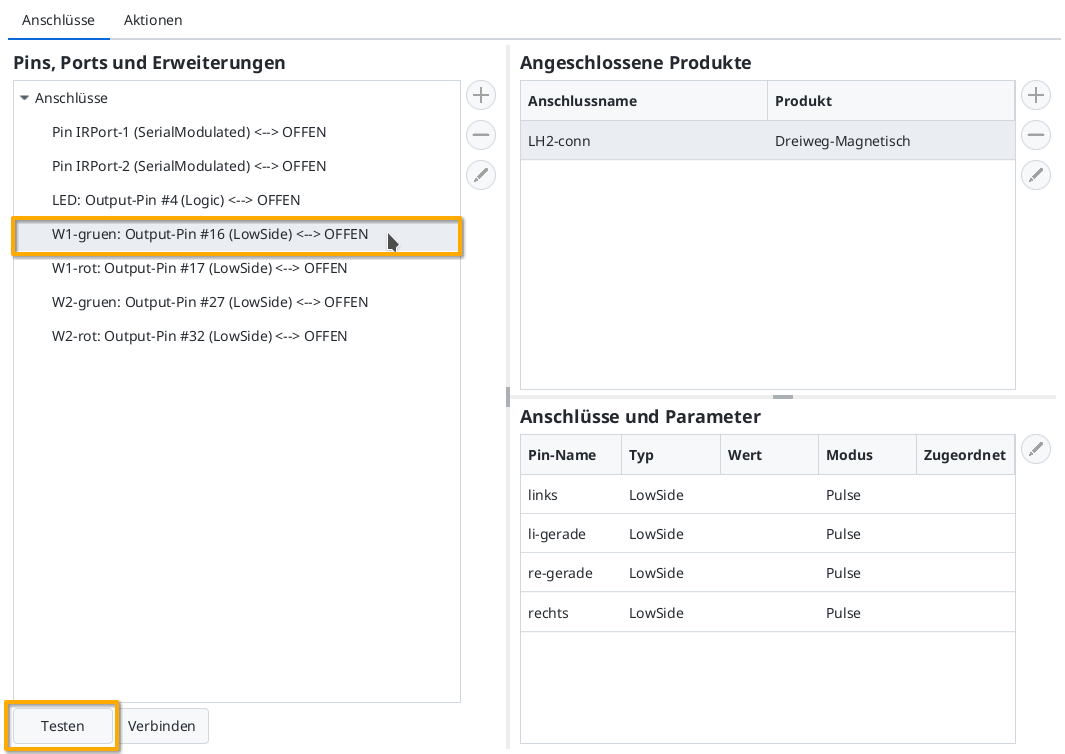
You can then check by clicking the "Test" button whether the signal switches and the colors are correct. In my example, the signal switches from red to yellow, then to red and yellow and finally off.
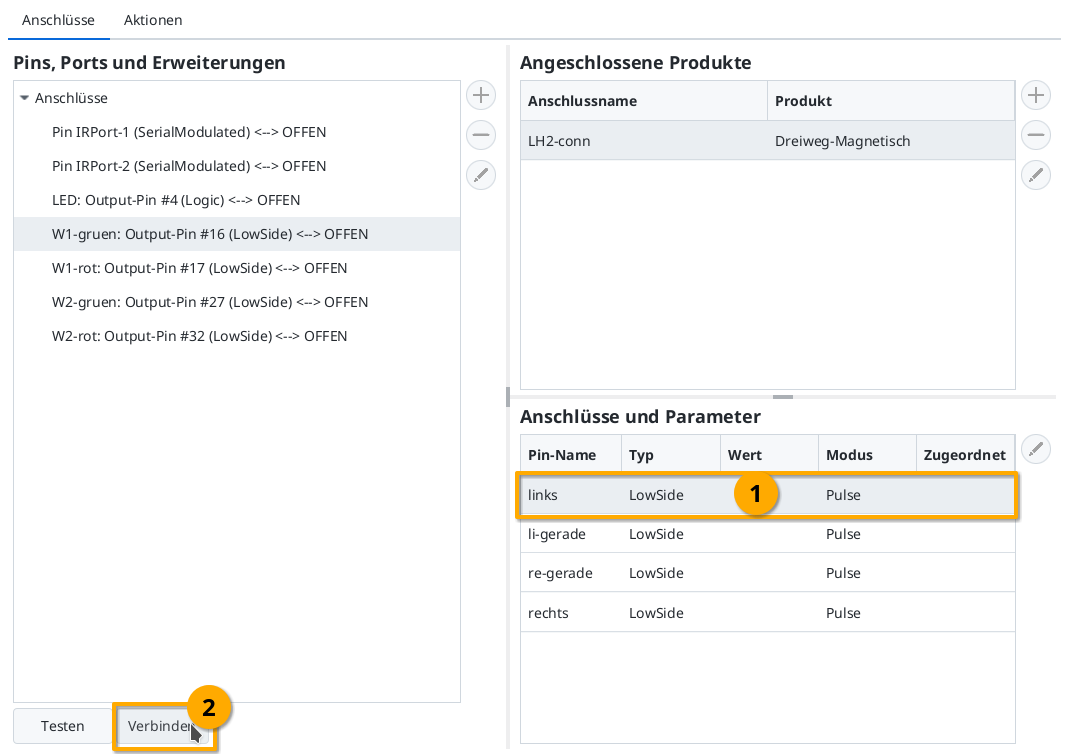
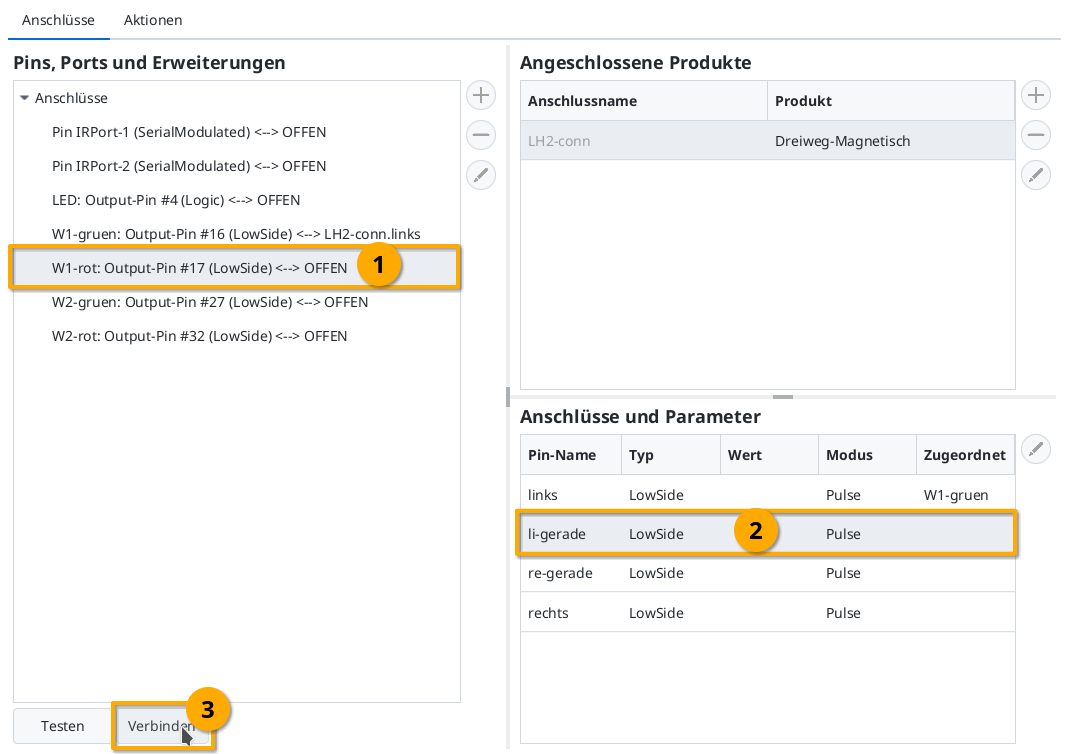
For the further signals in the row, proceed exactly as with the first one.
Upload configuration
Once all pins are connected, you can click the "Upload" button to save the changes to the config on the CTC-Turnout-Module:
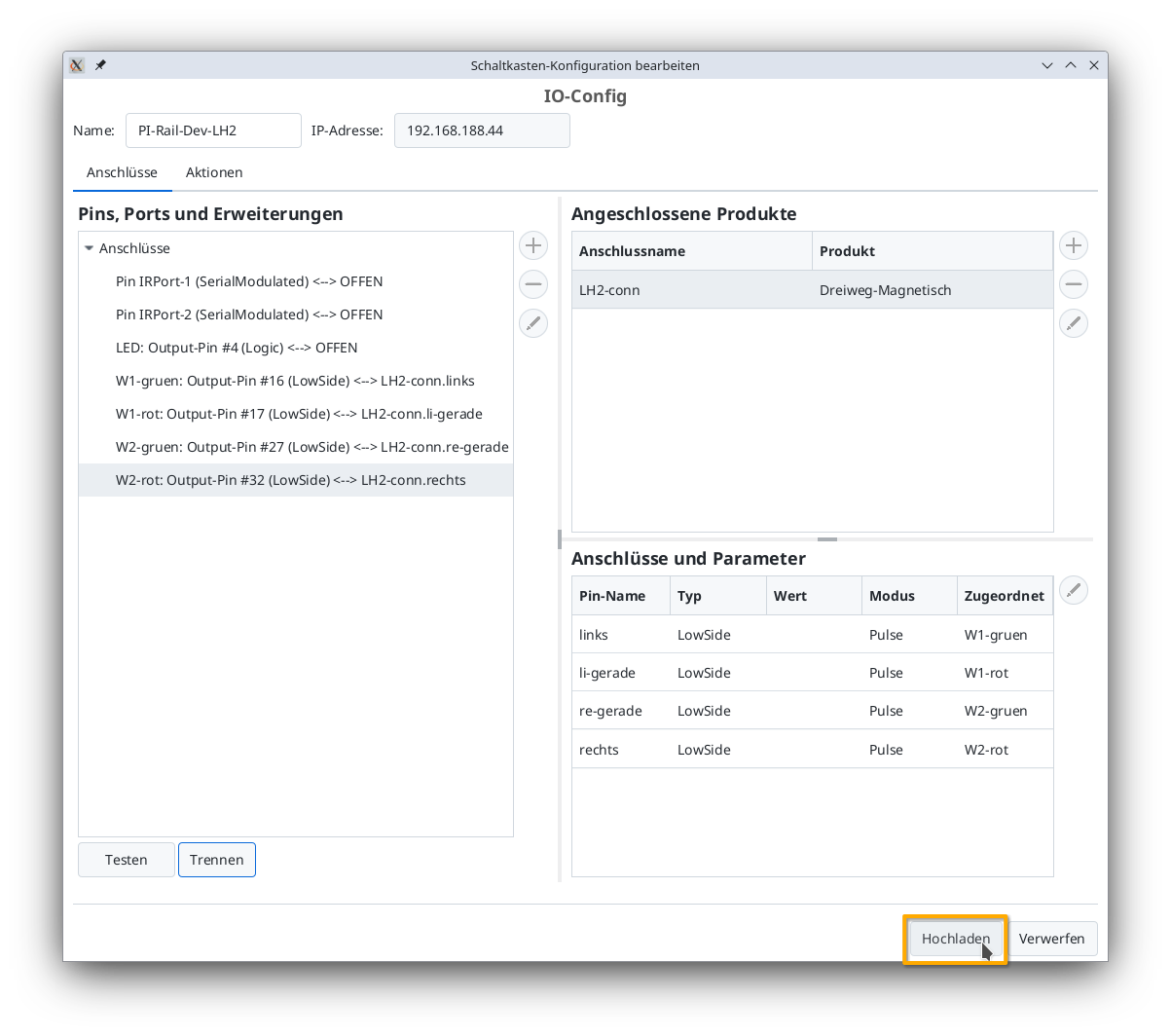
The CTC-Turnout-Module restarts.
Signal in the signal tower
After a few seconds, the newly configured signal appears in the signal tower: