





Driving
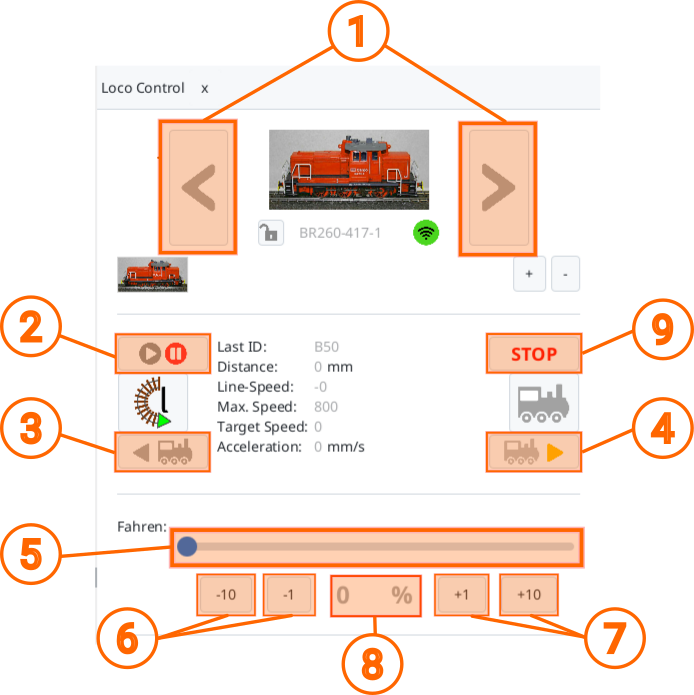
With the following buttons (controls) and displays you can control the displayed locomotive:
- With (1) you can switch between the available locomotives, i.e. select another locomotive.
- With (2) the locomotive is activated (blue) and paused again (red). When activating, the set driving direction (3)/(4) and speed (5) are set, i.e. if the slider (5) is set to a value greater than zero, the locomotive starts moving.
- With (4) you activate the forward driving direction, with (5) the reverse direction. In both cases, clicking the button also sets (2) to activated (blue). The set driving direction is indicated by the colored arrow in the button: yellow for forward, red for reverse.
- With (5) you set the speed. The set value is displayed below as a number (8).
- With (6) the speed is decreased step by step and with (7) it is increased.
The image and name of the locomotive can be changed via its configuration . Both are stored in the locomotive.
Additional Functions and Displays
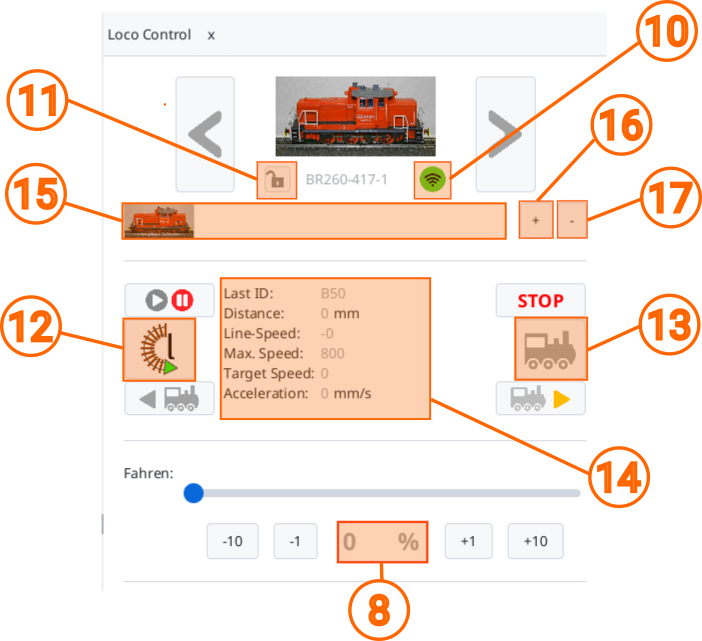
- The WiFi symbol (10) indicates whether the locomotive is currently reachable (green), has not reported back for more than 3 seconds (yellow) or more than 10 seconds (red). When the WiFi symbol is green, the signal strength is also displayed, see also Chapter 3 "WiFi" .
- To the left of the locomotive name, the status of the locomotive (11) is displayed; the individual symbols are described in Chapter 1.3 "Autopilot" .
- If your locomotive is equipped with an IR receiver, the orientation of the locomotive can be set with (12): r = clockwise, l = counterclockwise. This is important so that the locomotive only stops in front of a red signal if it is approaching it from the front. After passing two beacons of the same block, the locomotive sets its orientation automatically and the symbol on the button is adjusted accordingly.
- With (13) the automatic mode is switched on and off. An "A" on the button indicates the activated automatic mode. If a locomotive is forced to brake/stop by a beacon in front of a red signal, the automatic mode is activated automatically, which can then be seen from the symbol on the button.
- In the center (14) there are some additional status information about the locomotive, which will be discussed at the appropriate point in this documentation.