

Note: This article was updated on 05.02.2021 to match the new version 3 of CTC. Screenshots that only changed visually have been retained.
In this article, I will show you how to create a CTC model railway. We will cover everything that makes CTC special: from the CTC-Loco-Modules and CTC-Turnout-Modules to the infrared sensors and simple automation. The only thing we will neglect is the model landscape.
Planning and Parts List
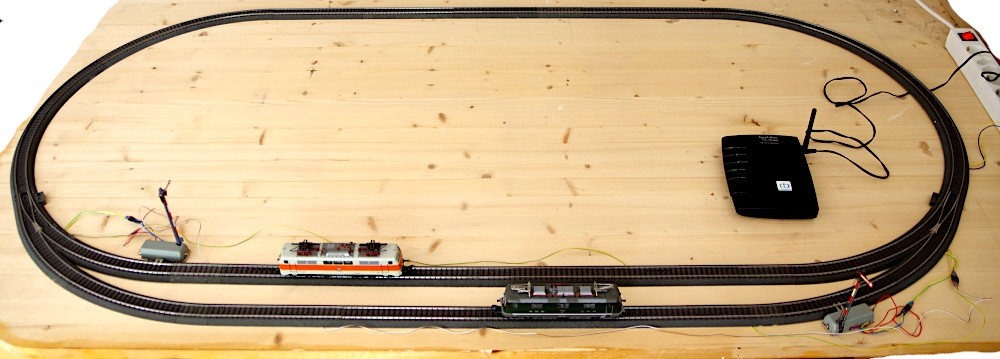
Our model railway will be a simple oval track with a passing siding. We are using Märklin C-tracks (gauge H0), because I am most familiar with them as an old Märklin enthusiast. However, there is nothing stopping you from building this demo layout on a two-rail system. Due to the size of the loco modules, anything smaller than TT gauge is not yet possible.
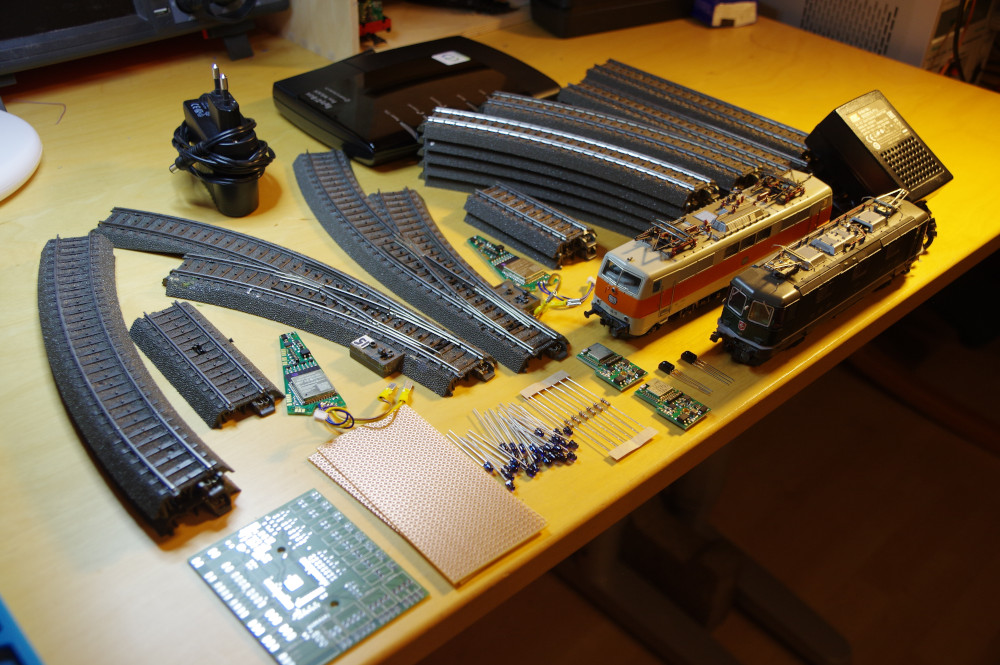
Note: In the photo, you can already see a few components that we will only need for the second part.
The following are required for the model railway itself:
- 10x curved track R1, 30°
- 2x curved track R2, 30°
- 12x straight track 188.3 mm
- 4x straight track 77.5 mm
- 1 pair of curved turnouts incl. electric drive
- 2x semaphore signals
- 2x locomotives
- 1x power supply with connection cable for C-track
And the following are needed to turn it into a CTC model railway:
- 1x CTC-Router
- 2x CTC-Turnout-Modules
- 2x CTC-Loco-Modules
- 4x CTC-IR-Balises : 20x IR LEDs, 4x 1 kOhm resistors, 2 stripboards 50 mm x 100 mm, cables, 6x 2-pin headers 2.54 mm
- Cables and connectors (2x 3-pin and 2x 4-pin headers 2.54 mm) for connecting the signals and CTC-IR-Balises to the CTC-Turnout-Modules
Preparation
Installing IR-Balises in the tracks
You can read how to install the IR-Balises in the tracks in the article CTC-IR-Balise .
Converting locomotives
Klaus Gungl has described the conversion of a Märklin E103 in detail here: Locomotive conversion
Adding to the CTC-Turnout-Modules
To connect our two signals and four of the six IR-Balises to our two CTC-Turnout-Modules, we need to solder a few cables to them:
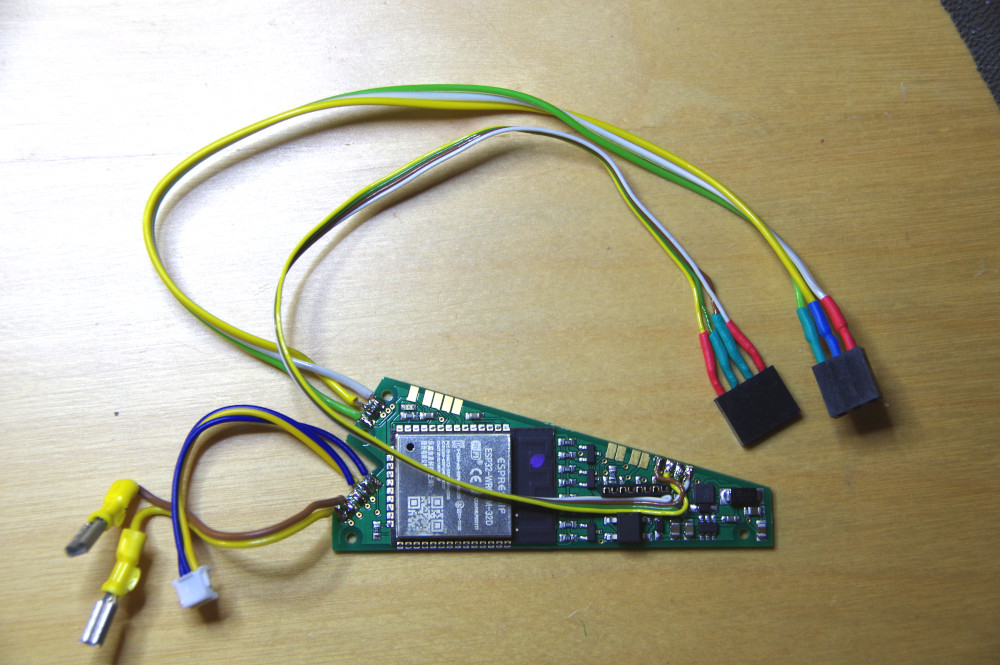
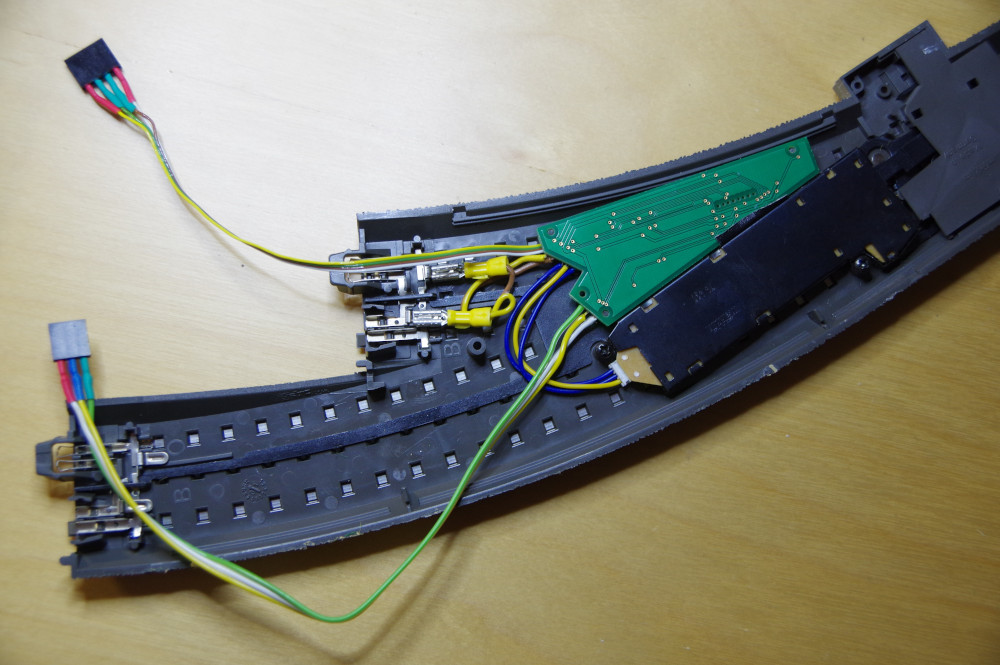
Afterwards, the CTC-Turnout-Modules are installed in the two curved turnouts:
Building the model railway
Building the model railway is quick:
- Plug in the power supply at any track.
- Assemble the tracks.
- Connect the two IR-Balises and the associated signal to the CTC-Turnout-Modules.
The front track is connected to the CTC module of the right turnout and the rear track to the CTC module of the left turnout.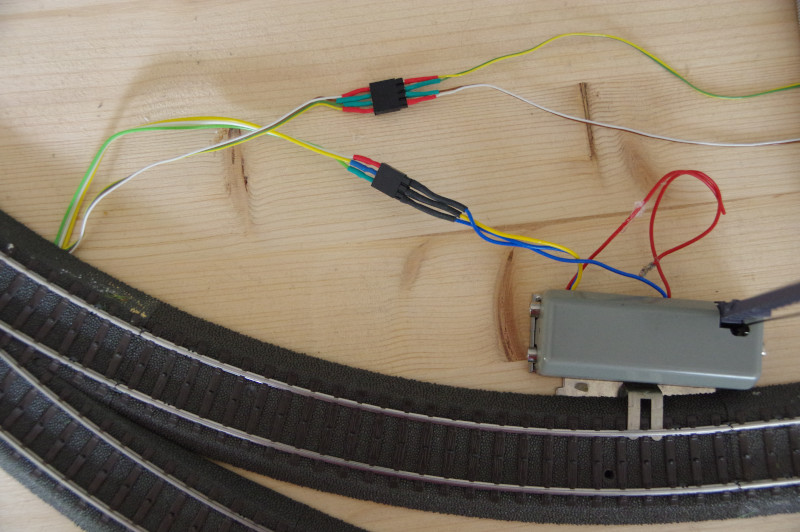
Configuring the model railway
Now plug in the CTC-Router and wait until its WiFi light is permanently on. Then plug in the model railway and open the app. After a few seconds, the app shows the locomotives and turnouts, but of course no track diagram yet:
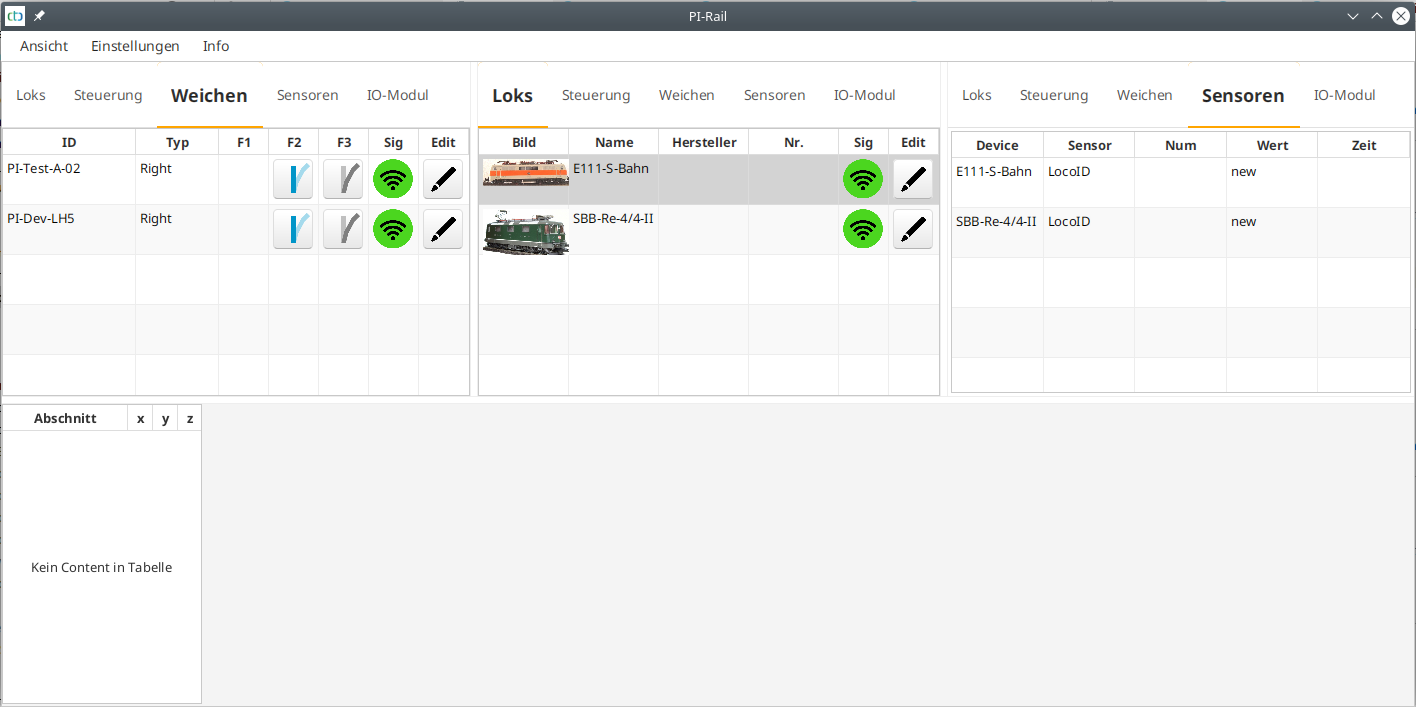
Note 1: Regarding the CTC modules, we assume that you provided the access data for your model railway WiFi when you purchased the modules. If not, you will not yet see any locomotives or turnouts and will need to register them with the CTC app in the model railway WiFi now. You can find out how to do this in the CTC-App documentation .
Note 2: Many of the following steps in the CTC app are described in detail in the CTC-App documentation .
Configuring the CTC-Turnout-Modules
In this step, we define that one turnout, one signal and two IR-Balises are connected to each CTC-Turnout-Module. All turnouts and signals are given a descriptive name.
The easiest way to find out which turnout is installed where is to switch it in the turnout view of the CTC app. Then click the pencil icon next to the turnout to configure it. First, we change the name of the CTC module:
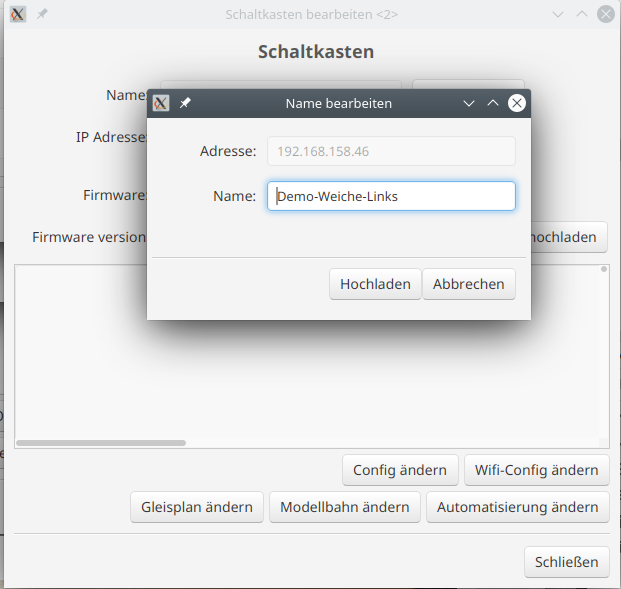
Then we go into the config:
There, we click the pencil icon next to the turnout and change its name.
Next, we assign the signals by selecting them from the product catalog "universell-signale.xml".
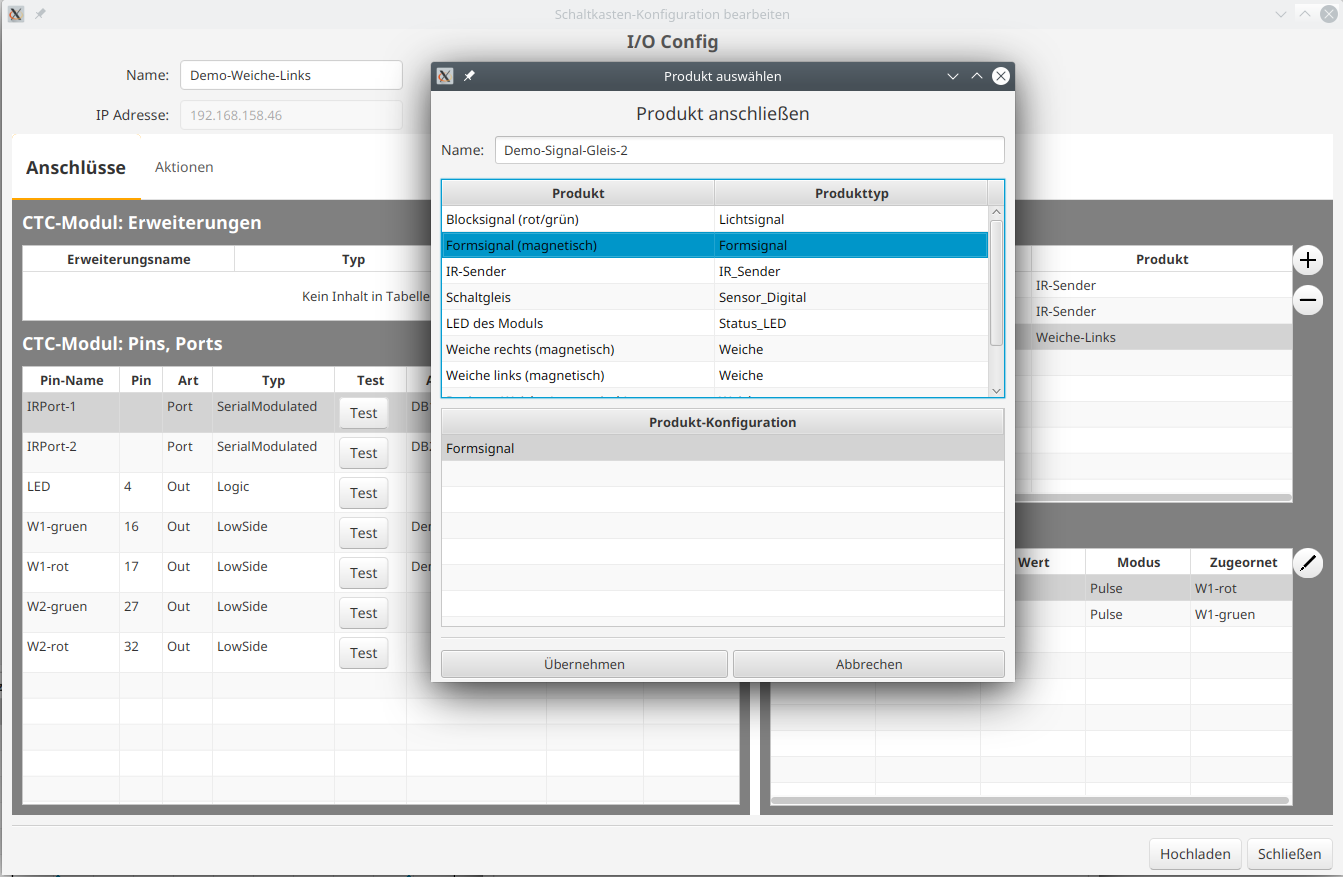
Then we specify which pins are connected to which signal terminals.
Now the CTC app shows the correct names for the turnouts and, most importantly, the signals.
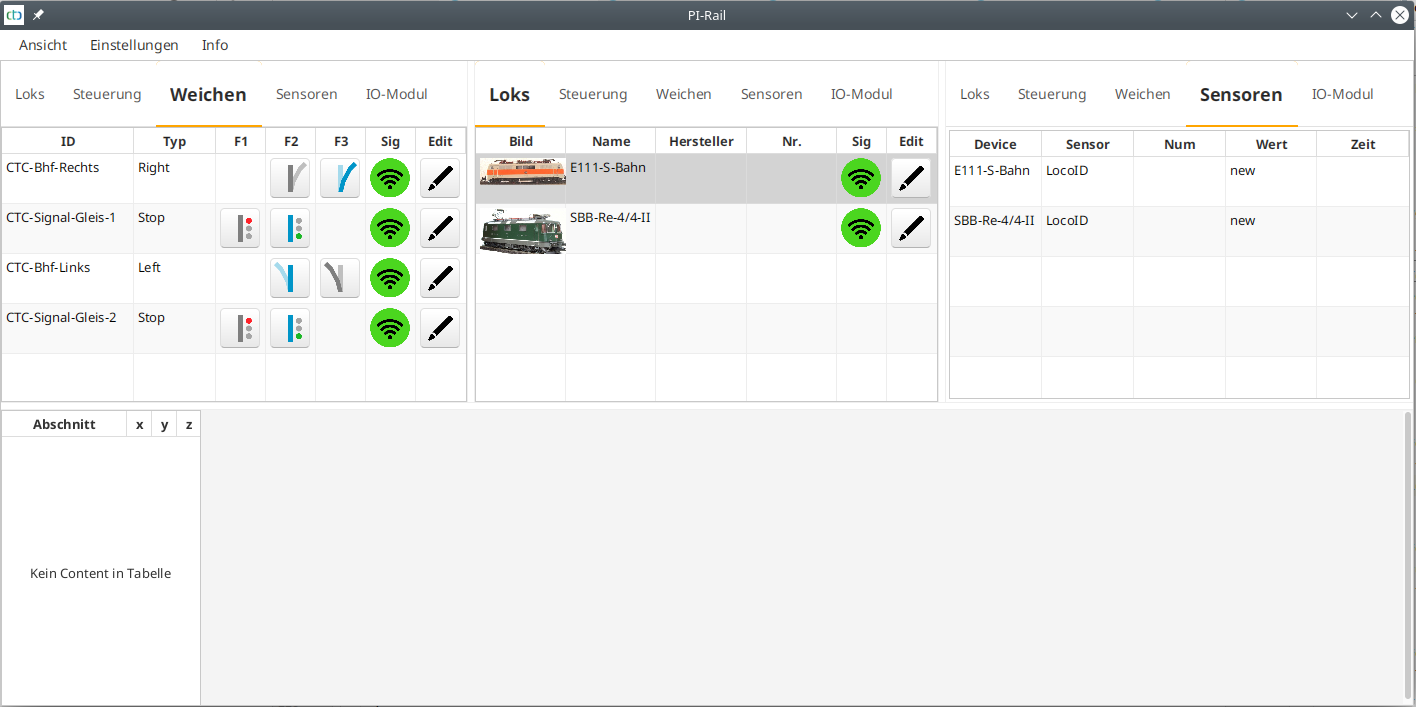
All that remains is to test whether the signals and turnouts switch in the correct direction. If not, then
- for the signals, we can simply rotate the connector by 180°.
- for the turnouts, we need to adjust the pin to be switched in the config.
The name of the IR-Balises consists of two characters for the track section and one more for the numbering clockwise. We also enter the distance in centimetres to the previous IR-Balise in the same track section for the IR-Balises.
Creating the track plan
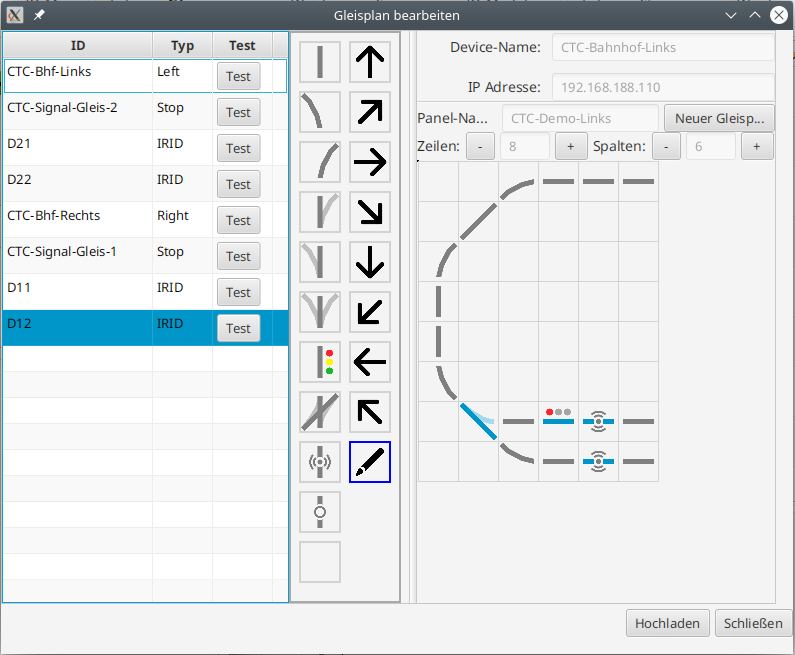
Since we want to make our model railway divisible in the middle, we create two track plans. These are saved in the left and right turnouts.
This is how a track plan is created: Open the configurator in the CTC app and select the CTC-Turnout-Module where the track diagram is to be saved. Click the "Config" button and then "Change track plan". Draw the track plan. Assign the turnouts, signals and IR-Balises. Upload the track plan to the module.
Creating the model railway
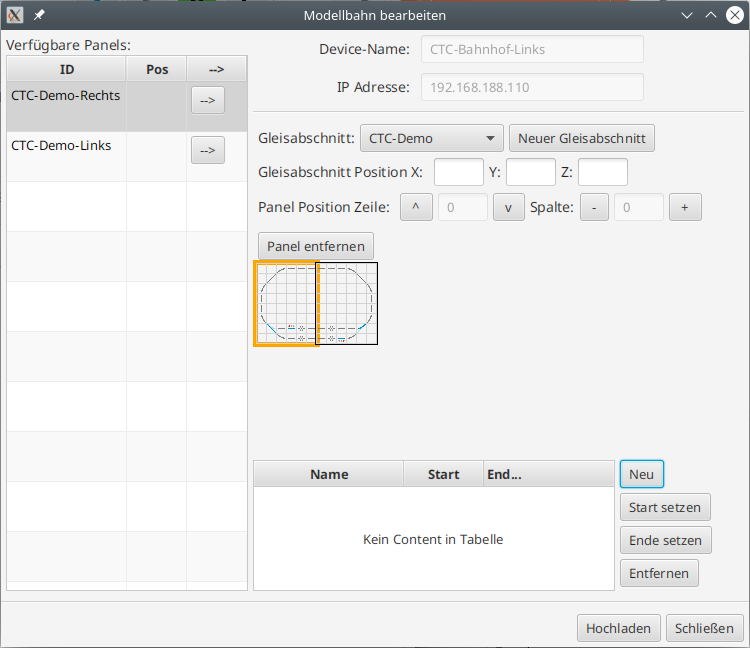
In this step, the two track plans are combined to form a model railway. Only then are they also displayed in the signal tower diagram.
First test run
After everything is configured, we restart the CTC app to make sure that everything we see actually comes from the CTC modules.
Now we can switch the turnouts and signals in the track diagram and control the locomotives.
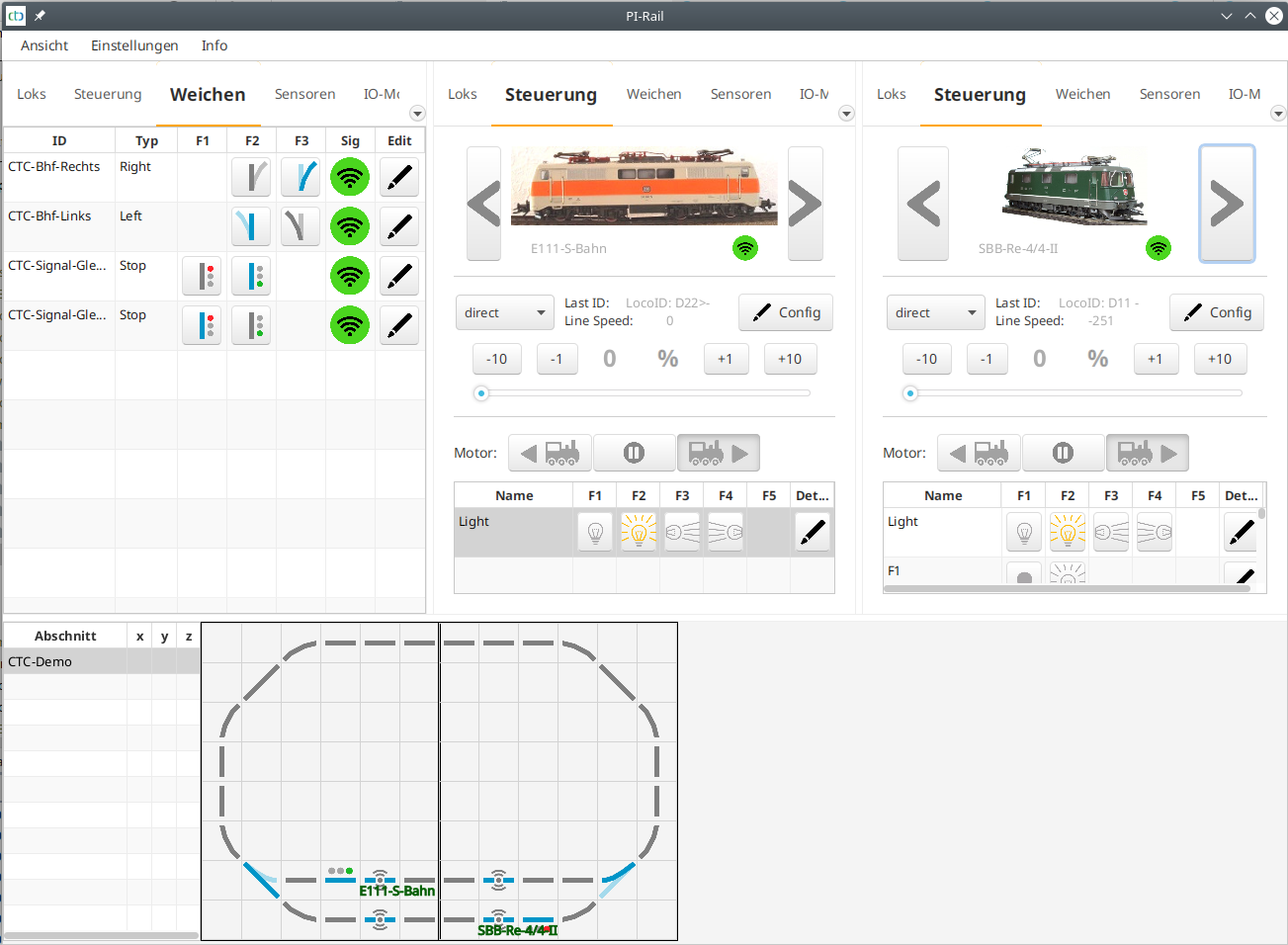
When a locomotive passes a sensor, it is displayed in the track diagram at the corresponding location. In addition, we see the name of the sensor crossed in the locomotive's panel. If the locomotive passes the second sensor of a track section, the speed of the locomotive between the two sensors is also displayed in cm/s.
Automatic operation
For automatic operation, we now only need to link the sensors with corresponding commands. You can find out how to do this in the article Automated driving